Sending large files via email can feel like trying to fit a square peg in a round hole. Most email providers impose strict size limits, and hitting that wall can be frustrating, especially when you're on a tight deadline. Whether you're sharing a presentation for work or sending photos to friends, figuring out how to make it happen matters more than you think.
Finding the right approach not only saves you time but also ensures you don't compromise on quality. The solutions out there can be a bit overwhelming. But with a little know-how, sending large files can become a seamless part of your routine.
If you’re interested in not just sending large files but doing so securely, you might want to check out how to send encrypted emails in Gmail. It’s an easy way to protect your information as you share it, adding an extra layer of safety to your communications.
Core Elements for Sending Large Files via Email
Sending large files through email can be a challenge due to attachment size limits set by most email providers. Here's an overview of the essential methods and considerations.
- Understand Size Limits: Different email services have varying attachment size caps—typically between 10 MB to 25 MB. Knowing these limits helps you find alternative methods if needed.
- Use Cloud Storage: Upload files to cloud services like Google Drive or Dropbox. These platforms provide links that can be shared instead of attaching files directly.
- Compress Files: Use file compression software (e.g., ZIP or RAR) to reduce file size before sending. This can sometimes bring files under the limit.
- File Transfer Services: Explore platforms specialized for sending large files, such as WeTransfer or SendAnywhere. These services cater specifically to this need and often offer user-friendly interfaces.
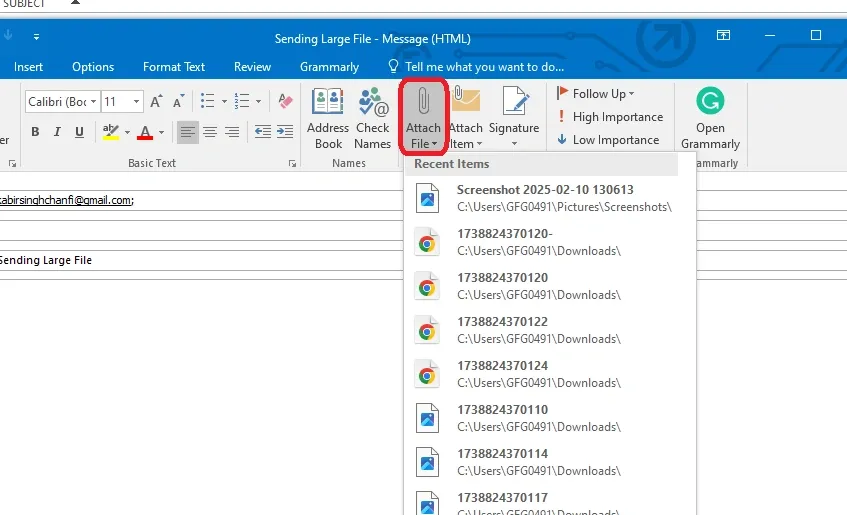
- Email Clients: Some email clients, like Outlook, allow integration with cloud services, enabling seamless attachments directly from storage platforms.
| Method | Description | Pros | Cons |
|---|---|---|---|
| Cloud Storage | Upload files and share links. | Easy access, collaboration features. | Requires internet access, may need an account. |
| File Compression | Reduce file size before sending. | Simple to use | Not all formats compress well. |
| File Transfer Services | Use dedicated websites to send files. | No account needed, often free. | Expiration on links, possible size limits. |
Security Considerations: When sending sensitive information, consider using encryption for additional protection. Check out this article on sending encrypted emails in Gmail for more information.
Additional Points: Always double-check the file type and ensure it's supported by the recipient's email client. Communicate with the recipient beforehand if you're using a method unfamiliar to them to avoid delays.
Real-World Examples of Sending Large Files Through Email
Integrating Cloud Storage Services
Using services like Google Drive or Dropbox, you can upload large files and share them via email. Instead of directly attaching the file, you provide a link, allowing the recipient to access or download it as needed.
Why this matters: Enhancing collaboration by minimizing attachment size limits allows seamless sharing of files without bogging down your email system.
Utilizing Compression Software
Employing file compression tools like WinRAR or 7-Zip reduces file size before attaching it to your email. This makes it easier to send multiple large files in one email.
Why this matters: Decreasing file sizes facilitates quicker uploads and downloads, improving the user experience during file transfers.
Splitting Files into Smaller Parts
Dividing large files into smaller segments and attaching each part in separate emails enables you to bypass email size restrictions while ensuring all parts reach the recipient.
Why this matters: Allowing the transfer of files that exceed standard size limits ensures that critical information is shared without loss.
Using File Transfer Services
Platforms like WeTransfer or SendAnywhere allow you to send large files easily. Simply upload your file to their site and share the link through email.
Why this matters: Simplifying file transfers reduces technical barriers, making it accessible for users unfamiliar with file management.
Implementing Email Client Features
Why this matters: Leveraging built-in functionalities streamlines the process, minimizing the steps required for sending large files efficiently.
Ensuring File Compatibility
Converting files to widely compatible formats—such as PDF for documents—before sending ensures that recipients can easily access the content regardless of software.
Why this matters: Addressing compatibility issues enhances communication by ensuring that the file can be opened without the need for additional software.
Securing Files with Encryption
Utilizing encryption tools such as password protection allows you to secure sensitive files before sending them through email, ensuring that only intended recipients can access the information.
Why this matters: Promoting data security protects sensitive information during transfer, which is crucial for maintaining privacy in communications.
Sending Large Files Through Email: Your Questions Answered
What are the size limitations for attachments in popular email services?
Most email services have specific limits for attachment sizes. For instance, Gmail allows attachments up to 25 MB, while Outlook has a limit of 34 MB. If you exceed these sizes, you’ll typically get an error message when trying to send.
What should I do if my file is too large to send via email?
When faced with large files, consider using cloud storage options like Google Drive or Dropbox. Upload your file and share the link; it’s a straightforward way to bypass email size constraints and keep everything organized.
Are there any file types I should avoid sending through email?
It's best to avoid sending executable files (.exe) and certain compressed files (.zip) due to security restrictions. Some email servers block these types to prevent malware; opt for standard formats like PDFs or image files instead.
How can I compress files before sending them?
You can use file compression software like WinRAR or 7-Zip to reduce file sizes. After compressing, your attachments will take up less space, making them easier to send through email.
Sending large files through email doesn’t have to be a headache anymore. Choosing the right method, whether it’s using cloud services or file compression tools, can save you time and prevent those frustrating bounce-back messages. Now that you know the options, go ahead and share those big files without the hassle. Your colleagues and friends will appreciate it too, so don’t hold back! If privacy is a concern, check out how to send encrypted emails in Gmail for extra security. You’ve got this!