Protecting your email content is more crucial than ever. Whether you're sharing sensitive information for work or personal matters, knowing how to send encrypted emails can safeguard your privacy and build trust with your recipients. 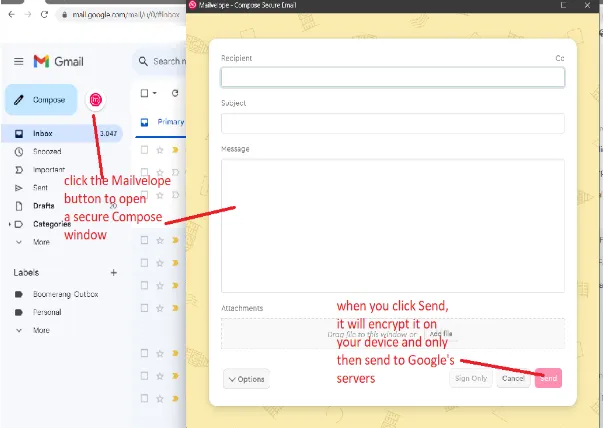
Using Gmail to send encrypted emails isn't as complicated as it sounds. It's about ensuring that your messages remain confidential, which should be a priority for everyone. With the rise of cyber threats and data breaches, taking simple steps to protect your communications can make a significant difference.
Many of us use email daily, often without considering the security implications. You're not just sending messages; you're sharing details that could range from financial information to personal conversations. That makes encryption not just a unique feature, but an essential tool for anyone concerned about their online security.
Ready to take charge of your email privacy? Understanding how to leverage Gmail's features will empower you to communicate securely.
Core Elements of Sending Encrypted Emails via Gmail
Sending encrypted emails ensures that your messages remain confidential and secure from unauthorized access. Here's how to do it using Gmail, broken down into essential components.
1. Understanding Encryption
Encryption is the process of converting information into a code, preventing unauthorized access. In email, it scrambles your message so that only the intended recipient can read it. Gmail supports encryption in different forms, mainly through Secure Sockets Layer (SSL) and end-to-end encryption tools.
2. Enabling SSL for Gmail
Gmail automatically uses SSL when you send emails, which encrypts your email during transmission. To verify it's enabled:
- Log into your Gmail account.
- Navigate to Settings > See all settings.
- Under the General tab, find Always use HTTPS and ensure it is checked.
3. Using Third-Party Encryption Tools
For higher levels of security, third-party tools can provide end-to-end encryption. Popular options include:
- PGP (Pretty Good Privacy) - Encrypts emails so that only the intended recipient with the correct key can read them.
- Mailvelope - A browser extension that integrates with Gmail, allowing you to use PGP encryption without extensive technical knowledge.
- Tutanota - An email service which automatically encrypts both emails and attachments without requiring additional setup.
| Encryption Tool | Description | Ease of Use |
|---|---|---|
| PGP | Advanced encryption method requiring key management. | Moderate |
| Mailvelope | Browser extension for PGP encryption. | Easy |
| Tutanota | Integrated email service with automatic encryption. | Very Easy |
4. Sending Encrypted Emails
Once you have chosen your encryption method, follow these steps:
- If using PGP, share your public key with your recipient so they can send you encrypted messages.
- Compose your email as you normally would, but ensure you use the encryption tool's options to encrypt the message.
- Send your encrypted email.
5. Communicating Securely with Recipients
Both sender and recipient must have compatible encryption tools. It is essential to have shared keys or installed similar tools to ensure effective encrypted communication.
6. Additional Security Practices
- Regularly update your passwords and use two-factor authentication for your Google account.
- Avoid public Wi-Fi when accessing sensitive emails.
By implementing these methods, your communications through Gmail can be much more secure, protecting your privacy in both personal and professional settings. For more on improving the quality of your emails, check out How To Write An Email C1 That Enhances Your Professionalism.
Real-World Examples of Sending Encrypted Email in Gmail
Utilizing Gmail Confidential Mode
Gmail's Confidential Mode allows users to send emails that expire after a set period, preventing unauthorized access. Senders can also require recipients to verify their identity via a text message.
Why this matters: Highlighting the importance of setting expiration dates helps secure sensitive information by ensuring it’s not permanently accessible.
Enabling Two-Factor Authentication
By activating two-factor authentication (2FA) for their Google account, users add an extra layer of protection for their emails. This requires a second form of identification beyond the password.
Why this matters: Providing a robust security protocol reduces the risk of unauthorized access significantly, which is crucial when handling sensitive communications.
Using PGP Email Encryption
Pretty Good Privacy (PGP) enables users to encrypt emails at a granular level. By using third-party tools or plugins, Gmail users can ensure their messages are encrypted end-to-end.
Why this matters: Stating that PGP encryption provides high-level security means that confidential messages remain unreadable to anyone who intercepts them.
Leveraging Secure Third-Party Extensions
Extensions like SecureGmail allow for seamless encryption of emails sent through Gmail. These tools often provide easy-to-use interfaces for managing encryption keys.
Why this matters: Asking users to consider third-party options opens the door to enhanced security features, ensuring privacy in email communications.
Encrypting Attachments Separate from Emails
When sending sensitive files via Gmail, users can encrypt attachments using software like 7-Zip or WinRAR before sending them. This prevents unauthorized access to the files, even if the email itself is compromised.
Why this matters: By keeping attachments secure, users can share important documents without risking exposure, making it vital in professional environments.
Integrating Google Vault for Archiving
Google Vault allows businesses to archive emails securely, ensuring compliance and safe storage of sensitive communications. This enables retrieval while maintaining entry controls.
Why this matters: Providing compliant options helps organizations manage sensitive data responsibly, emphasizing the importance of data governance.
Creating Custom Recovery Options
Setting up recovery options in Google accounts enhances security and prevents loss of access due to forgotten passwords or unauthorized changes. Users can select recovery emails or phone numbers for verification.
Why this matters: Stating that custom recovery enables users to regain control aids in maintaining continuous access to sensitive information, avoiding disruptions in communication.
Understanding Encrypted Email in Gmail
How can I send encrypted emails directly within Gmail?
To send encrypted emails in Gmail, you can use the built-in feature called "Confidential Mode." This allows you to set an expiration date, restrict forwarding, and require a passcode for access. However, it's worth noting that this mode doesn't provide end-to-end encryption; it’s more about helping control access.
What third-party tools can I use to fully encrypt my Gmail messages?
For full end-to-end encryption, consider using add-ons like FlowCrypt or Mailvelope. These tools use PGP encryption, ensuring that only you and the recipient can read the messages. You'll need to exchange public keys beforehand to set this up.
Is it safe to send sensitive information via Gmail?
While Gmail has robust security measures, sending sensitive information over email always carries risks. If you need to share confidential data, consider using encryption methods or secured platforms designed specifically for such purposes.
Can I encrypt attachments in Gmail?
Yes, you can encrypt attachments by using third-party services or by compressing them into a password-protected zip file. Make sure to share the password securely, as the attachment's encryption won't protect it if the password is shared insecurely.
Sending encrypted emails in Gmail doesn’t have to be a daunting task. Prioritizing your privacy and security can be as simple as using built-in features or third-party tools that add an additional layer of protection. With just a few steps, you can ensure that your sensitive information stays private, giving you peace of mind as you communicate. So, why not take a moment today to secure your emails? Your private conversations deserve that extra safeguard, and taking this small step can make a big difference. Happy emailing!