
Email security isn’t just a tech buzzword—it's a necessity. With the rise of cyber threats, keeping your private conversations confidential is more important than ever. Encrypting your emails in Outlook can seem daunting, but it’s a straightforward process that empowers you to protect sensitive information from prying eyes.
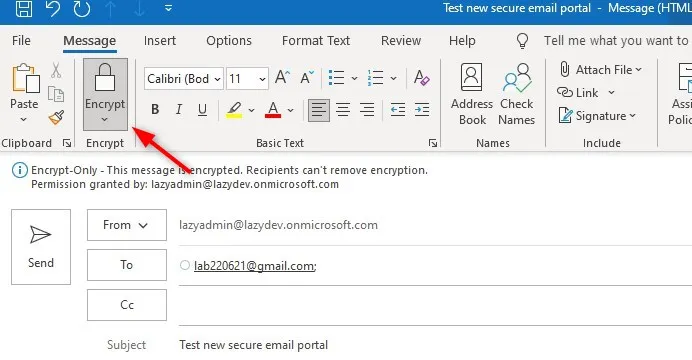
Imagine sending an email that only your intended recipient can read. That sense of security can alleviate worries about data breaches or unauthorized access. Whether you're sharing important business data or personal information, knowing how to encrypt your emails adds that extra layer of safety.
Before we get into the nitty-gritty, let’s acknowledge that every second counts. While encryption might sound technical, I’ll lay it out in simple steps to ensure you can secure your emails without a hitch. Ready to take control of your email security? Let's get started.
Essential Components for Email Encryption in Outlook
Encrypting email in Outlook is an important way to protect sensitive information. Understanding the core elements involved can streamline the process and make communication more secure.
Core Concepts of Email Encryption
- Encryption Types: Outlook provides two main encryption options – S/MIME and Office 365 Message Encryption. S/MIME uses digital certificates, while Office 365 Message Encryption relies on Microsoft’s cloud security.
- Digital Certificates: For S/MIME encryption, users need a digital certificate issued by a trusted certificate authority (CA). This certificate secures and authenticates the sender’s identity.
- Recipient Requirements: Both parties must have compatible encryption methods. For S/MIME, the recipient must also have a digital certificate, while Office 365 Message Encryption works with any email address, but requires the recipient to read messages through a secure portal.
Step-by-Step Process for S/MIME Encryption
If using S/MIME, follow these steps:
| Step | Action |
|---|---|
| 1 | Acquire a digital certificate from a trusted CA. |
| 2 | Install the certificate in the Windows Certificate Store. |
| 3 | Open Outlook and go to File > Options > Trust Center > Trust Center Settings > Email Security. |
| 4 | Under Encrypted Email, select Get a Digital ID to acquire a certificate, or select your installed certificate. |
| 5 | Compose a new email and select the Encrypt button before sending. |
Step-by-Step Process for Office 365 Message Encryption
For those using Office 365, these steps are essential:
| Step | Action |
|---|---|
| 1 | Ensure you have Office 365 subscription that includes message encryption. |
| 2 | Open Outlook and compose a new email. |
| 3 | Select the Options tab and click Encrypt to apply encryption settings. |
| 4 | Send the email. The recipient will receive instructions on how to access the encrypted message. |
Common Benefits and Considerations
- Data Security: Encryption keeps sensitive information private, reducing the risks of data breaches.
- Compliance: Many industries require encryption to comply with regulations protecting sensitive data.
- Interoperability: S/MIME only works with recipients who have the necessary certificates. Office 365 might be more adaptable.
Real-World Applications of Email Encryption in Outlook
Encrypting Emails with S/MIME
Using S/MIME (Secure/Multipurpose Internet Mail Extensions), Outlook allows users to encrypt emails with digital certificates. This ensures that only the intended recipient, who has the corresponding private key, can decrypt and read the email content.
Why this matters: Stating that encryption protects sensitive information enhances trust in electronic communications, particularly for businesses managing confidential data.
Utilizing Office 365 Message Encryption
For Office 365 users, integrating Office 365 Message Encryption allows sending encrypted emails to anyone, regardless of their email service provider. Recipients can view the encrypted message via a secure web portal.
Why this matters: Highlighting the flexibility of this feature supports efficient communication with external partners while maintaining security measures.
Setting Permissions for Encrypted Emails
Outlook also enables users to set permissions on encrypted emails, allowing senders to restrict actions such as forwarding, printing, or copying content. This helps in controlling how information is handled after being sent.
Why this matters: Providing strict control over email usage fosters a more secure environment for sensitive data, reducing the risk of accidental leaks.
Using Encryption for Email Attachments
When sending attachments, users can encrypt them separately even if the email is not encrypted. This ensures the attachment’s confidentiality independently from the email message.
Why this matters: Asking how encryption extends to attachments underscores the importance of safeguarding all parts of an email communication, ensuring comprehensive data protection.
Automatic Encryption Rules
Outlook allows administrators to set rules that automatically encrypt emails containing specific keywords or sensitive information, ensuring that compliance standards are met without manual intervention.
Why this matters: By automating encryption, organizations reduce the chances of human error, thus enhancing overall email security protocols.
Integrating Compliance with Email Encryption
Many organizations implement email encryption as part of broader compliance frameworks, ensuring that sensitive information adheres to regulations like GDPR or HIPAA. Outlook supports these integrations seamlessly.
Why this matters: Highlighting compliance adherence strengthens company reputation and reduces the risk of legal penalties associated with data breaches.
User Training for Secure Email Practices
Providing training to users on how to effectively use Outlook's encryption features ensures they understand the importance and methods of securing sensitive emails. This includes recognizing phishing attempts that could compromise email security.
Why this matters: By educating users, organizations promote a culture of security awareness, thereby minimizing vulnerabilities associated with human factors in cybersecurity.
Email Encryption in Outlook: Your Questions Answered
What encryption options are available in Outlook?
Outlook provides two main encryption options: S/MIME and Office 365 Message Encryption. S/MIME requires a digital certificate, while Office 365 allows you to set permissions for encrypted messages easily, making it more user-friendly for those without advanced tech skills.
How do I set up encryption for my email in Outlook?
To set up encryption, first, you'll need to enable it in your settings. For S/MIME, obtain a certificate and install it. For Office 365, simply go to the message options in the email composer to select "Encrypt." Make sure to save your settings to apply encryption automatically in the future.
Can I encrypt emails sent to non-Outlook users?
Yes, you can. While S/MIME requires the recipient to have a compatible setup, Office 365 allows you to send encrypted emails to any email service provider. The recipient will receive a link to access the encrypted message securely, ensuring your information remains protected.
What should I do if my encrypted email doesn’t reach the recipient?
If your encrypted email doesn’t go through, check if the recipient is configured to receive encrypted messages or troubleshoot any possible network issues. It’s also worth verifying the recipient’s email address and double-checking your encryption settings.
Encrypting your emails in Outlook might seem a bit daunting at first, but once you get the hang of it, it can become a seamless part of your routine. Protecting your sensitive information doesn’t have to be complicated—just follow the steps outlined, and you’ll be sending secure emails in no time. So why not give it a shot? Your privacy is worth the effort, and a few simple clicks can make all the difference in keeping your conversations safe. Go ahead, send that encrypted email and enjoy the peace of mind that comes with it!




