Sending shipment tracking emails automatically in WooCommerce isn't just a nicety—it's essential for keeping your customers informed and happy. In a world where online shopping is the norm, timely updates can enhance customer satisfaction and loyalty, making it a critical process for any eCommerce business.
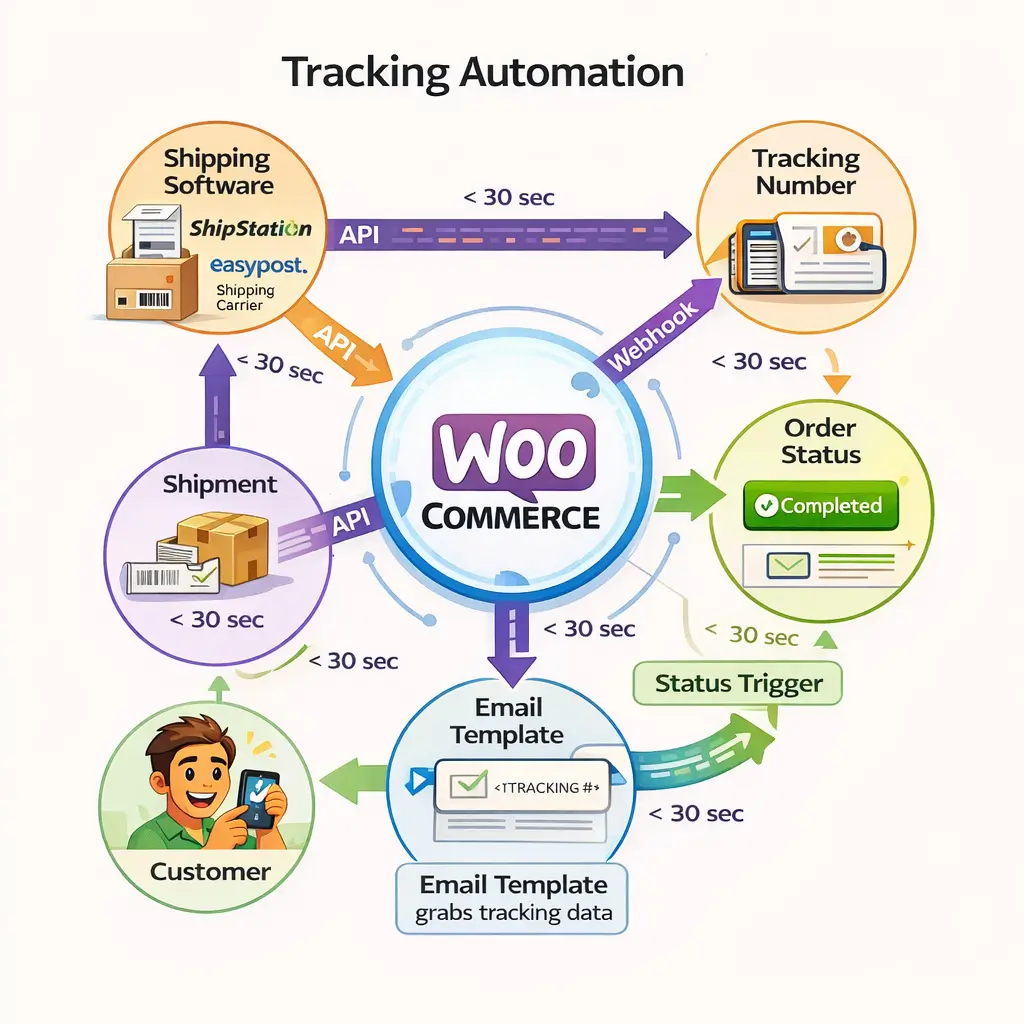
Imagine your customer's excitement as they place an order, only to experience uncertainty about when it will arrive. Providing tracking information removes that ambiguity, allowing your buyers to anticipate their package with confidence.
This simple yet effective communication builds trust and can set your business apart from the competition. Plus, automating this process saves you time, reducing the manual work involved in sending out notifications.
Essential Components for Automated Shipment Tracking Emails in WooCommerce
Automating shipment tracking emails in WooCommerce improves customer communication and elevates the shopping experience. Understanding how to set this up involves several core elements and processes.
-
WooCommerce Settings:
First, ensure your WooCommerce settings are configured correctly. Go to WooCommerce > Settings > Emails. Here, you can manage all email notifications, including shipment tracking emails.
-
Shipping Methods Integration:
Integrate with popular shipping providers. Plugins like WooCommerce Shipment Tracking or others allow you to link your store with major carriers, enabling automatic updates.
-
Template Customization:
Personalize your email templates. You can edit the subject, headings, and body text to align with your brand’s voice. Offering clear information, like the expected delivery date and a direct tracking link, helps customers.
-
Automation Plugin:
Consider using an automation plugin alongside WooCommerce. Options such as AutomateWoo make sending delivery notifications easier, often with conditions to tailor messages based on user behavior.
-
Testing:
Always test your setup. Make a dummy order, run through the process, and ensure emails are being sent as intended. Check for links that work and content clarity.
| Component | Description | Benefits |
|---|---|---|
| WooCommerce Settings | Configure email notifications and settings. | Streamlined communication process. |
| Shipping Methods Integration | Connect with carriers for real-time tracking. | Automatic updates improve customer experience. |
| Template Customization | Modify email content to match your brand. | Enhanced brand presence and clarity. |
| Automation Plugin | Use a third-party plugin for more features. | Ability to tailor messages based on conditions. |
| Testing | Ensure everything works as planned. | Identifies issues before customers notice. |
Automating shipment tracking emails enhances your customer service by keeping buyers informed throughout their order journey. Maintaining transparency with updates is vital for positive customer relationships. For professionals looking for tone and content clarity, consult resources like How To Express Anger In An Email With Professionalism And Clarity.
Automating Shipment Tracking Emails in WooCommerce
Configuring Automated Tracking Emails
Setting up WooCommerce to automatically send shipment tracking emails can be done through the WooCommerce settings. Navigate to the "Email" tab, enable the tracking emails, and customize the template to include dynamic tracking information.
Why this matters: Stating the importance of configuration, this ensures that customers receive timely updates, fostering trust and reducing inquiries about order status.
Integrating with Shipping Providers
Many shipping providers, like UPS or FedEx, offer plugins for WooCommerce that automatically generate tracking numbers. Once the order is marked as shipped, the plugin sends an email with the tracking link directly to the customer.
Why this matters: Highlighting the integration with providers allows businesses to streamline processes and minimize manual entry, saving time and reducing errors.
Customizing Email Content
WooCommerce allows for extensive customization of email content. You can include personalized messages or promotional offers in the tracking email, enhancing the customer experience and encouraging repeat business.
Why this matters: By keeping a personal touch in communications, you enhance customer loyalty and increase the likelihood of future purchases, which is vital for retention.
Using Third-party Plugins
Many third-party plugins like "WooCommerce Shipment Tracking" offer robust features for managing shipment notifications. These plugins provide advanced tracking capabilities, allowing you to automate notifications based on shipping status.
Why this matters: Providing flexible options through plugins allows businesses to choose functionalities that best fit their operations without significant changes to their existing setup.
Segmenting Email Notifications
Segmenting your email notifications based on customer preferences can enhance engagement. Send targeted tracking emails to different user groups based on factors like order size or frequency of purchases.
Why this matters: Asking customers for preferences and acting on them helps tailor the experience, leading to higher satisfaction and retention rates.
Monitoring Email Analytics
Utilizing tools that track metrics such as open rates and click rates can help refine your email strategies. This data will indicate what resonates with customers and what needs improvement.
Why this matters: Providing analytical insights allows businesses to adapt their communication styles, making updates that could lead to better performance and customer interaction.
Ensuring Mobile Optimization
Ensuring that shipment tracking emails are mobile-friendly is crucial. Many customers check their emails on mobile devices, so utilizing responsive email design keeps content readable and visually appealing.
Why this matters: By keeping emails accessible, businesses enhance the customer experience, ensuring important updates are received promptly and attractively.
Understanding Automated Shipment Tracking Emails in WooCommerce
What plugins can I use to automate shipment tracking emails in WooCommerce?
There are several plugins specifically designed for this purpose. Popular choices include "WooCommerce Shipment Tracking," "AfterShip," and "WooCommerce Order Tracking." These plugins streamline the process by automatically sending emails with tracking information as soon as shipments are processed.
Can I customize the content of the tracking emails sent through WooCommerce?
Yes, most plugins allow for customization. You can typically edit email templates to include specific texts, branding, or links. This ensures that the emails match your store's tone and style while providing all necessary tracking details.
How do I ensure tracking emails are sent to the right customers?
To ensure accuracy, it's crucial to set up your WooCommerce settings correctly. The email addresses linked to the orders must be valid and correctly input during checkout. Additionally, test purchases can help verify that the tracking emails are sent as expected.
What if my tracking emails are going to spam?
This is a common issue, and there are a few ways to tackle it. First, check your email settings and consider using an SMTP plugin for enhanced deliverability. It's also important to encourage customers to add your email address to their safe sender list to mitigate this problem.
Getting your shipment tracking emails automated in WooCommerce can make a world of difference for both you and your customers. Not only does it keep everyone informed and on the same page, but it also saves you time to focus on other aspects of your business. Plus, there’s nothing like the peace of mind that comes from knowing your customers are feeling cared for and informed throughout their buying experience. So, go ahead and get those emails set up—your future self will thank you, and your customers will appreciate the smooth communication!