
Getting your text messages sent directly to your email can save you time and help you stay organized. Imagine having all your important communications in one place, easily accessible whenever you need them. 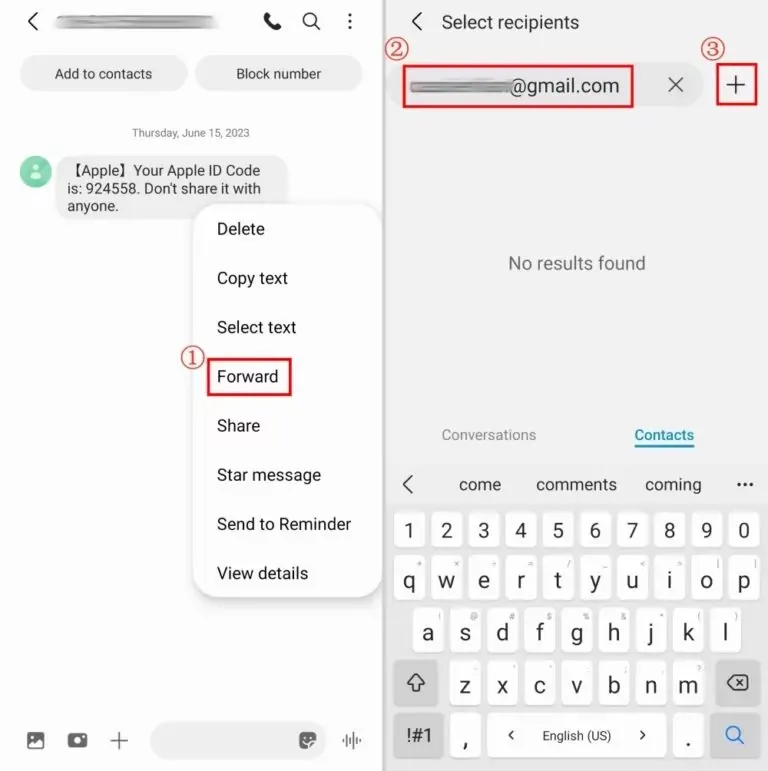 It’s especially handy when you don’t have your phone on you or want to keep a record of conversations without sifting through your phone’s messaging app.
Whether you're juggling work and personal messages or just want to archive important texts, knowing how to forward them to your email can streamline your daily routine. Plus, it provides easy access for searching and referencing past conversations when needed.
This process is simpler than you think, and you don’t need to be a tech whiz to set it up. With just a few steps, you can bridge the gap between texting and emailing, ensuring that you never miss critical information again.
If you’re curious about managing communications in other ways, you might want to check out how to forward emails in Gmail for seamless inbox management.
Core Elements of Forwarding Text Messages to Email
Forwarding text messages to an email account can streamline communication, especially for those who prefer managing messages in their inbox. Here's an overview of how to do it effectively.
Methods for Forwarding Text Messages
There are several ways to forward text messages to email, depending on your device and service provider.
- Using Native Features: Many smartphones come with built-in options to share messages. For instance, on iPhones, you can select the message, tap the share icon, and choose email.
- Carrier Services: Some mobile carriers offer forwarding services. Check with your provider for options that might be available.
- Third-Party Apps: Various applications facilitate this function. Look for apps in your device’s app store designed for SMS and email integration, such as SMS Forwarder.
Setting Up Forwarding on Android
To forward messages from an Android device, follow these steps:
- Open the messaging app and select the conversation.
- Press and hold the specific message you wish to forward.
- Choose the option to share or forward, and select your email app to send it directly to an email address.
Setting Up Forwarding on iPhone
iPhone users have a straightforward process:
- Go to the Messages app and select the text message.
- Tap and hold the message until options appear.
- Choose "More," select the message, and tap the share icon to send it via email.
Advantages and Disadvantages
| Pros | Cons |
|---|---|
| Centralizes communication in one location. | Some methods may not retain formatting or images. |
| Access messages from any device with email capability. | Potential delays in message forwarding depending on the method. |
| Convenient for archiving important messages. | May require third-party app permissions that raise privacy concerns. |
Considerations for Privacy
When forwarding messages, be aware of privacy implications. Ensure the messages do not contain sensitive information unless you trust the email provider's security measures.
For more information on enhancing your communication, check out this article on forwarding emails.
Real-World Examples of Forwarding Text Messages to Email
Enhancing Business Communication
Companies can forward crucial team updates via text to a dedicated email address, ensuring all employees receive the same information simultaneously, regardless of their location.
Why this matters: Highlighting the efficiency of keeping all team members informed improves overall productivity and reduces the chances of miscommunication.
Organizing Personal Reminders
Individuals can set up their smartphones to forward SMS reminders about important tasks or appointments to their email. This allows for better organization and archiving of personal schedules.
Why this matters: Stating the importance of having a centralized location for reminders helps users manage their time and commitments more effectively.
Facilitating Customer Support
Businesses can forward customer inquiries received via text directly to their support email, allowing for timely responses and better customer service management.
Why this matters: Providing seamless communication channels between customers and support teams enhances customer satisfaction and retention.
Automating Notifications for Transactions
Online retailers can set up text notifications for transactions to be forwarded to email, keeping customers informed of their purchases and shipment statuses.
Why this matters: By keeping customers updated on their transactions, retailers boost transparency and trust, which can lead to repeat business.
Monitoring Security Alerts
Users can forward text alerts from security systems, such as motion detectors, to their email for instant notifications, enabling quicker responses to potential threats.
Why this matters: Asking how quickly one can respond to security threats showcases the importance of immediate notifications in ensuring safety.
Archiving Important Messages
Individuals can set up their devices to forward significant SMS conversations, such as legal or financial discussions, to email for easy archiving and retrieval.
Why this matters: Emphasizing ease of access to important records helps users maintain necessary documentation for future reference.
Collecting Feedback from Events
Event organizers can have guests send feedback via text that automatically forwards to an email, allowing for immediate collection and analysis of responses.
Why this matters: Highlighting the ability to quickly gather feedback can lead to invaluable insights for improving future events.
Understanding How to Forward Text Messages to Email
Can I automatically forward all my text messages to email on my smartphone?
Yes, many smartphones offer options to forward text messages automatically. Depending on your device, you can either set this up through the messaging app settings or by using a third-party app designed for this purpose. Check your device settings for the best approach.
Are there specific apps that make forwarding SMS to email easier?
Absolutely, there are several apps available that facilitate this process. Applications like IFTTT, SMS to Email, or even certain carrier services can streamline the forwarding of SMS directly to your email. Just ensure you choose a reputable app for security reasons.
Is it possible to forward texts from a specific contact to email only?
Yes, many forwarding apps allow you to specify which contacts’ messages to forward. You can customize settings to ensure only selected messages are sent to your email, providing a tailored experience for managing important communications.
Will forwarding text messages to email affect my data usage?
Forwarding text messages may use some data, especially if the texts include multimedia elements like images or videos. If you’re concerned about data usage, consider using Wi-Fi to handle the forwarding process instead of cellular data.
Forwarding your text messages to email can be a game-changer, making it easier to keep track of important conversations and access them from any device. Whether you're looking to organize your thoughts or just want everything in one place, this simple process can save you time and hassle. So go ahead, set it up, and start enjoying the convenience! If you’re also curious about managing your emails better, check out our article on forwarding emails from Gmail to streamline your communication even further.





