
Need to download emails from Outlook? You're not alone. Whether you're migrating to a new email platform, backing up important data, or just looking to free up space, understanding how to get your emails off Outlook can make your life a lot easier. 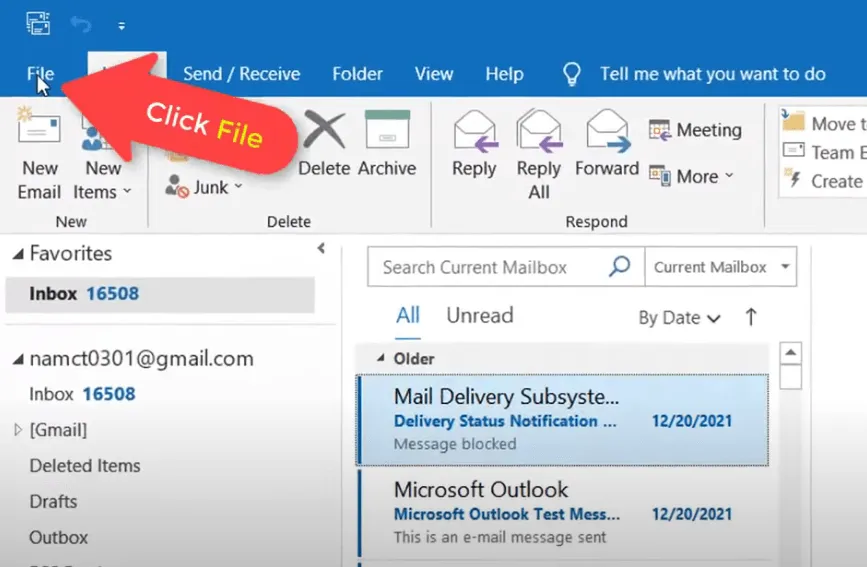
This process matters because your emails often contain critical information—contracts, conversations, and important updates—you don’t want to lose. With just a few steps, you can ensure that your essential communications are safely stored or transferred, making it less stressful whenever you need access to that information down the road.
If you've ever felt hesitant or overwhelmed by the thought of moving emails, don't worry. Just like managing your schedule in Outlook, downloading your emails isn’t as complicated as it seems. Let's get into the nitty-gritty of managing your inbox so you can focus on what truly matters.
Core Elements of Downloading Emails from Outlook
Downloading emails from Outlook can vary based on your version of the software and the type of account you use. Below is a breakdown of essential concepts and steps to make the process smooth.
- Outlook Versions: The functionality may differ between Outlook desktop, Outlook.com (web), and Outlook mobile. Knowing your version helps narrow down specific methods.
- File Format Options: Common formats include PST for Outlook desktop and CSV for Outlook.com. Each serves different purposes—PST for backups and CSV for data import/export.
- Email Accounts: Make sure you know whether you’re using an Exchange, IMAP, or POP account, as this influences how emails are downloaded.
- Storage Capacity: Ensure your device has enough space to accommodate the downloaded files. Large accounts may need a strategy for managing storage.
Here’s a quick overview of how you can download emails from the Outlook desktop application and web application:
| Application | Steps to Download Emails |
|---|---|
| Outlook Desktop |
|
| Outlook.com |
|
Recognizing the nature of your email account is significant, as it can limit or expand your downloading options:
- Exchange Account: Typically allows for seamless integration and direct access to emails without needing to download them manually.
- IMAP Account: Offers synchronization with the server; downloaded emails remain on the server unless explicitly deleted.
- POP Account: Generally allows for emails to be downloaded directly to your device, often deleting them from the server thereafter.
Whether you are managing a pile of correspondence or just backing up critical emails, understanding these core elements will streamline your email management process in Outlook.
If you're interested in optimizing email communication, you might find the article on scheduling emails within Outlook useful.
Real-World Examples of Downloading Emails from Outlook
Exporting Emails for Backup
Exporting emails from Outlook allows users to create a backup file (PST) that preserves all messages, contacts, and calendar events. This is particularly useful during system migrations or when switching email services.
Why this matters: Stating the importance of backups can prevent data loss, ensuring that users have access to their important communications even when hardware changes occur.
Downloading for Offline Access
Downloading emails for offline access enables users to read and respond to messages without an internet connection. This feature allows for productivity on-the-go, especially during travels.
Why this matters: Highlighting the ability to work offline improves flexibility, facilitating communication in areas with limited connectivity.
Archiving Old Emails
Archiving older emails reduces inbox clutter while keeping important information accessible. Users can choose specific folders or entire accounts to archive, managing their emails more efficiently.
Why this matters: By keeping a streamlined inbox, individuals can quickly find current, relevant emails without being distracted by outdated correspondence.
Using Third-Party Applications
Some users opt to download emails via third-party applications that integrate with Outlook. This allows for enhanced features like bulk downloading or specialized formatting not natively available in Outlook.
Why this matters: Providing alternatives can empower users to tailor their email management according to their unique needs and preferences.
Sharing Emails with Team Members
Downloading specific emails and sharing them with colleagues can enhance teamwork. This is particularly useful during project collaborations where historical emails provide context.
Why this matters: Asking team members to access relevant information can streamline communication and decision-making, improving overall project efficiency.
Migrating Emails to New Accounts
When switching email providers, downloading emails from Outlook facilitates a smooth transition. Users can import these emails into their new accounts to retain important correspondence.
Why this matters: Highlighting the ease of migration allows users to maintain continuity in their communication, preventing disruption during changes.
Organizing Emails by Date or Sender
Downloading emails into specific folders based on date or sender helps in organizing workflows and can streamline access to critical information during reviews or audits.
Why this matters: Providing a structured approach to email organization can enhance retrieval times, making it simpler for users to find what they need when they need it.
Understanding How to Download Emails from Outlook
Can I download my emails from Outlook to my computer?
Yes, you can download your emails from Outlook to your computer. If you’re using the desktop version of Outlook, you can export your emails as a PST file, which can then be saved locally. This process allows you to access your emails offline whenever needed.
What formats can I download my Outlook emails in?
When downloading emails from Outlook, you typically save them in the PST format. However, if you want individual emails, you can also save them as .MSG or .EML files. These formats are useful for single email retrieval and can be opened by various email clients.
How do I download emails from Outlook Web Access (OWA)?
In Outlook Web Access, you can’t directly download emails as you would in the desktop version. However, you can forward emails to another account or use the print option to save them as PDFs. If you need bulk emails, exporting them via a desktop application is often a smoother option.
Is there a way to automate the email download process?
Yes, you can automate downloading emails using third-party applications or scripts. Tools like Microsoft Power Automate can help streamline the process if you’re comfortable setting up workflows. This can save you time by automatically exporting or saving emails based on your specified criteria.
Getting your emails downloaded from Outlook can open up a world of convenience, whether you’re archiving important messages or just looking to tidy up your inbox. Remember, the process isn’t as daunting as it might seem and can save you a ton of time in the long run. If you’re looking for more ways to manage your email effectively, consider exploring how to schedule emails in Outlook for better communication. It’s all about making your email experience smoother and more user-friendly. Go ahead, take that next step and make your inbox work for you!





