Overwhelmed by a mountain of unread emails? You're not alone. Many people find their Gmail inbox cluttered, making it tough to locate what really matters. Whether it’s promotions, newsletters, or spam, sorting through the chaos is essential for staying organized and productive.
Knowing how to delete emails in bulk can free up space and restore some sanity to your digital life. Imagine opening your inbox and actually seeing only the messages you value. It’s a game changer for anyone looking to streamline their online experience.
Essential Steps for Bulk Email Deletion in Gmail
Deleting emails in bulk from Gmail can greatly streamline your inbox management. Here’s how to do it efficiently, focusing on core functionalities and processes within Gmail.
Steps to Delete Emails in Bulk
Follow these straightforward steps to clear out a significant number of emails quickly:
- Log into your Gmail account: Enter your credentials and access your inbox.
- Select emails:
- To choose multiple emails, click the checkbox next to each email.
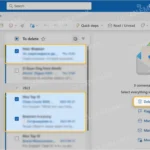
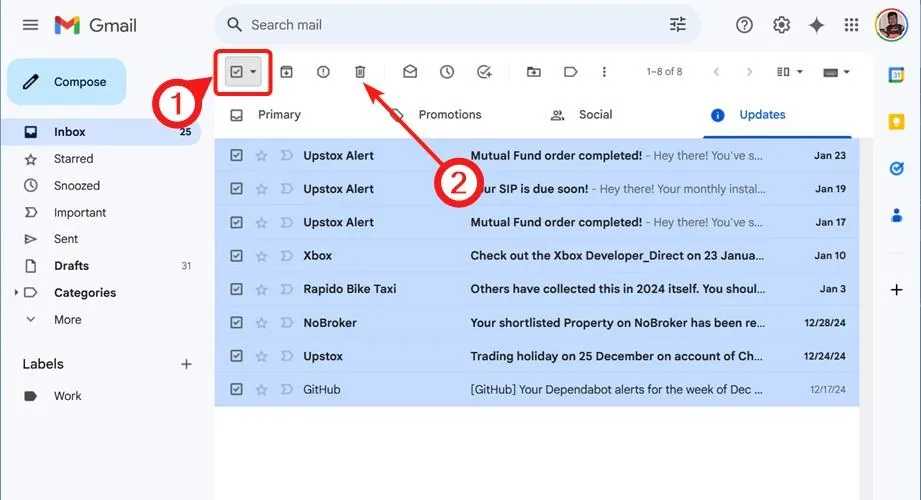
- To select all emails on the current page, click the checkbox at the top left of your inbox.
- For selecting all conversations that fit your search criteria, a prompt will appear to select all conversations in the folder. Click this to expand your selection.
- Locate the delete button: After selection, find the trash can icon located at the top of the inbox and click it. This action will move your selected emails to the Trash folder.
- Empty the Trash: Emails in the Trash will be automatically deleted after 30 days. However, to permanently remove them sooner, go to the Trash folder and click "Empty Trash now."
Using Search Filters for Specific Deletions
Gmail’s search functionality helps refine your bulk deletion for specificity:
- Search by sender: Type "from:[email protected]" to find all emails from a specific sender.
- Search by date: Utilize "before:YYYY/MM/DD" or "after:YYYY/MM/DD" to isolate emails within a specific date range.
- Combine filters: Merge several criteria such as "from," "subject," and "date" for even better results.
Why Use Bulk Deletion?
| Pros | Cons |
|---|---|
|
|
Through these steps and considerations, efficiently managing your Gmail inbox becomes an achievable task. By leveraging Gmail’s features, you can keep your email communications organized and streamlined without unnecessary hassle.
For further reading on email management, check out our article on How To Delete Yahoo Email Account Quickly And Easily.
Effective Methods to Delete Gmail Emails in Bulk
Utilizing the Search Bar for Bulk Deletion
Access the Gmail search bar to filter emails by specific criteria, such as sender, date, or keywords. After entering the filter, click the checkbox at the top left corner to select all the filtered emails, and then click the trash icon to delete them in bulk.
Why this matters: Highlighting the ability to customize search filters ensures that users can quickly target emails they no longer need, streamlining the inbox management process.
Selecting All Emails in One Click
Use the checkbox at the top of the email list to select all emails on the current page. After this, a message will appear, allowing you to select all conversations that match this search. This simplifies the deletion process significantly.
Why this matters: Stating this feature helps users save time by allowing them to delete multiple emails without individually selecting each one, enhancing their efficiency.
Filtering Promotions or Spam
Navigate to the "Promotions" or "Spam" tabs in Gmail and use the select all function. This allows users to quickly clear out unwanted promotional emails that clutter their inbox.
Why this matters: Providing the ability to organize and delete promotional emails assists in maintaining a focused and relevant inbox, reducing distractions.
Using the Gmail App on Mobile Devices
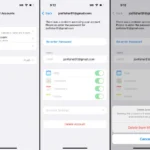
On the Gmail mobile app, users can tap the three-line menu, select 'All Mail,' then press and hold on an email to enable multi-select mode. From there, they can select multiple emails and tap the trash icon to delete them.
Why this matters: By keeping mobile users in mind, this method ensures that email management is accessible and convenient regardless of device, accommodating various user preferences.
Archiving Instead of Deleting
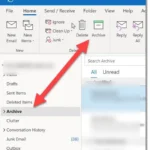
While not technically deletion, archiving emails can help users manage their inbox by removing clutter without permanently losing important information. Select emails and click “Archive” to move them out of the primary view.
Why this matters: Highlighting the option to archive rather than delete encourages users to reconsider their email management approach, preserving important communications while decluttering.
Utilizing Filters for Future Management
Setting up filters to automatically delete or archive incoming emails from specific senders or containing certain keywords helps automate the email management process, reducing future bulk deletion needs.
Why this matters: Stating the usefulness of filters empowers users to take control of their email flow efficiently, preemptively managing inbox clutter.
Emptying the Trash to Permanently Delete
After deleting emails, navigate to the “Trash” folder and choose to “Empty Trash now” to permanently delete all emails in this folder. This step is crucial for freeing up storage space.
Why this matters: By keeping the importance of this action in mind, users can ensure their deleted emails are truly gone, preventing unwanted data retention and managing their storage efficiently.
Streamlining Email Management on Gmail
How can I select all emails to delete at once in Gmail?
To delete all emails in Gmail, first, go to your inbox. Click the checkbox at the top left to select all conversations visible on the page. You’ll then see a message prompting you to select all conversations in your inbox; click that link to include everything before hitting the delete icon.
Is there a way to delete emails from a specific sender in bulk?
Yes, you can delete emails from a specific sender by entering their email address in the search bar at the top of Gmail. This will filter out the emails from that sender. Then, follow the same steps to select all and delete them.
Can I delete all emails older than a certain date?
Absolutely! You can do this by searching with a command like "before:YYYY/MM/DD" to filter emails older than that date. Once the results are displayed, you can select all and delete them in bulk.
What happens if I accidentally delete an important email?
If you accidentally delete an important email, don't worry. You can recover deleted emails from the Trash folder within 30 days. Simply go to Trash, find the email, select it, and choose the option to move it back to your inbox.
No one enjoys sifting through a cluttered inbox filled with unwanted emails, and clearing them out doesn’t have to be a chore. The real game changer is realizing you can quickly delete emails in bulk to reinstate some sanity in your digital life. So go ahead, take a few moments to get rid of those unnecessary messages—you’ll feel lighter and more organized in the process. If you're ever looking for more ways to manage your online presence, check out how to delete your Yahoo email account too. Happy decluttering!