Need to find an old email buried in your archive? You're not alone. Many of us have experienced that panic when we realize we've misplaced important messages amidst the digital clutter. Whether it’s an essential document or a long-lost conversation, knowing how to retrieve archived emails is crucial for staying organized and efficient.

Archived emails might feel out of reach, but accessing them can save you time and stress. Imagine being able to quickly reference a critical update or retrieve a contact’s information without digging through countless items in your inbox. It's all about streamlining your workflow.
Understanding the process can set you up for better email management. Plus, once you get the hang of it, you’ll find it’s easier to keep your email organized, reducing future headaches. If you ever face an overflowing inbox—think about this: a well-managed email archive not only aids productivity but also unlocks peace of mind.
Core Elements of Retrieving Email from Archives
Retrieving archived emails might seem daunting, but understanding the fundamental components can simplify the process. Here’s a straightforward breakdown of what you need to know.
- Access the Email Client: Start by logging into the email service you use. This could be Gmail, Outlook, Yahoo, or any other provider.
- Locate the Archive Section: Most email clients have a dedicated section for archived emails. Look for folders labeled "Archive" or use search functions to filter archived content.
- Search Functionality: Utilize the search bar to enter keywords, sender names, or dates. This helps in pinpointing specific emails if you have a vast number archived.
- Restore Process: Once you find the email, there usually will be an option to move it back to the inbox. This option may be labeled differently depending on the email service, such as "Move to Inbox" or "Unarchive."
- Maintain Organization: After retrieving emails, consider organizing them for future access. Creating folders or using labels can help keep your inbox clutter-free.
Common Platforms and Their Features
| Email Client | Archive Access | Restore Process |
|---|---|---|
| Gmail | Navigate to "All Mail" or search. | Click "Move to Inbox." |
| Outlook | Find "Archive" in folder list or search. | Right-click and select "Move to Inbox." |
| Yahoo | Check "Archive" folder or search bar. | Click "Move" and choose Inbox. |
Understanding the features of different email platforms can enhance your experience. Each one may offer unique functionalities to streamline the retrieval process.
Considerations When Retrieving Archived Emails
- Email Size: Large attachments might take longer to move. Consider if you need the attachments when retrieving emails.
- Storage Limitations: Some email services have storage limits, so it’s wise to manage archived emails regularly.
- Search Efficiency: Familiarize yourself with advanced search operators. This can save time when looking for specific emails.
Retrieving archived emails is a blend of leveraging search features and knowing your email service’s layout. This ensures a smoother experience when accessing older messages.
If you seek to optimize your inbox, you may also want to learn about deleting bulk emails in Gmail.
Real-World Examples of Retrieving Emails from Archive
Locating Archived Emails in Gmail
In Gmail, navigate to the "All Mail" label where archived messages reside. Use the search bar and enter specific keywords or email addresses to pinpoint the desired archived emails quickly.
Why this matters: Highlighting the simplicity of accessing archived emails enhances user confidence in managing their inbox efficiently.
Utilizing Filters for Archived Searches
Create filters in your email settings that specifically target archived emails. This allows streamlined searches based on specific criteria like the sender or date, making retrieval faster.
Why this matters: Providing organized methods for email retrieval simplifies the user experience, allowing for direct access to necessary information without sifting through the entire archive.
Accessing Archived Emails in Microsoft Outlook
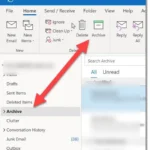
In Microsoft Outlook, select the "Archive" folder in the left pane. Use the search feature located at the top to enter keywords or date ranges relevant to your archived emails.
Why this matters: Stating the straightforward navigation of Microsoft Outlook reinforces users' abilities to find archived correspondence, thereby improving email management practices.
Restoring Archived Emails in Apple Mail
In Apple Mail, access the "Archive" mailbox. Users can move important emails back to the inbox or any designated folder using the drag-and-drop feature for easier access.
Why this matters: By keeping the restoration process seamless, users benefit from enhanced control over their email organization and retrieval processes.
Search Operators for Efficient Email Retrieval
Applying advanced search operators such as "in:archive" in Gmail allows users to specify that their search should only include archived emails, enhancing precision in retrieval efforts.
Why this matters: Asking users to leverage search operators promotes a deeper understanding of email systems, leading to more proficient usage in finding archived information.
Using Third-Party Email Clients
Some third-party email clients, like Thunderbird, offer unique features that facilitate the retrieval of archived emails. Users can configure these clients to sync with their email accounts, offering alternative views of archived correspondence.
Why this matters: Providing alternatives expands users' options for email management, catering to different preferences and improving overall efficiency in accessing archived content.
Mobile Access to Archived Emails
The mobile version of email applications, such as Gmail and Outlook, allows users to access archived emails while on the go. The search functionality is optimized for mobile use, ensuring easy retrieval.
Why this matters: Highlighting mobile accessibility encourages users to stay organized even while away from their computers, reflecting the evolving nature of email management in modern communication.
Retrieve Archived Email: Common Inquiries
How do I locate archived emails in Gmail?
To find archived emails in Gmail, go to the left sidebar and click on "More." From the dropdown, select "All Mail." Here you'll see all your emails, including archived ones. You can also use the search bar with specific keywords to pinpoint archived messages.
What steps are needed to unarchive an email in Outlook?
In Outlook, go to the "Archive" folder found in the left pane. Right-click the email you want to unarchive and choose "Move" > "Inbox" or any other relevant folder. This action will restore the email to your main inbox or the selected folder.
Can archived emails still be searched on mobile devices?
Is there a time limit for retrieving archived emails?
No, there isn’t a time limit for retrieving archived emails in most email services. As long as you haven't deleted the emails, you can access them at any time, regardless of how long they’ve been archived.
Retrieving emails from your archive doesn’t have to feel daunting. Whether it’s for a project you’re working on or a nostalgic trip down memory lane, just remember that your email service is equipped to help you locate what you need. With a few straightforward steps, you can easily pull those archived messages back into the spotlight. So why not take a moment to explore your archived emails? You might find exactly what you were looking for, and who knows, maybe even something you didn’t realize you needed. Happy searching!