Feeling overwhelmed by a cluttered Outlook inbox? You’re not alone! Managing a flood of emails can be frustrating, especially when you need to sift through countless messages to find the important ones. Knowing how to efficiently delete multiple emails can save you time and mental energy, allowing you to focus on what really matters.

With just a few simple steps, you can reclaim your inbox and breathe easier. Whether you’re cleaning up old promotions or sorting through last month’s newsletters, understanding this process is crucial in keeping your digital space organized.
No one enjoys the tedious task of deleting emails, but a streamlined approach makes it less of a chore. Let’s break down how you can get those unwanted emails out of your way in no time.
Core Concepts for Deleting Multiple Emails on Outlook
Managing your inbox can feel overwhelming, especially with a growing number of emails piling up. When it comes to Outlook, removing multiple emails efficiently can significantly streamline your workspace. Here are some core concepts to understand the process.
- Selecting Emails: Begin by identifying the emails you wish to delete. This can be done through various selection methods depending on your needs.
- Using Shift and Ctrl: For selecting multiple adjacent emails, hold down the Shift key and click the first and last email in the desired range. For non-adjacent emails, use the Ctrl key to select individual emails.
- Delete Options: After selecting, simply press the Delete key on your keyboard, or click the Delete button in the tool ribbon.
For bulk email deletion, consider these additional strategies:
- Filter by Criteria: Use Outlook’s search bar to filter emails by sender, date, or subject. Once filtered, you can select all results to delete.
- Emptying Folders: If you want to clear out an entire folder (like the Junk folder), right-click on it and choose Empty Folder.
- Keyboard Shortcuts: Familiarize yourself with shortcuts, such as Ctrl + A to select all emails in the current view, followed by the Delete key.
Here’s a quick reference table outlining the selection methods:
| Selection Method | Description |
|---|---|
| Shift + Click | Selects a range of contiguous emails. |
| Ctrl + Click | Selects individual, non-contiguous emails. |
| Ctrl + A | Selects all emails in the current folder or view. |
By understanding these simple yet essential aspects of email deletion in Outlook, you can keep your inbox organized and manageable. This lays a solid foundation for further exploration, such as bulk email deletion techniques in other platforms, for example, deleting bulk emails in Gmail.
Real-World Methods for Deleting Multiple Emails in Outlook
Selecting All Emails at Once
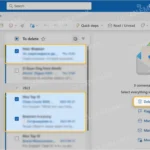
Using Outlook’s built-in feature, you can click on the first email, hold down the Shift key, and then click on the last email to select all emails in between. This allows for quick bulk deletion.
Why this matters: Highlighting convenience, this method streamlines the email management process, allowing users to clear out large volumes of emails swiftly.
Utilizing the Ctrl Key for Non-Sequential Emails
If you need to delete specific emails that aren’t in a continuous list, hold down the Ctrl key while clicking each email. This helps efficiently select non-sequential emails for deletion.
Why this matters: Stating flexibility, this approach gives users the control to customize their selections, ensuring they can focus on the emails that truly need removal.
Dealing with Junk Emails
Why this matters: Emphasizing cleanliness, regularly managing junk emails enhances the overall performance and organization of the inbox.
Searching for Specific Emails
Why this matters: Providing precision, this feature enables targeted email management, making it easier to eliminate only the emails that don’t serve a purpose.
Creating a Quick Filter for Unread Emails
Why this matters: Asking users to consider their unread emails helps identify potential inbox overload, ensuring communication channels remain efficient.
Using Folder Cleanup Tools
Why this matters: Highlighting efficiency, utilizing cleanup tools prevents redundancy, allowing users to maintain a clearer and more organized inbox.
Setting Up Rules for Automatic Deletion
Why this matters: Providing automation, this feature saves users time and effort, ensuring inbox maintenance without manual intervention.
Streamlining Your Outlook Inbox
How can I delete multiple emails at once in Outlook?
You can delete multiple emails in Outlook by holding down the Ctrl key while clicking on each email you wish to remove. Once you have selected all desired emails, simply right-click and choose "Delete." If you want to delete a contiguous block, click the first email, hold Shift, and then click the last email in the range.
Is there a way to delete all emails from a specific sender in Outlook?
Yes, to delete all emails from a specific sender, you can use the search bar to find emails from that sender. After entering the sender's email address, press Enter. You can then select all emails from the list by pressing Ctrl + A, and delete them with a right-click and selecting "Delete."
What should I do if I accidentally deleted multiple emails?
If you’ve mistakenly deleted multiple emails, check the "Deleted Items" folder. Right-click on it, and you'll have an option to "Recover Deleted Items." This allows you to restore the emails you want back to your inbox.
Can I set up automatic deletion of emails after a certain period in Outlook?
Outlook has settings to auto-delete emails based on age if you use a Microsoft Exchange account. You can set retention policies in your account settings, allowing emails older than a specified number of days to be automatically removed. This feature may not be available for all types of accounts.
Cleaning up your Outlook inbox doesn’t have to feel like a daunting task. With the right approach, you can swiftly remove multiple emails and restore order to your digital space. Remember, whether you're archiving old messages or sweeping away spam, taking a few moments to declutter can go a long way in making your email experience more enjoyable. So, grab a cup of coffee, set a timer, and get started on that inbox refresh—you'll feel so much better once it’s done!