Do you want your emails to stand out and reflect your professionalism? An email signature isn't just a sign-off; it's your digital business card and can leave a lasting impression. It helps establish your identity and gives recipients quick access to your contact details, social media links, and website—essential in keeping connections strong and proactive.

Having a well-designed email signature can enhance your communication and help you appear more credible. Whether you’re reaching out to clients, networking, or responding to inquiries, a polished signature reinforces your brand identity in a crowded inbox.
Let’s walk through how to set up your email signature in Outlook. The process is straightforward, and you'll be on your way to presenting a more professional image in no time.
For those looking for more detailed insights on email signatures tailored for professional communication, check out our article on making an email signature in Outlook for professional communication.
Core Elements of an Outlook Email Signature
Creating an email signature in Outlook adds a professional touch to your correspondence. An effective signature conveys your identity and important contact information. Here's a breakdown of its fundamental components and the steps to add one.
- Name: Your full name is the first element. It should be clear and prominent.
- Job Title: Include your current position to provide context about your role.
- Company Name: Mention the organization you represent to associate your identity with its brand.
- Contact Information: List your phone number, email address, and any other relevant contact methods. This makes it easy for recipients to reach you.
- Company Website: A link to your company’s website offers access to more information about your organization.
- Social Media Links: Include links to professional social profiles like LinkedIn. This facilitates connection and engagement.
- Logo or Image: Adding a company logo or a personal image can make your signature visually appealing.
Creating Your Signature in Outlook
Follow these straightforward steps to create and customize your email signature in Outlook:
- Open Outlook and select File from the top menu.
- Navigate to Options and then choose Mail.
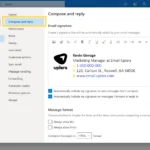
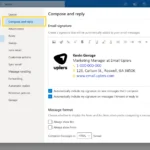
- Click on Signatures... to open the Signatures and Stationery window.
- In the Email Signature tab, click New to create a new signature.
- Input the desired elements for your signature in the text box provided. Use the formatting toolbar for styling options.
- Designate a default signature for new emails and replies/forwards, if necessary.
- Save your changes by clicking OK.
Considerations for Design
A well-designed email signature not only looks good but also enhances communication. Here are some aspects to think about:
- Font Choice: Stick to professional fonts like Arial or Calibri for readability.
- Color Scheme: Use colors that align with your brand identity.
- Size: Ensure that your signature does not take up excessive space in the email. Aim for a compact layout.
- Mobile Compatibility: Check how your signature appears on mobile devices. It should be responsive and legible.
Common Mistakes to Avoid
While creating your email signature, be mindful of these pitfalls:
- Overloading the signature with too much information or visuals can detract from its clarity.
- Using distracting images or fonts that are hard to read may confuse recipients.
- Neglecting to update your signature when you change jobs or contact information can lead to miscommunication.
Enhancing your email signature in Outlook is straightforward, and ensuring it contains essential information can improve your professional image. For further information on creating impactful signatures, explore this resource.
Real-World Examples of Creating an Email Signature in Outlook
Incorporating Company Branding
Creating a signature that includes your company logo and brand colors reinforces brand identity. Using Outlook's signature settings, you can easily add images and format text to match your organization's style guide.
Why this matters: Strengthening brand recognition helps recipients associate emails with your organization, fostering a professional image.
Including Social Media Links
Adding icons linking to your professional social media profiles, such as LinkedIn and Twitter, provides recipients with additional engagement points. Outlook allows you to embed hyperlinks directly in your signature.
Why this matters: Providing additional channels for connection encourages engagement and enhances personal branding in a digital environment.
Utilizing Custom Fonts and Colors
Customizing your email signature with unique fonts and colors can make your correspondence visually appealing. Outlook offers various formatting options to help you stand out during communication.
Why this matters: Engaging recipients visually can increase the likelihood of your emails being read and remembered.
Adding Legal Disclaimers
Incorporating a legal disclaimer in your signature can protect your organization from liability and ensure compliance with industry regulations. Outlook allows for the easy integration of standard text blocks.
Why this matters: Protecting your organization provides legal assurance and fosters trust with recipients by demonstrating professionalism.
Promoting Upcoming Events
Using your signature to highlight upcoming events or webinars can increase attendance and engagement. Outlook enables you to update your signature with fresh information whenever needed.
Why this matters: Increasing awareness of organizational events can boost participation and visibility, enhancing community engagement.
Personal Touch with Quotations
Including a personal quote or a company motto in your signature adds a unique touch. This feature can be easily edited in Outlook’s signature settings, allowing for the inclusion of personal or professional philosophies.
Why this matters: Establishing a personal connection can resonate with recipients, making your communication feel more relatable and engaging.
Consistency Across Devices
Creating a standardized email signature ensures consistency whether you're using Outlook on desktop or mobile. This seamless experience can be set up through Outlook’s signature management features.
Why this matters: Maintaining uniformity enhances professionalism and ensures that all communications reflect the same brand image, regardless of the platform used.
Your Email Signature Questions Answered
How do I create a basic email signature in Outlook?
To create a basic email signature in Outlook, go to the "File" menu and select "Options." From there, click on "Mail" and then "Signatures." You can create a new signature by clicking “New” and entering your desired text, like your name and contact information.
Can I include an image or logo in my Outlook signature?
Yes, you can include an image or logo. When you're in the "Signatures" settings, click on the image icon that appears in the signature editing area. This lets you upload your logo or any other images you’d like to display in your signature.
What if my email signature isn't displaying correctly for recipients?
If your email signature is not displaying correctly, check the format of the images and links used. Some email clients might not support certain HTML elements. Also, ensure you are using standard fonts and avoid excessive formatting that could cause display issues.
How can I set different signatures for different email accounts in Outlook?
To set different signatures for various accounts, open the “Signatures” settings and choose the email account from the “E-mail account” dropdown. Create or select a signature for that account, allowing you to customize your signatures based on the email address used.
Creating an email signature in Outlook isn’t just about adding your name and title; it’s your chance to make a solid first impression with every email you send. So, take a little time to design one that feels true to you and showcases your personality—and remember, it can always evolve as you do! If you want to dive deeper into the specifics of making your signature standout in a professional context, check out our article on how to enhance your email signature for communication. Now, go ahead and get that signature set up; your emails deserve it!