Creating an email signature in Outlook isn’t just about adding a few lines of text; it’s your opportunity to make a strong impression every time you communicate. An email signature serves as a digital business card, helping you project professionalism and consistency in every message you send.

When your emails look polished and are easy to identify, you enhance your credibility and build trust with colleagues and clients alike. Think of it as a vital part of your personal brand—one that travels with each email you send.
Get ready to transform your email communications into an avenue for expressing your unique style while still being practical and professional. This is your chance to make every message count.
Core Elements of an Email Signature in Outlook
Creating an email signature in Outlook involves several essential components that ensure your signature is not only professional but also effective in communication. Here’s a breakdown of what you should include and how to set it up.
- Name: Your full name should be prominently displayed. Use a larger font or bold style to make it stand out.
- Title: Include your job title beneath your name. This establishes your role and adds credibility.
- Company Name and Logo: The name of the company you represent, coupled with its logo, communicates brand identity. Ensure the logo is of high quality.
- Contact Information: List your phone number, email address, and, if relevant, your office address. This information should be easy to read.
- Social Media Links: Include icons linked to professional social media platforms like LinkedIn. This can increase connectivity and professional networking.
- Website URL: A link to your company’s website allows recipients to find more information about your services.
When designing your signature, consider the following formats:
| Format | Description |
|---|---|
| Text Only | A simple layout without images for compatibility with all email clients. |
| HTML Signature | A visually appealing format that can incorporate images, fonts, and colors, but may not display properly in all email clients. |
Select a format that aligns with your audience's expectations and the nature of your correspondence. To set your email signature in Outlook, follow these steps:
- Open Outlook and go to the 'File' menu.
- Choose 'Options' and then 'Mail.'
- Click on 'Signatures' to open the signature settings.
- In the 'Signatures and Stationery' dialog box, click 'New' to create a new signature.
- Type your signature in the text box and format it as desired.
- Set your signature for new messages and replies if necessary.
- Click 'OK' to save your changes.
For a detailed exploration of creating effective email signatures in Outlook, consider visiting this article.
Practical Ways to Create an Email Signature in Outlook
Integrating Contact Information
Creating a signature that includes your name, job title, phone number, and email address ensures that recipients always have your contact details at their fingertips.
Why this matters: Providing clear contact information simplifies follow-up communication and enhances your professionalism.
Adding Links to Your Website or Social Media
Including hyperlinks to your company website or professional social media profiles allows recipients to easily connect with you online, enhancing your network.
Why this matters: Highlighting your digital presence can foster additional engagement and connections with clients or partners.
Using a Professional Logo
Inserting your company's logo into the signature creates a branded appearance that reinforces your brand identity in every email.
Why this matters: Stating your brand visually builds familiarity and credibility with your audience, leaving a lasting impression.
Incorporating a Tagline or Call to Action
Adding a brief tagline or a call to action can motivate recipients to engage with your services, products, or website.
Why this matters: Encouraging action can lead to increased inquiries or website visits, enhancing your outreach efforts.
Customizing for Different Audiences
Creating different signatures tailored for internal and external communications allows you to convey the appropriate message for each context.
Why this matters: By keeping your messaging relevant, you ensure clarity and professionalism in diverse interactions.
Formatting for Mobile Compatibility
Designing your signature to be mobile-friendly ensures it displays correctly on any device, making it accessible for all recipients.
Why this matters: Ensuring visibility across devices increases the likelihood of your signature making a positive impression.
Utilizing Plain Text Signatures
Creating a text-only version of your signature guarantees compatibility with all email clients, ensuring your message is received as intended.
Why this matters: Ensuring communication consistency across platforms mitigates the risk of misinterpretation or loss of information.
Creating Your Outlook Email Signature
How do I create an email signature in Outlook 365?
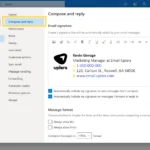
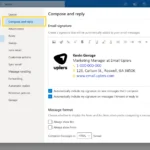
To create an email signature in Outlook 365, go to the "Settings" gear icon in the top right corner. Under "Mail," find the "Compose and reply" section where you can write your signature. Once you save it, it will appear automatically in your new emails and can be added to your replies if you choose.
Can I add images or logos to my email signature in Outlook?
Yes, you can include images and logos in your Outlook email signature. When setting up your signature, use the image icon in the signature editor to upload your desired images, ensuring they are properly sized for a professional appearance.
Is it possible to create multiple signatures in Outlook?
Absolutely! You can create multiple signatures in Outlook. In the signature settings, you can define different signatures for different accounts or purposes, and it's easy to switch between them when composing an email.
How do I edit or remove an existing email signature in Outlook?
To edit or remove an existing signature, return to the signature settings through the "Settings" menu. You can select the signature you want to modify or delete it entirely, keeping your email communication streamlined and current.
Creating a standout email signature in Outlook not only helps you make a great first impression but also provides essential information at a glance. A thoughtfully designed signature can enhance your professional image and make your emails feel more personal. So, take a moment to set yours up just the way you want it! Whether you're sharing it with clients or simply friends and family, having a signature you love can make your emails that much more enjoyable. Happy emailing, and don’t forget to sprinkle in a little personality!