
Trying to send a large video file from your iPhone can feel frustrating, especially when your go-to methods just don’t cut it. You've captured those perfect moments, and now you want to share them effortlessly with family, friends, or colleagues. The trick is finding a way to bypass those pesky email limits that keep getting in your way.
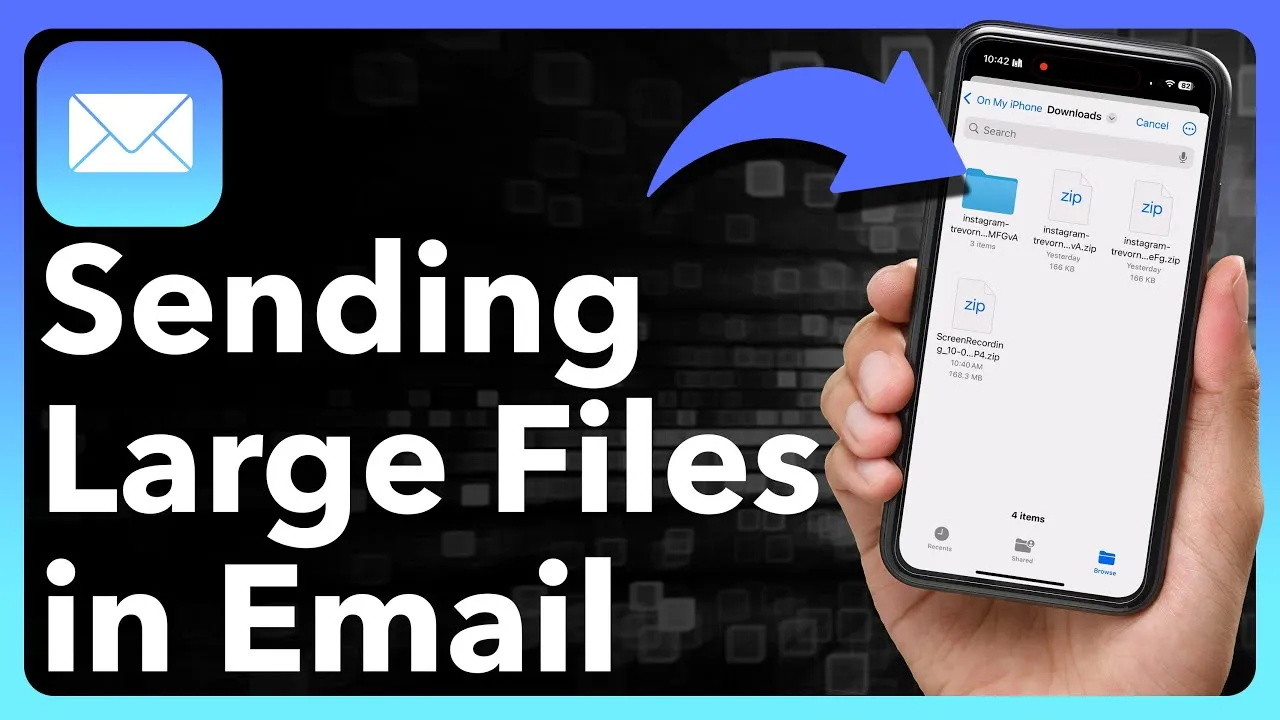
It’s not just a tech hassle; it can affect how you connect with others, whether for a special occasion or a crucial work project. Fortunately, there are several straightforward methods to send those large files without losing quality or breaking a sweat.
From exploring the features built right into your iPhone to leveraging cloud storage options, this is all about making your life easier and keeping those video memories alive. After all, each clip you send tells a story worth sharing.
Core Elements of Sending Large Video Files from iPhone
Sending large video files from your iPhone can seem daunting, but there are several methods that make this process straightforward. Here’s a breakdown of the options available, including their strengths and limitations.
| Method | Description | File Size Limit | Pros | Cons |
|---|---|---|---|---|
| Sending files as email attachments using Mail app or Gmail. | 25 MB (Gmail) | Convenient, built-in apps. | Limited by attachment size. | |
| Cloud Services | Uploading videos to services like iCloud Drive, Google Drive, or Dropbox and sharing links. | Varies by provider. | High capacity and easy sharing. | Requires internet access. |
| Messaging Apps | Utilizing apps like WhatsApp, Telegram, or iMessage to send videos. | Varies (up to 2 GB for some apps). | Fast and user-friendly. | File quality may decrease. |
| AirDrop | Wireless transfer between Apple devices. | No set limit. | Quick and maintains quality. | Limited to Apple devices only. |
Using Email for Larger Files
If emails are your preferred method, remember that most email services have a size cap. For instance, Gmail allows attachments up to 25 MB. Anything larger can prompt the option to use cloud storage.
- Gmail: Attach using Google Drive for larger files.
- Mail App: Use the "Mail Drop" feature for files over 20 MB.
Cloud Services for Efficiency
Cloud storage services are a robust option for sharing large videos. Here's what you need:
- iCloud Drive: Unlimited storage for photos and videos. Simply upload your file and share the link.
- Google Drive: Allows files of up to 15 GB for free. Great accessibility across devices.
- Dropbox: Offers a seamless sharing experience with link generation options.
Messaging Applications for Quick Sharing
Popular messaging apps provide an instantaneous way to send videos, although with some trade-offs.
- WhatsApp: Files sent are limited to 16 MB, but multiple files can be sent in batches.
- iMessage: Sends large files but may compress them.
AirDrop as a Speedy Solution
For Apple device users, AirDrop simplifies the process of sending large files directly without any quality reduction. Open the video file, tap share, and select your recipient nearby. Make sure Wi-Fi and Bluetooth are enabled.
In summary, choosing the right method depends on your video size, recipient, and convenience. Each method has its advantages, so consider your specific situation before deciding how to send those large video files from your iPhone.
For more seamless communication, consider exploring how to attach emails in Gmail.
Practical Ways to Email Large Video Files from Your iPhone
Using iCloud Drive for Easy File Management
Utilizing iCloud Drive allows you to store large video files and easily share them via email by sending links to the files instead of the files themselves.
Why this matters: Providing a seamless experience for recipients, preventing issues with attachment size limits in email services.
Opting for Google Drive for Emailing Videos
By uploading your videos to Google Drive, you can attach the file link in your email, making it accessible without worrying about size constraints.
Why this matters: Highlighting the advantage of flexibility and accessibility, giving both you and the recipient easy access to the shared video.
Compressed Files via File Management Apps
Using apps like WinZip or Documents by Readdle enables you to compress large video files before emailing them, simplifying the sending process.
Why this matters: Stating how file compression reduces file size, enhancing the chances of successful email delivery.
Leveraging WeTransfer for Hassle-Free Transfers
WeTransfer allows you to upload large video files and send a link via email, which recipients can access directly without needing an account.
Why this matters: By keeping the transfer process straightforward, it reduces barriers for recipients, ensuring higher engagement.
Utilizing Dropbox for Seamless Sharing
Uploading your video to Dropbox and sharing the link through email is another excellent method for overcoming size limitations.
Why this matters: Asking how a reliable cloud storage solution eases the burden of managing large files, ensuring consistent access for all involved.
Using Email Services with No Size Limits
Some email services, like ProtonMail, allow larger attachments without significant limitations, making them ideal for sending large video files directly.
Why this matters: Highlighting how selecting the right email provider can simplify the process of sending large files efficiently.
Transferring Videos Using AirDrop
For close contacts, AirDrop is a quick way to send large video files directly to another iPhone, negating the need for email entirely.
Why this matters: Providing a fast and reliable option that enhances connectivity, allowing users to bypass traditional email methods altogether.
Maximizing Your Email Experience with Large Video Files on iPhone
What file size limits are imposed by email providers when sending videos from my iPhone?
Most email providers restrict file sizes to about 25MB. If you attempt to send a video larger than this limit, it won’t go through. Knowing your provider's specific limits helps in planning how to share video files.
What alternative methods can I use to send large videos without emails?
You can use cloud storage services like Google Drive or Dropbox to upload your videos. Once uploaded, share the link via email, allowing recipients to access the file without size restrictions.
Are there specific apps to compress videos before emailing them from my iPhone?
Yes, apps like iMovie and Video Compressor let you reduce video file sizes right on your iPhone. After compression, you can easily attach the smaller video to your email.
What steps should I follow to email a video directly from my iPhone?
Open the Photos app, select the video you want to share, tap the share icon, and choose your email app. Ensure the file size is within your email provider's limits before sending.
When it comes to emailing large video files from your iPhone, finding the right method can make all the difference. Whether you opt for cloud storage, email services that handle big attachments, or a little app magic, the main thing is to choose what works best for you and your needs. Don't let file size hold you back from sharing those special moments. Go ahead and send that video without a hitch! You’ve got this, and your friends and family will appreciate the effort.





