
Want to send someone an email straight from your Gmail inbox? It’s a common scenario—maybe you need to share a conversation for a project, or you want to forward a message without the hassle of rewriting it. Luckily, Gmail makes this simple. 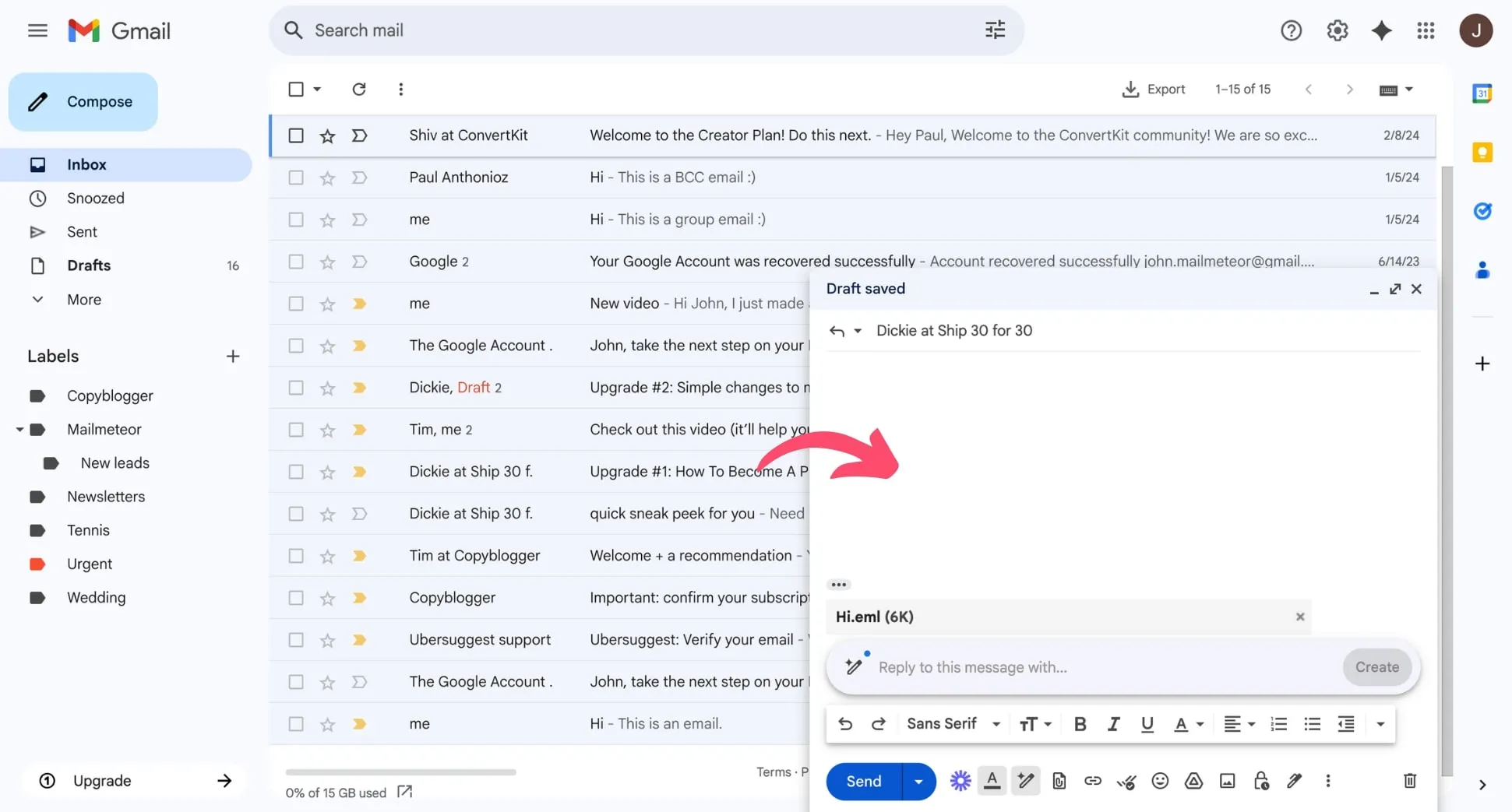
Knowing how to attach an email properly can save you time and frustration. It keeps communication clear and ensures the recipient gets all the context they need. Let's break down the steps so you can send that email quickly and effortlessly, just when you need it.
Once you know the right steps, sharing information becomes a breeze, whether it’s for work or simply keeping friends updated. Ready to streamline your email sharing?
Core Elements of Attaching an Email in Gmail
Attaching an email in Gmail can be particularly useful when you need to share important correspondence with someone else. Whether you're forwarding an email, including it as an attachment, or saving it for later, understanding the process can streamline your workflow. Here’s how to do it.
Attaching an Email Directly
You can attach an entire email to another email in Gmail using the following steps:
- Open Gmail: Log in to your Gmail account.
- Select the Email: Find the email you wish to attach in your inbox.
- Drag and Drop: Click and hold the email, then drag it into the compose window of a new email. Release the mouse to drop it as an attachment.
This method allows the recipient to access the attached email, complete with headers, sender information, and the body content.
Forwarding an Email
If you simply want to share an email with someone, forwarding is a quick option:
- Open the Email: Click on the email you want to forward.
- Click Forward: Press the forward button (usually represented by an arrow).
- Enter Recipient's Email: Type in the email address of the person you want to send it to.
- Send: Click send to deliver the email.
This method shares the content directly without creating an individual attachment.
Saving Emails for Later Use
If you want to keep an email for future reference, consider saving it as a PDF. Here’s a quick outline:
- Open the Email: Navigate to the email you wish to save.
- Print Option: Click on the three dots in the upper right corner of the email and select "Print."
- Save as PDF: In the print dialog, change the destination to “Save as PDF.”
- Save Document: Choose where to save the PDF on your computer.
This allows for easy organization and later access.
Quick Reference Table
| Method | Steps | Result |
|---|---|---|
| Attach Email | Drag and drop to compose window | Entire email as attachment |
| Forward Email | Click forward, enter recipient | Direct sharing of content |
| Save as PDF | Use print option to save | Organized PDF document |
Understanding these methods can significantly improve how you connect and share information via email in Gmail. For more on keeping your emails organized digitally, check out the article on saving emails as a PDF.
Exploring Attachment Methods in Gmail
Directly Attaching Emails
Using the drag-and-drop feature in Gmail allows users to attach a complete email directly into a new message. Simply select the desired email from your inbox and drag it to the compose window.
Why this matters: Demonstrating simplicity enhances the usability of email communication, making it efficient for users who need to share conversations without copying text manually.
Forwarding as an Attachment
Gmail provides an option to forward an email as an attachment by selecting the email and clicking on the three-dot menu, then choosing 'Forward as attachment.' This sends the chosen email as a .eml file.
Why this matters: Offering this functionality allows users to retain the original formatting and header information, ensuring important context is preserved when sharing with others.
Using the Gmail Mobile App
The Gmail mobile app allows users to attach emails by tapping on the specific email, selecting the three dots, and choosing 'Forward as attachment' or utilizing the drag-and-drop feature in certain mobile configurations.
Why this matters: Providing flexibility across devices empowers users to manage their communications seamlessly, regardless of whether they are on a computer or a mobile device.
Attaching Multiple Emails
To attach multiple emails, users can hold down the Ctrl (Cmd on Mac) key while selecting multiple emails in the inbox, and follow up with the same drag-and-drop method to attach them all in one go.
Why this matters: Streamlining the process of sending multiple discussions at once increases efficiency and saves time, especially for collaborative work or information sharing.
Using Filters to Organize Emails Before Attachment
Creating labels and filters in Gmail helps organize emails, making it easier to find and attach specific conversations when composing new messages.
Why this matters: Providing structure to email management simplifies the retrieval process, allowing users to quickly locate relevant emails without losing track amid growing inboxes.
Embedding Links to Emails in Attachments
Rather than attaching an email as a file, users can also copy the link to a specific email and paste it in a new message, ensuring recipients can access the email directly from their inbox.
Why this matters: Encouraging alternative sharing methods helps users adapt to different situations, providing choices based on the recipient's needs and preferences.
Integrating with Other Apps
Gmail users can attach emails to other applications (like Google Drive) or utilize extensions that allow for smarter email handling, including archiving or sharing with specific platforms seamlessly.
Why this matters: Enhancing interoperability between Gmail and other tools increases productivity and makes the handling of emails more versatile, catering to varied workflows.
Understanding How to Attach Emails in Gmail
Can I attach an entire email in Gmail to another email?
Yes, you can attach an entire email in Gmail by dragging and dropping it directly into the compose window. Make sure to select the email you want to attach from your inbox, and simply drag it over the new message you're writing.
What if I can’t find the drag-and-drop option?
If the drag-and-drop method isn’t working, you can also attach emails using the “More” option. Open the email you want to send, click on the three dots in the upper right corner, choose “Forward as attachment,” and then select your recipient.
Can I attach emails from different Gmail accounts?
No, you can only attach emails from the account you are currently signed into. To include emails from another account, you would need to log into that account or forward the email to yourself first.
Is there a size limit for email attachments in Gmail?
Yes, Gmail has a size limit for attachments. Each email can contain up to 25 MB of attachments. If you exceed this size, consider using Google Drive to share larger files.
Attaching an email in Gmail is easier than you might think—just a few clicks and you're set! By following the straightforward steps shared here, you can enhance your email communication and ensure you never miss sharing important information. So go ahead, give it a try, and enjoy this seamless way to keep your conversations organized. And if you're looking to tidy up your email even further, check out how to save an email as a PDF for better organization!





