
Need to find an email you accidentally archived in Gmail? You’re not alone—many of us have been in that spot where an important message seems lost in the digital void.
Whether it’s a critical work email or a personal message from a friend, knowing how to unarchive can save you time and frustration. Let’s walk through the simple steps to retrieve those emails quickly and easily, ensuring you never miss out on important conversations again.
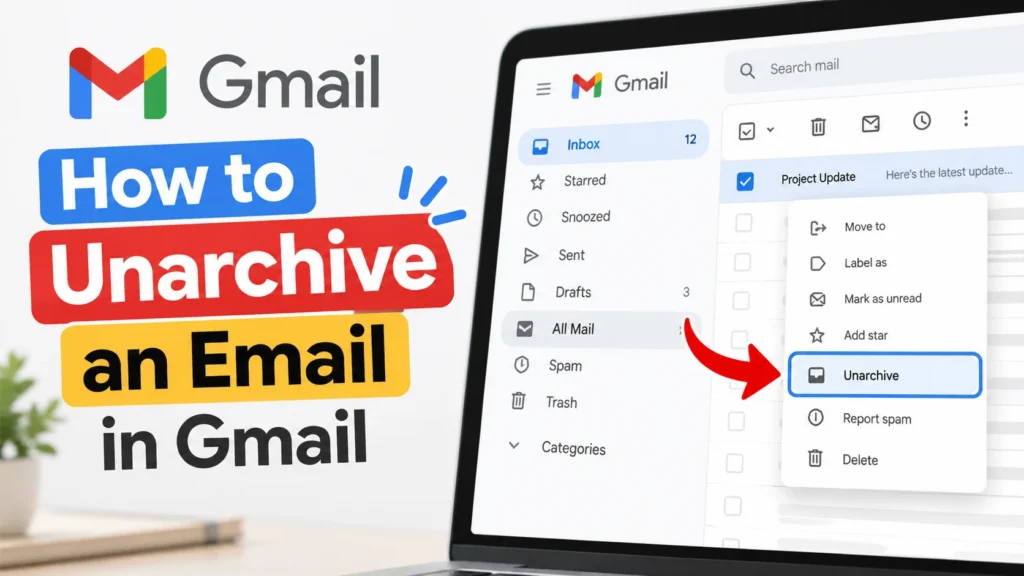
Essential Steps to Unarchive Emails in Gmail
If you’ve accidentally archived an email in Gmail, retrieving it is straightforward. The following steps will guide you through the process easily.
Key Steps to Unarchive
- Log Into Your Gmail Account: Open your preferred web browser and navigate to the Gmail website. Enter your credentials and access your inbox.
- Access the “All Mail” Folder: On the left sidebar, scroll down and click on “More” to expand additional options. Then select “All Mail.” This folder contains every email you’ve sent, received, or archived.
- Locate the Archived Email: Use the search bar at the top to find specific emails. You can type in keywords or use filters to narrow down your search.
- Unarchive the Email: Once you’ve found the email, open it. At the top of the email, click the “Move to Inbox” button (which looks like an envelope icon). This action will restore the email to your main inbox.
Understanding Gmail’s Email Organization
Gmail organizes emails into several categories. Knowing how these categories work can help you manage your messages better:
- Inbox: Where new and unread emails arrive.
- Archive: Emails you want to keep but don’t need immediate access to.
- Spam: Unwanted emails filtered by Gmail.
- Trash: Deleted emails that are held for 30 days before permanent deletion.
Quick Tips for Efficient Email Management
Efficiently managing your Gmail can save time and keep your inbox organized:
| Tip | Description |
|---|---|
| Use Labels | Organize your emails by creating labels for different projects or categories. |
| Utilize Filters | Set up filters to automatically sort incoming emails into specific folders. |
| Schedule Regular Cleanups | Regularly review your inbox and archive or delete emails you no longer need. |
By following these steps and tips, reclaiming an archived email in Gmail becomes a simple task, allowing you to maintain a productive email environment.
Real-World Use Cases for Unarchiving Emails in Gmail
Retrieving Important Work Emails
When a crucial email regarding a project is archived, employees can easily unarchive it by navigating to the “All Mail” folder, locating the email, and selecting “Move to Inbox.”
Why this matters: Highlighting the ability to quickly access essential information prevents delays in work and enhances productivity among team members.
Managing Personal Correspondence
Users can unarchive personal emails by searching for specific contacts or keywords. Once found, they can restore the conversation back to their inbox for easy access.
Why this matters: Stating the importance of keeping personal communications organized ensures that users maintain a clear overview of their relationships and commitments.
Referring Back to Past Purchases
When customers wish to track their orders, they can unarchive order confirmation emails by searching for the retailer’s name, allowing them to easily retrieve necessary information.
Why this matters: By keeping track of past purchases, customers can manage returns or warranty claims more effectively, enhancing their shopping experience.
Following Up on Client Inquiries
Sales professionals often archive client emails to reduce inbox clutter. They can unarchive specific emails to follow up on inquiries or provide additional information as needed.
Why this matters: Providing timely responses to client queries demonstrates professionalism and can significantly improve client relationships.
Organizing Travel Itineraries
Travel planners can unarchive travel confirmation emails to keep their itinerary accessible while preparing for trips, allowing for smoother travel arrangements.
Why this matters: Highlighting the ease of finding travel details ensures that travelers stay informed and prepared, reducing the likelihood of missed flights or accommodations.
Revisiting Legal or Financial Documents
Individuals can unarchive email attachments related to legal documents, tax records, or financial statements by searching within their archived emails for specific dates or senders.
Why this matters: By keeping important documents readily available, users can ensure compliance with regulations or timely submission of required documents, eliminating stress during critical periods.
Enhancing Team Collaboration
Teams can unarchive project-related emails to revisit discussions, decisions, and shared resources, facilitating better collaboration on ongoing tasks.
Why this matters: Asking team members to access archived discussions fosters open communication, ensuring everyone is on the same page regarding project objectives.
Common Questions About Unarchiving Emails in Gmail
How do I find my archived emails in Gmail?
To locate your archived emails, go to the Gmail interface and find the “All Mail” label on the left sidebar. Click it, and you’ll see all your emails, including those you’ve archived.
Is unarchiving an email the same as deleting it?
Nope! Unarchiving an email simply brings it back to your inbox without deleting it. If an email is deleted, it goes to the Trash and can be permanently lost after 30 days.
Can I unarchive multiple emails at once?
Absolutely! Just go to “All Mail,” select the emails you want to unarchive by checking the boxes, and then click on the “Move to Inbox” button. Simple as that!
What happens to my archived emails if I use the Gmail app?
The process is pretty similar on the app. Open the app, go to “All Mail,” select your archived emails, and move them back to the inbox with the “Move to Inbox” option. No hassle!
Unarchiving an email in Gmail is a straightforward process that can really help you get back to important conversations without a hassle. When you need to find that critical message you thought you’d lost, just remember it’s all about checking your “All Mail” folder or using the search bar to make your life a bit easier. Keep your inbox organized and don’t let those archived emails pile up too much; a quick unarchive can save the day! So, go ahead and give it a try—your email management game is about to get a whole lot smoother!


Leave a Reply