Creating an email group in Outlook is more than just a means to simplify your communication; it’s about making your workflow smoother and keeping everyone on the same page. Whether you’re coordinating with team members on a project or staying in touch with family and friends, having an email group saves you time and effort when you need to send updates or information quickly.

Let’s face it, managing a busy inbox can be overwhelming. Juggling multiple contacts and that endless search for emails can drive anyone a bit nuts. By grouping people together, you can focus on what really matters—your message—without the hassle of adding each individual every single time.
This process is straightforward, and once you get the hang of it, you’ll wonder why you didn’t do it sooner. Ready to streamline your communications? Let’s get started.
Core Elements of Creating an Email Group in Outlook
Setting up an email group in Outlook streamlines communication, especially in a workplace or project setting. Here's what to know about the process.
- Understanding Contact Groups: A contact group allows you to send emails to multiple people at once without entering each address individually. This is particularly useful for teams or ongoing projects.
- Creating a New Group: Navigate to the People section in Outlook. Here, you can select "New Group" to start building your list.
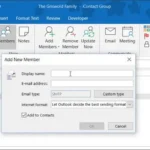
- Adding Members: You can add members from your contacts or input email addresses manually. Make sure to double-check for accuracy to avoid bounce-backs.
- Naming Your Group: Choose a clear, descriptive name that reflects the group's purpose. A well-named group makes it easier to find later.
- Saving Changes: After adding members and naming the group, save your changes to ensure everything is stored correctly.
- Using the Group in Emails: When composing an email, simply type the group name in the "To" field, and all members will be included.
Best Practices and Considerations
| Practice | Details |
|---|---|
| Regular Updates | Keep your group updated with current contacts, removing those who no longer need to be included. |
| Clear Communication | Inform group members about their inclusion and the purpose of the group to set expectations. |
| Manage Permissions | Consider whether you want all members to see each other's email addresses or keep them private. |
| Group Usage | Use the group for relevant discussions only, to avoid flooding members' inboxes with unnecessary emails. |
For those interested in email communication, consider enhancing your professional image with an email signature. Find more about that process here.
Practical Use Cases for Creating Email Groups in Outlook
Streamlining Team Communication
Creating an email group for a project team allows members to communicate seamlessly without typing individual addresses. This facilitates quick updates, sharing of documents, and collaborative dialogues.
Why this matters: Highlighting communication efficiency enhances team collaboration and keeps everyone informed in real-time.
Managing Client Correspondence
Establishing an email group for client communication ensures that all relevant stakeholders receive the same updates and information, maintaining transparency and professionalism.
Why this matters: Stating clarity in client communications reduces misunderstandings and fosters better relationships.
Organizing Company Announcements
By creating an email group dedicated to company-wide announcements, organizations can ensure all employees receive timely notifications about important events or changes.
Why this matters: Providing standardized communication ensures that everyone is on the same page, reducing the potential for missed information.
Facilitating Event Planning
Using an email group for coordinating an event allows all planners to communicate about schedules, tasks, and logistics in a single thread.
Why this matters: Asking for real-time updates keeps everyone aligned and minimizes confusion during the planning process.
Enhancing Customer Support
Creating an email group for customer service representatives facilitates collaborative responses to customer inquiries, ensuring that complex issues are addressed promptly.
Why this matters: By keeping communication open among support staff, organizations can provide faster and more accurate responses to customers.
Building a Community of Practice
Establishing an email group for professionals within a specific field fosters knowledge sharing, collaboration, and ongoing professional development.
Why this matters: Providing a platform for discussion encourages ongoing learning and strengthens professional networks.
Tracking Project Progress
Creating an email group for project stakeholders allows team members to share updates, milestones, and feedback in a coordinated manner, simplifying project management.
Why this matters: Stating ongoing visibility into project progress aids in identifying challenges early and facilitates proactive problem-solving.
Creating Your Outlook Email Groups Made Simple
How do I create an email group in Outlook 365?
To create an email group in Outlook 365, start by navigating to the “People” icon at the bottom of the navigation pane. Click on “Groups” and then select “New Group.” Fill in the group name, add members by searching or entering their email addresses, and click “Create” to finalize.
Can I edit or remove members from an existing email group?
Yes, you can easily edit or remove members from an existing email group. Open the group from the “People” section, select “Members,” and use the options to add or remove members as needed. Changes will take effect immediately.
What should I do if I can't find the option to create a group?
If the group creation option is missing, check your Outlook permissions. Organizations may restrict group creation to certain users. If you're unsure, contact your IT administrator for assistance.
Are there limits on the number of members I can add to a group?
Yes, Outlook has limits on group size. Typically, you can add up to 500 members in a single group. If you need a larger audience, consider creating multiple groups or using distribution lists.
Creating an email group in Outlook is a breeze once you know where to look, making it a simple way to streamline your communications with friends, family, or colleagues. Whether you're coordinating a project or just keeping up with your book club, having a dedicated group can make all the difference in staying organized. So why not give it a go? Take a moment today to set up your email group and enjoy the ease it brings to your inbox—you're going to love how it simplifies your day-to-day interactions!