
If you’ve ever felt the frustration of not being able to find an important email in your Gmail account, you’re not alone. The good news is that there's a straightforward way to access archived emails that can bring back those hidden conversations and vital information you thought were lost.
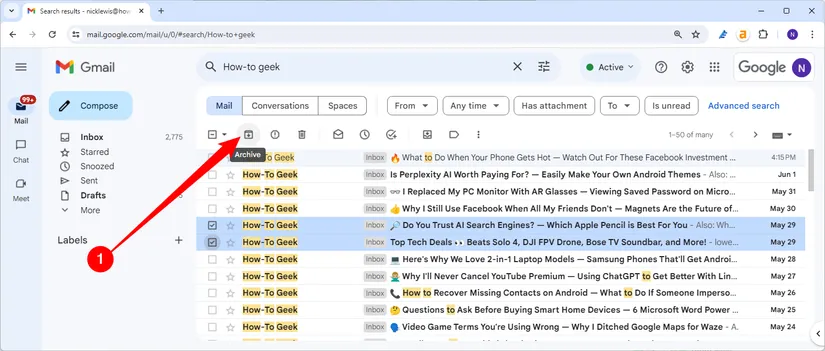
Knowing how to sift through your archived emails can save you time and headaches, especially when you’re searching for crucial documents or threads. It’s all about reclaiming control over your inbox and not letting those archived messages gather digital dust.
Core Elements of Accessing Archived Emails in Gmail
Retrieving archived emails in Gmail is straightforward once you're familiar with a few essential concepts. Archived emails are not deleted; they simply move out of your inbox while remaining accessible for future reference.
- Understanding Archiving: Archiving removes emails from your inbox but keeps them in your account. This helps reduce clutter without losing important information.
- Utilizing the Search Function: Gmail's search bar is a powerful tool. You can locate archived emails by typing in keywords, sender names, or specific dates.
- All Mail Folder: All archived emails reside in the "All Mail" folder, which you can find on the left sidebar. This folder includes every email, except those that are in Trash or Spam.
- Labels and Organization: Archived emails can still bear labels. If you use labels for organization, searching by label can also yield desired results.
- Sorting Options: You can sort your emails by date or relevance. Use the sort function to narrow down results when searching.
Quick Steps to Retrieve Archived Emails
- Go to Gmail and log in to your account.
- Locate the left sidebar menu.
- Click on "More" to expand additional folders.
- Select "All Mail" to see all emails, including archived ones.
- Use the search bar for specific emails if needed.
Pros and Cons of Archiving in Gmail
| Pros | Cons |
|---|---|
| Keeps inbox clean and organized | Archived emails can be overlooked if not searched properly |
| Easy retrieval through search | Some users may forget archived emails exist |
| Labels maintain email organization | May confuse those unfamiliar with Gmail's structure |
For those interested in further enhancing their Gmail experience, exploring how to find unread emails can offer additional organization strategies. Check out this article for insights on managing unread messages effectively.
Practical Ways to Access Archived Emails in Gmail
Using the Search Bar for Quick Access
Typing "in:archive" in the Gmail search bar easily filters all archived emails, allowing users to quickly find specific messages without navigating through multiple folders.
Why this matters: Highlighting the power of the search function enables users to locate important information swiftly, making email management more efficient.
Creating a Custom Label for Archived Emails
Assigning a custom label like "Archived" helps users categorize and retrieve archived emails by simply clicking on the label, streamlining the organization process.
Why this matters: By keeping archiving methods visible, users can enhance their email organization and retrieval process, ensuring important communications are never lost.
Employing Filters During Email Management
Setting up filters to automatically archive certain types of emails based on criteria like sender or keywords allows users to manage their inbox proactively without manual intervention.
Why this matters: Providing automated solutions for email organization reduces clutter in the inbox, promoting a more streamlined workspace and decreasing the likelihood of missing critical information.
Utilizing the Gmail App for Mobile Access
Accessing archived emails through the Gmail mobile app allows users to stay connected and retrieve necessary information while on the go, ensuring continuity in communication.
Why this matters: Stating the convenience of mobile access highlights the flexibility that modern email applications provide, catering to users' need for immediate information retrieval.
Exploring Archived Emails via the 'More' Menu
Navigating to the "More" section in the left sidebar of Gmail reveals the "All Mail" folder, where all archived emails can be found alongside other messages, simplifying the search process.
Why this matters: Asking users to utilize less-known navigation paths encourages thorough exploration of Gmail’s features, enhancing their overall email management experience.
Creating a Backup of Archived Emails
Exporting archived emails using Google Takeout enables users to create a backup, ensuring that important communications are preserved and retrievable outside of the Gmail interface.
Why this matters: Highlighting the importance of backup solutions emphasizes security in email management, allowing users peace of mind knowing their information is safe.
Using Keyboard Shortcuts for Rapid Navigation
Employing keyboard shortcuts like "g" followed by "a" quickly navigates users to archived emails, making their workflow more efficient and less reliant on mouse clicks.
Why this matters: Providing shortcuts for navigation empowers users to enhance their productivity, significantly reducing the time spent on email management tasks.
Understanding Archived Emails in Gmail
How do I find archived emails in Gmail?
To locate your archived emails, simply go to the "All Mail" label in Gmail. This section contains all your emails, including those archived, so scroll through or use the search bar to find specific messages.
What happens to emails when I archive them in Gmail?
When you archive an email in Gmail, it removes the message from your inbox but keeps it accessible in the "All Mail" folder. This means the email is not deleted; it's just organized out of your inbox.
Can I search for archived emails using keywords?
Absolutely! You can use the search bar in Gmail to search for archived emails. Enter specific keywords, email addresses, or other relevant details, and Gmail will display all matching emails, including those you've archived.
Is there a way to recover accidentally archived emails?
If you accidentally archive an email, you can easily retrieve it by going to "All Mail." Simply open the email you'd like to restore and click the "Move to Inbox" button, which will bring it back to your main inbox view.
Being able to locate those archived emails in Gmail can be a real game changer for organizing your digital life. Remember, the search bar is your best friend—using keywords, labels, and even filters helps you find what you thought was lost. So next time you need to track down an old conversation, just jump back into your Gmail, and with a little persistence, you’ll uncover exactly what you need. Happy searching, and may your inbox always be in your favor!





