Are you buried under a mountain of emails, struggling to find that one important unread message? You’re not alone—many people face the same daily email chaos. Knowing how to locate those unread emails in Gmail can save you time and prevent you from missing crucial information.
With the sheer volume of emails we receive, it’s easy for the important ones to get lost in the shuffle. Whether it’s an urgent work email, a reminder for an appointment, or a message from a friend, finding what you need can feel like searching for a needle in a haystack.
This process can become a game-changer, enhancing your ability to stay organized and on top of your commitments. With a few simple steps, you can make that inbox work for you instead of the other way around.
Core Elements of Locating Unread Emails in Gmail
Finding unread emails in Gmail can streamline your communication and ensure important messages don’t go unnoticed. Here’s a breakdown of how to efficiently spot those elusive unread messages.
-
Using Search Functions:
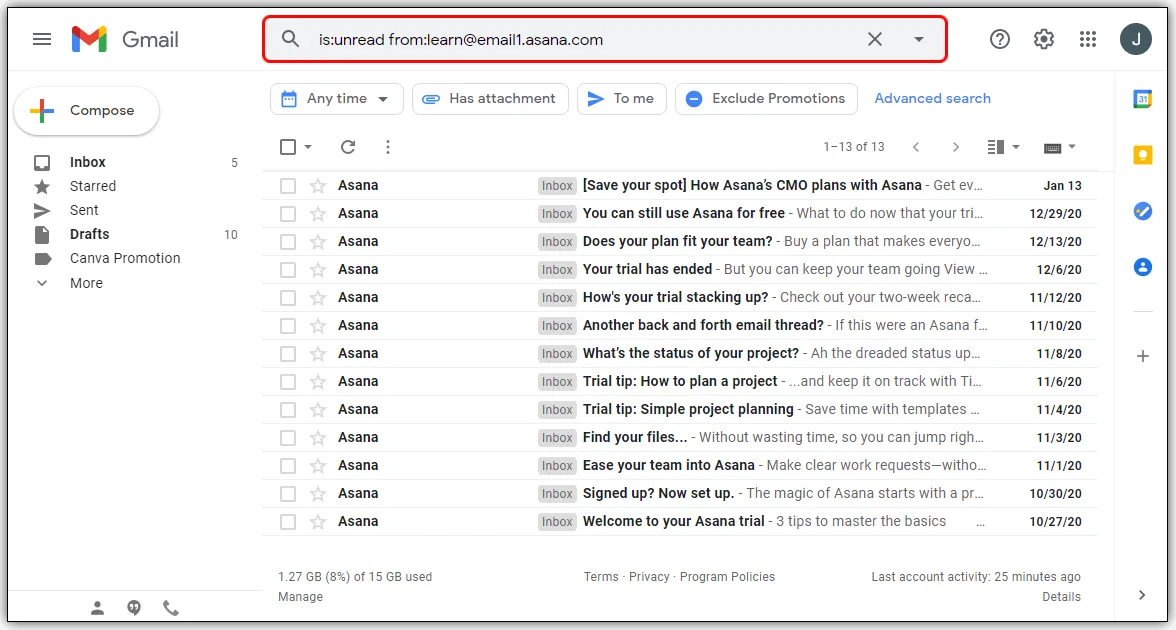
Leverage Gmail’s robust search bar. Input specific queries such as is:unread to filter all unread emails at once. -
Labels and Folders:
Organize your inbox using labels. If you create a label for unread emails, you can easily check this section for any messages requiring your attention. -
Primary, Social, and Promotions Tabs:
Gmail sorts emails into different tabs. Check the Primary tab for personal messages, while Social and Promotions contain less critical communications. -
Keyboard Shortcuts:
Utilize keyboard shortcuts for quick navigation. Press g followed by i to jump to your inbox, making it faster to spot unread messages.
Advanced Search Options
If you handle numerous emails regularly, advanced search options can help narrow down results further. You can combine criteria like sender, subject, and date ranges, making it easier to find unread messages that match specific conditions.
| Search Query | Description |
|---|---|
| is:unread | Displays all unread emails in your inbox. |
| from:[email protected] is:unread | Finds unread emails from a specific sender. |
| before:YYYY/MM/DD is:unread | Shows unread emails received before a specified date. |
-
Notifications:
Turn on notifications for unread messages on your devices, ensuring you don’t miss important communications. -
Third-Party Tools:
Consider using third-party email extensions or applications that offer enhanced tracking and organization features. These can provide visual cues for unread messages.
Finding unread emails in Gmail is about using the available tools and features efficiently. With these methods, navigating your inbox will be smoother, enhancing your overall email experience.
For more organizational insights, check out our article on how to unarchive an email in Gmail for better organization.
Finding Unread Emails in Gmail: Practical Examples
Using Search Operators
Entering “is:unread” in the Gmail search bar allows users to filter and display only unread emails in their inbox.
Why this matters: Highlighting how to utilize search operators can significantly enhance your efficiency when managing a busy inbox.
Setting Up Filters
Creating a filter that automatically labels emails from specific senders as “Unread” helps in organizing communication and prioritizing important messages.
Why this matters: Stating how filters can streamline inbox management saves time, allowing focus on critical tasks without losing track of important conversations.
Utilizing the Gmail Mobile App
On the Gmail mobile app, tapping the hamburger menu can reveal the “Unread” label, making it easy to access unread messages on the go.
Why this matters: Demonstrating how to navigate mobile features ensures you stay connected and responsive to important communications, regardless of location.
Employing the “Mark All As Read” Option
Using the “Mark all as read” feature allows users to clear out hundreds of unread emails, helping to declutter their inbox effectively.
Why this matters: Providing a method for decluttering can boost productivity, making it easier to focus on actionable emails that require attention.
Using Stars for Prioritization
Applying a star to unread emails not only marks them but also organizes them, allowing for quick reference to urgent messages later.
Why this matters: Asking how prioritization affects your workflow emphasizes the importance of managing time efficiently by focusing on pressing tasks.
Adjusting Inbox Settings
Switching to the “Priority Inbox” setting can help highlight unread emails by separating them from read messages, giving immediate visibility to what needs attention.
Why this matters: By keeping inbox settings optimized, users can enhance their email management experience and reduce the risk of overlooking important communications.
Using Keyboard Shortcuts
Enabling keyboard shortcuts allows speedy navigation to unread emails by using the combination “Shift + U” to quickly mark messages, enhancing workflow efficiency.
Why this matters: Stating how keyboard shortcuts streamline navigation illustrates the opportunity to save time and improve overall productivity in email handling.
Finding Unread Emails in Gmail
How can I quickly locate all my unread emails in Gmail?
To find all your unread emails in Gmail, simply enter "is:unread" in the search bar at the top. This filters your inbox to display only emails that you haven't opened yet.
Is there a way to mark all unread emails as read at once?
Yes, you can mark all unread emails as read by selecting the checkbox at the top left corner of your inbox. Then, from the dropdown menu, choose "Mark as read." This way, you can manage your inbox more efficiently.
Can I find unread emails in specific folders or labels?
Absolutely! You can search within specific folders or labels by selecting the folder first and then using the "is:unread" query. This will show all unread emails in that particular section of your Gmail.
What should I do if unread emails are missing or don’t show up?
If you can't find your unread emails, double-check your spam folder or any other labels that might have filtered them. Also, ensure that your inbox settings haven’t changed, which could affect email visibility.
Finding unread emails in Gmail doesn’t have to be a daunting task. Remember, using the search bar with some simple keywords and filters can make a world of difference when it comes to cutting through your inbox clutter. Being proactive in tracking those unread messages not only keeps you organized but also ensures you don’t miss out on important communications. So, go ahead, give those search tricks a whirl and watch your inbox transform into a more manageable space. You've got this!