Archiving emails in Outlook is crucial if you're drowning in a sea of messages. Keeping your inbox clutter-free not only helps you work more efficiently but also ensures you can find important information when you need it. Think about how often you search for that one crucial email buried under hundreds of unread messages—it’s frustrating, right? With archiving, you can streamline your workflow and maintain control over your most vital correspondence.

Why does this matter? Well, everyone faces the challenge of managing overwhelming amounts of digital communication. Whether you’re a busy professional, a student juggling multiple projects, or even just someone who wants to keep personal emails organized, knowing how to archive effectively can save you time and reduce stress.
If you’ve been struggling to figure out the archiving process, don’t worry—you're not alone. Many people find the ins and outs of email management to be a puzzle. By learning the straightforward steps, you can reclaim valuable space in your inbox while keeping important correspondence easily accessible. Let’s simplify the whole process together.
Core Elements of Archiving Outlook Emails
Archiving Outlook emails can streamline your inbox and improve your email management. Understanding the fundamental components involved makes the process simple and effective. Here’s what you need to know:
- Purpose of Archiving: Archiving helps declutter your inbox by moving old emails to a separate file, keeping important conversations accessible while removing them from your primary view.
-
Types of Outlook Archive: Outlook provides two primary forms of archiving:
- AutoArchive: Automatically moves older emails based on set criteria.
- Manual Archive: Allows you to choose specific emails or folders to archive at your discretion.
- File Format: Archived emails are typically stored in a .pst (Personal Storage Table) file, which can be easily imported back into Outlook if needed.
- Retention Policies: Organizations often have defined retention policies that dictate how long emails should be kept or archived. Familiarizing yourself with these policies can ensure compliance.
| Step | Description |
|---|---|
| 1. Access Archive Settings | Open Outlook and go to the "File" menu. Select "Options," then navigate to the "Advanced" section to access AutoArchive settings. |
| 2. Configure AutoArchive | Enable AutoArchive and set the frequency, age of items to archive, and where to save the archived items. |
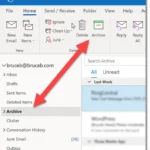
| 3. Manual Archiving | To manually archive, select the folder you wish to archive, go to "File," and choose "Archive." Then select the appropriate options. |
| 4. Locating Archived Emails | Archived emails can usually be found in the Archive folder in Outlook or by opening the .pst file from within the application. |
Understanding these core elements can help streamline the archiving process in Outlook and make email management more efficient. If you also use Gmail, you might find it helpful to compare archiving practices. Check out the article on finding archived emails in Gmail.
Practical Examples of Archiving Outlook Emails
Utilizing AutoArchive Settings
Configuring Outlook's AutoArchive feature allows for the automatic archiving of emails based on specified time frames. Users can set it to archive items that haven't been accessed in a certain period.
Why this matters: Ensuring that older emails don't clutter the inbox facilitates easier navigation and organization of important messages.
Creating Manual Archives
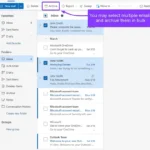
Users can manually archive their emails by selecting specific folders or emails and choosing the "Archive" option, which expedites the decluttering process.
Why this matters: Allowing focused management of email can lead to improved productivity and less stress in handling correspondence.
Using Search Folders for Archived Items
Setting up a Search Folder in Outlook provides a centralized view of archived emails, allowing users to locate long-forgotten messages without sifting through numerous folders.
Why this matters: Enhancing search capabilities ensures users can efficiently retrieve important information when needed, saving valuable time.
Exporting Emails to PST Files
Exporting emails to PST files offers a method to back up and archive emails outside of the Outlook environment. This is especially useful for long-term storage or transferring emails to different systems.
Why this matters: Safeguarding important communications ensures continuity and security in case of system failures or changes in technology.
Organizing Email Folders for Archiving
Segmenting emails into specific folders based on projects or themes facilitates targeted archiving, allowing users to manage their emails better according to relevance.
Why this matters: Simplifying email organization makes it easier to locate and access archived emails related to specific tasks or projects.
Implementing Retention Policies
Many organizations utilize retention policies to automatically archive emails that meet certain criteria, ensuring compliance with legal and regulatory standards.
Why this matters: Supporting organizational compliance reduces the risk of legal issues while maintaining orderly email management.
Accessing Archived Emails Through Outlook Web Access
Users can access their archived emails via Outlook Web Access, allowing for convenient retrieval of important messages from any internet-enabled device.
Why this matters: Providing flexibility ensures that users can stay connected and access crucial information even when away from their primary workstations.
Understanding Outlook Email Archiving
Why should I archive my Outlook emails instead of just deleting them?
Archiving emails in Outlook allows you to keep important messages without cluttering your inbox. It helps in organizing your digital workspace while preserving valuable information for future reference, unlike deletion which is permanent.
How can I archive emails in Outlook manually?
To archive emails manually, simply select the messages you want to archive, then go to the "File" menu, choose "Tools," and select "Clean Up Old Items." From there, you can specify what you wish to archive. This will move your selected emails to the designated archive folder.
Is there an automatic way to archive emails in Outlook?
Yes, Outlook offers an automatic archiving feature. You can set up your archiving preferences by going to “File,” selecting “Options,” and then clicking on “Advanced.” Under “AutoArchive,” you can configure the settings to automatically archive emails based on your specified timeline.
Where do I find my archived emails in Outlook?
Your archived emails will typically be stored in a separate folder called “Archive” in the folder pane. If you don’t see it, check under "Data Files" in your account settings to ensure the archive is enabled and properly located.
Archiving your Outlook emails is all about keeping your inbox organized and ensuring you can find what you need when you need it. It’s a simple process that can make a world of difference in your daily workflow. So, if you haven't tried archiving yet, now's the perfect time to give it a shot. With just a few clicks, you can clear out the clutter and make your email life a lot simpler. Happy archiving!