Changing your Amazon account email is more than a simple update; it's about securing your online identity and ensuring your personal information is up-to-date. Many people overlook this important step, but keeping your email current can help you regain access to your account if you ever forget your password or face any other issues. 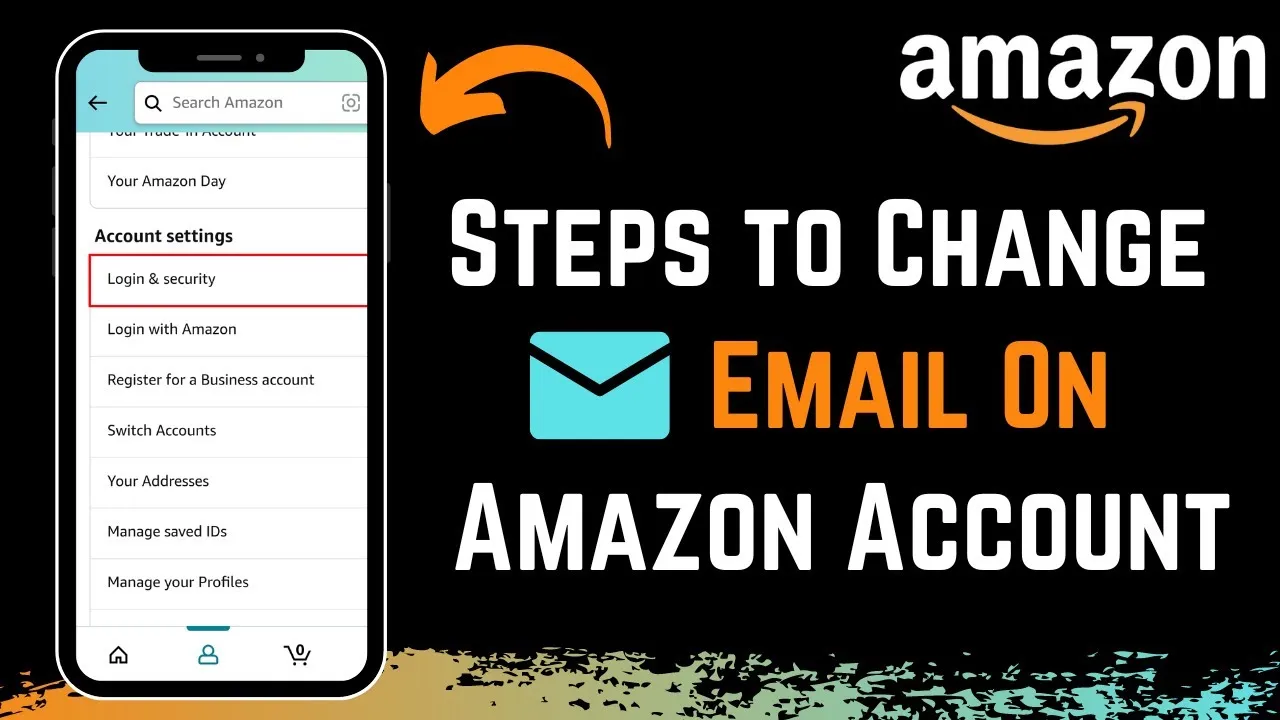
Whether you're switching to a new email provider or just want a fresh start, knowing how to navigate this process can save you plenty of headaches later. It might seem like a minor task, but it has significant implications for your online shopping experience and security. That’s why getting this right matters.
Let's break down the steps in a straightforward way, so you can make this change with confidence and ease. Your account deserves it, and so do you.
Essential Steps for Modifying Your Amazon Account Email
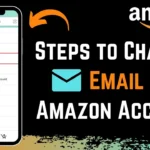
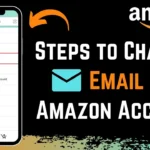
Changing the email associated with your Amazon account is a straightforward process, but it requires careful attention to maintain the integrity of your account and avoid any disruption in your shopping experience. Below is an overview of the steps involved, including some important considerations.
- Log into Your Account
Start by signing in to your Amazon account using your existing email and password.
- Access Your Account Settings
Navigate to the "Accounts & Lists" menu at the top right corner of the Amazon homepage. From there, select "Your Account" to enter your account settings.
- Find Your Login Information
In the account settings, look for the "Login & security" option. Click on it to view your current email address and other login details.
- Edit Your Email Address
Locate the section where your current email is displayed. Click on the "Edit" button next to it. You will be prompted to enter your new email address.
- Verify Your New Email
After entering your new email, Amazon will send a verification email to that address. Go to your inbox, find the email, and follow the verification link.
- Confirm Changes
Once your new email is verified, return to the "Login & security" section of your account settings to ensure the update is reflected accurately.
Considerations While Changing Your Email
When changing your Amazon account email, it's worthwhile to keep a few points in mind:
| Point | Description |
|---|---|
| Account Security | Make sure your new email is secure and not easily compromised. |
| Access | Ensure you have access to the new email address for verification and future communications. |
| Update Stored Information | If your email is linked to subscriptions or services, update it there as well. |
| Notifications | Check that your notification settings are correctly aligned with your new email to avoid missing important alerts. |
For further reading on effective communication methods, especially in the realm of email, visit the article What Does CC Mean On The Email For Better Communication.
Practical Examples of Changing Your Amazon Account Email
Identifying the Need for an Email Change
Recognizing that your current email address is outdated or no longer accessible prompts the need to change it. This is essential for receiving important notifications, such as order confirmations and shipping updates.
Why this matters: Highlighting the importance of staying updated helps in avoiding missed communications about purchases, which can lead to frustration.
Accessing Your Account Settings
Navigating to the 'Account & Lists' section on Amazon allows for quick access to account settings, where you can initiate the email change process. This section is usually straightforward and user-friendly.
Why this matters: Stating the ease of finding account settings ensures that users don’t waste time searching, making the process more efficient.
Verifying Your Identity
Amazon typically requires verification of your identity by sending a code to your registered phone number or current email before allowing any changes. This step enhances security and protects user accounts.
Why this matters: Emphasizing the importance of verification helps in safeguarding personal information, ensuring that only authorized changes are made.
Entering Your New Email Address
Once verified, entering the new email address into the designated field ensures that it is recognized by Amazon's system. Double-checking for typos here is crucial to avoid issues later.
Why this matters: Stating the importance of accuracy in entering new information reduces the likelihood of complications that can arise from incorrect email addresses.
Saving Changes Successfully
After entering the new email address, clicking on the save button confirms the change. A confirmation message usually follows, reassuring you that the update was successful.
Why this matters: Providing clarity about the save process helps prevent confusion, ensuring users know their changes have been implemented.
Updating Communication Preferences
After changing the email, reviewing and updating your communication preferences ensures that you receive notifications in the manner you prefer. This includes newsletters and promotional emails.
Why this matters: Highlighting the option to customize communication preferences allows users to manage their engagement with Amazon, making their experience more tailored and enjoyable.
Monitoring Email for Confirmation
Once the email change is made, keeping an eye on the new inbox for a confirmation email from Amazon guarantees that you have successfully transitioned to the new address.
Why this matters: Asking users to monitor the new email reinforces the idea that staying aware of changes ensures everything is functioning as expected, bolstering confidence in the process.
Understanding How to Change Your Amazon Account Email
What steps do I need to follow to change my Amazon account email?
Log into your Amazon account and navigate to "Your Account." Under "Account settings," select "Login & security." Click on "Edit" next to your email address, enter the new email, then save your changes.
Will changing my email affect my existing orders or subscriptions?
No, changing your email address does not impact your current orders or subscriptions. Your account remains intact, and you can still access all your previous purchases and settings.
I forgot which email I used for my Amazon account. How can I recover it?
If you can't remember your email, try the "Forgot your password?" link on the login page. You'll be prompted to enter your phone number associated with your account, which can help you retrieve your email address.
Is there any verification needed after I change my email?
Yes, Amazon typically requires you to confirm the new email address. Check your new inbox for a verification email and follow the instructions to complete the process.
Changing your Amazon account email is a straightforward process that can enhance your security and help you stay connected to important notifications. Make sure to follow the steps carefully, as keeping your account information up to date is essential. If you run into any issues, Amazon's support team is just a click away. Now that you're equipped with the know-how, go ahead and update your email—it’s a small change that makes a big difference in how you manage your online shopping. Happy shopping!