Ready to cut ties with an old email account in Outlook? Whether you're streamlining your communication or just ready for a fresh start, deleting an email account can feel overwhelming. But it doesn’t have to be. You’re not alone in this; many people find themselves looking to declutter their digital lives and make room for more important things.

In just a few straightforward steps, you can remove that account and reclaim your inbox. Imagine having a cleaner, more organized Outlook that's easier to manage—now that sounds appealing, right?
Let’s walk through how to make that happen and ensure you’re not leaving any loose ends behind.
Essential Steps for Removing an Email Account from Outlook
Deleting an email account from Outlook can seem daunting, but it’s straightforward when broken down into manageable parts. Here’s how to make it happen with ease.
Why Remove an Email Account?
- Account Inactivity: If you no longer need an email account, removing it from Outlook can declutter your inbox.
- Privacy Concerns: Deleting accounts can enhance your privacy by minimizing the number of platforms holding your information.
Steps to Delete an Email Account from Outlook
Follow these precise steps to delete your email account:
- Open Outlook: Launch the Outlook application on your device.
- Access Account Settings:
- Click on the “File” tab in the top-left corner.
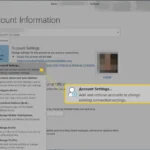
- Select “Account Settings,” then click on “Account Settings” again.
- Select the Email Account: In the account settings window, find the email account you want to remove.
- Remove the Account:
- Click on the account to highlight it.
- Click on the “Remove” button.
- Confirm the action by clicking “Yes” when prompted.
- Close Account Settings: Once removed, close the account settings window. Your email account has now been deleted from Outlook.
What Happens Next?
After removing the email account, you will lose access to all emails associated with that account within Outlook. If you have important emails, ensure you back them up or transfer them before deletion.
Common Issues and Resolutions
| Issue | Resolution |
|---|---|
| Unable to find "Remove" button | Ensure you're not trying to delete the primary account; it may need to be done differently. |
| Error message when removing account | Restart Outlook and attempt again. If the problem persists, check if there are updates available for Outlook. |
After taking these actions, you will streamline your Outlook experience by managing only the accounts you actively use. If you are also considering managing emails in a different service, check out how to delete bulk emails in Gmail to maintain a tidy inbox there as well.
Practical Applications for Deleting an Email Account from Outlook
Removing Unused Accounts
Deleting an email account that you no longer use helps streamline your Outlook interface and reduces confusion between multiple accounts.
Why this matters: Highlighting the importance of maintaining a clutter-free workspace enables enhanced productivity and prevents accidental email misdirection.
Securing Personal Information
If you’re no longer using a particular email account, deleting it from Outlook can help protect your personal data from unauthorized access.
Why this matters: Providing a safer digital environment encourages better data privacy practices, essential in today’s cyber landscape.
Enhancing Email Performance
Removing old or inactive email accounts can improve Outlook's performance, resulting in faster load times and smoother operation.
Why this matters: Stating the need for efficient software operation fosters a more effective work experience and minimizes frustrating delays.
Consolidating Communication
Deleting accounts that you rarely check helps consolidate communication, allowing you to focus on your primary email address for important messages.
Why this matters: Encouraging focused communication management reduces the risk of missing essential emails, leading to better organization.
Preventing Spam Accumulation
By removing an old email account, you can significantly decrease the volume of spam and unwanted messages cluttering your inbox.
Why this matters: Asking users to consider their email management habits leads to cleaner inboxes and improved overall email experiences.
Facilitating Account Migration
When migrating to a new email platform or service, deleting old accounts from Outlook ensures a smoother transition without residual data conflicts.
Why this matters: Providing clarity during the transition process helps users manage their digital footprint more effectively.
Reducing Sync Conflicts
Eliminating outdated accounts can minimize sync conflicts between devices, ensuring that your current email settings are consistently maintained across platforms.
Why this matters: Highlighting the technical benefits emphasizes the need for seamless device interfacing, which enhances the overall user experience.
Understanding Email Account Removal from Outlook
How do I delete an email account from Outlook on my laptop?
To remove an email account from Outlook on your laptop, open Outlook and go to the "File" menu. Select "Account Settings," and then click "Account Settings" again. Highlight the account you want to delete, then click "Remove." Confirm the action by clicking "Yes."
Will deleting my email account in Outlook erase my emails?
Yes, removing your email account from Outlook will delete all local copies of emails associated with that account from the Outlook application. However, if your emails are stored in the cloud with your email provider, they will remain accessible via their web interface.
Can I recover a deleted email account from Outlook?
Once you've removed an email account from Outlook, recovery is not straightforward. If you’re using an email service that stores messages on their servers, you can reconnect the account by adding it back. Otherwise, any local data is typically lost unless you have backups.
Is there a difference in deleting an account on Outlook desktop versus Outlook web?
Yes, there is a difference. On the Outlook desktop app, the removal process is through the Account Settings menu, while on the Outlook web interface, you go to "Settings," then "View all Outlook settings," and navigate to "Mail" > "Sync email" to remove an account. Each platform handles it differently.
Deleting an email account from Outlook doesn't have to be a daunting process; just follow the steps, and you'll clear out what you no longer need in no time. Remember, it’s all about taking back control of your inbox and ensuring that your email setup works for you, not against you. If you ever feel overwhelmed by too many emails, you might find some relief in managing your other accounts too—like checking out how to delete bulk emails in Gmail for a clutter-free inbox. So, go ahead and make that change! You’ve got this.