Creating an email template in Outlook can save you precious time while ensuring your messages always look polished and professional. Whether you're sending updates to your team, outreach to clients, or newsletters to subscribers, having a go-to template can streamline your workflow. 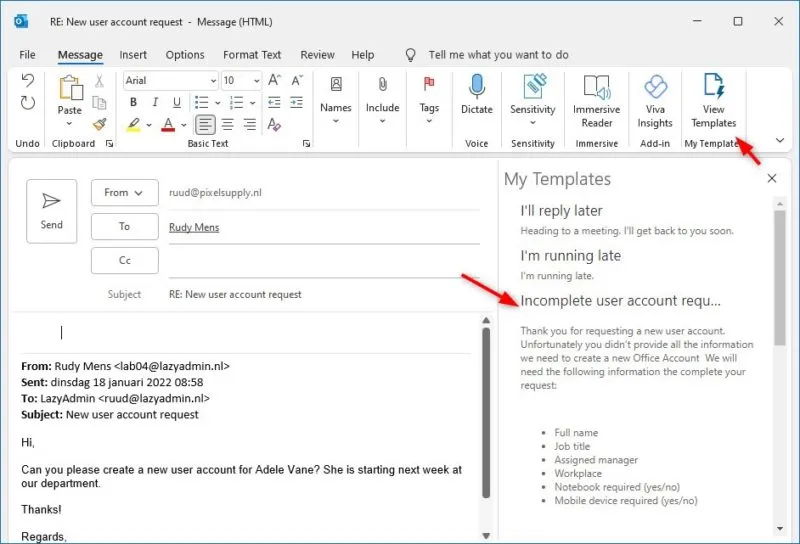
Imagine effortlessly pulling up a well-crafted email whenever you need it. No more rewriting the same message over and over, which can be a real drain on your productivity. It allows you to focus on what really matters—connecting with your audience and getting your message across.
Getting started might seem overwhelming at first, but once you see how simple it can be, you’ll wonder why you didn’t try it sooner. And if you’re also looking to enhance your email signature for a cohesive professional look, check out our article on creating an email signature in Outlook.
Core Elements of Building an Email Template in Outlook
Creating an email template in Outlook allows you to save time and maintain consistency in your communications. Here’s a straightforward overview of the essential components and steps involved.
Essential Components
- Subject Line: A clear and relevant subject line helps recipients understand the email's purpose right away.
- Greeting: Personalize the greeting by using the recipient's name, or keep it general like "Dear Team."
- Body: This is where you outline the main message. Use concise sections to convey your information clearly.
- Call to Action: Encourage the recipient to take a specific step, whether it's scheduling a meeting or providing feedback.
- Closing: Use a friendly sign-off, such as "Best regards" or "Sincerely," followed by your name.
- Signature: Including an email signature can reinforce your brand identity. Check out how to create a professional email signature in Outlook.
Creating the Template Step-by-Step
Here’s how to set up your template in Outlook:
- Open Outlook and click on “New Email.”
- Fill in the subject line, greeting, body, call to action, closing, and signature as desired.
- Select “File” > “Save As.”
- In the “Save as type” dropdown menu, choose “Outlook Template (*.oft).”
- Name your template and click “Save.”
Using the Template
To utilize your newly created template:
- Go to “Home” in Outlook.
- Select “New Items” > “More Items” > “Choose Form.”
- In the “Look In” dropdown, select “User Templates in File System.”
- Find and select your template, then click “Open.”
Benefits and Considerations
| Advantages | Disadvantages |
|---|---|
| Reduces time spent drafting recurrent emails | May appear impersonal if overused |
| Ensures consistent messaging across communications | Requires maintenance to keep content updated |
| Helps in maintaining a professional image | Limited customization may stifle creativity |
Following these straightforward steps and understanding the core elements will make your email communications more efficient and organized in Outlook.
Real-World Applications of Creating Email Templates in Outlook
Streamlining Repetitive Communications
Creating an email template for frequent communications, such as meeting requests or status updates, allows users to save time and ensure consistency in messaging.
Why this matters: Highlighting the value of efficiency, these templates reduce the effort spent on composing similar emails, leading to more productivity throughout the day.
Enhancing Brand Image
Customizing email templates with branding elements, such as logos and specific color schemes, allows businesses to maintain a professional appearance in their communications.
Why this matters: Providing a cohesive brand image builds trust with recipients, reinforcing the organization's identity and values in every message sent.
Facilitating Team Collaboration
Using shared email templates among a team for common projects ensures that everyone communicates the same message, which helps in maintaining coherence across different stakeholders.
Why this matters: Asking for seamless communication reduces the risk of miscommunication and helps ensure that all team members are on the same page regarding project updates.
Speeding Up Customer Support Responses
Creating templates for common customer inquiries allows support staff to respond quickly to recurring questions, improving service response time.
Why this matters: Stating the significance of timely responses fosters customer satisfaction and loyalty, reinforcing the importance of responsiveness in customer service.
Personalizing Outreach Campaigns
Email templates can be tailored for marketing purposes, enabling personalized outreach while maintaining a consistent format across campaigns.
Why this matters: Highlighting the importance of personalization in marketing increases engagement rates, making recipients feel valued and more likely to respond positively to outreach efforts.
Standardizing Compliance Communication
Templates designed for compliance-related emails can ensure that all necessary legal disclaimers and regulatory information are consistently included.
Why this matters: By keeping compliance at the forefront, organizations mitigate risks associated with regulatory penalties, safeguarding both themselves and their clients.
Tracking Responses using Templates
Utilizing email templates with built-in follow-up requests helps users keep track of responses and follow up efficiently when necessary.
Why this matters: Providing a systematic approach to tracking communication encourages accountability and improves overall response rates in professional correspondence.
Your Email Template Questions Answered
How do I create an email template in Outlook?
To create an email template in Outlook, start by composing a new email. Enter your subject and body text, then go to "File" and select "Save As." Choose "Outlook Template (*.oft)" from the dropdown menu, name your template, and click "Save." You can then access it later from "Home" > "New Items" > "More Items" > "Choose Form."
Can I customize my email template with images and formatting?
Absolutely! While composing your email, you can add images, change fonts, and use various formatting options. Just remember that these customizations should be saved as part of the template when you save it as an .oft file.
How can I access my saved email templates later?
To access your saved templates, go to "Home," click on "New Items," then select "More Items" and "Choose Form." In the resulting window, choose "User Templates in File System" from the dropdown to find and select your saved templates.
Are there any limitations to using templates in Outlook?
Yes, there are a few. Outlook templates can’t include certain interactive elements like forms or macros, and they may not display correctly if received in email clients other than Outlook. It's good to test your template to ensure it looks as expected across different platforms.
Creating an email template in Outlook not only saves you time but also gives a consistent feel to your communications. When you have a ready-made format, it makes reaching out to colleagues or clients feel effortless. So, why not give it a try? Dive into your Outlook settings and start building your templates—your future self will thank you for turning a tedious task into a breeze. Plus, while you're at it, consider sprucing up your communications with a polished email signature to really make your messages stand out. Happy emailing!