Bored with a cluttered inbox? You’re not alone. Many people feel overwhelmed when they see thousands of unread emails staring back at them. Clearing out those old messages isn’t just about aesthetics; it can positively affect your productivity and mental clarity.

You may find yourself juggling important work emails amid promotional clutter and spam. It’s all too easy for vital messages to get lost in the noise. Fortunately, deleting bulk emails in Gmail is a lot simpler than you might think, freeing up space and bringing some order back to your digital life.
Ready to reclaim your inbox? Let’s break down how to efficiently tackle those unwanted emails without losing your sanity.
Core Elements for Deleting Bulk Emails in Gmail
Deleting a large number of emails in Gmail can seem overwhelming, but it's a straightforward process once you understand the key steps. Below, you'll find essential components to simplify your email management.
- Selecting Multiple Emails: Gmail offers a checkbox feature that allows you to select multiple emails at once. Use it to save time.
- Using Search Filters: Gmail's search bar allows you to filter emails by criteria such as sender, date, or keywords. This helps you target specific emails that need deletion.
- Emptying Folders: Besides the inbox, you may want to delete emails in folders like “Spam” or “Trash.” Make sure to clear those out as well.
- Keyboard Shortcuts: Familiarizing yourself with Gmail shortcuts can expedite the deletion process. For instance, pressing 'Shift + 8' allows you to select all emails on the current page.
- Managing Your Trash: Deleted emails go to the Trash for 30 days before permanent deletion. Remember to empty the Trash to free up space immediately.
Here’s a simple table summarizing the steps:
| Step | Action |
|---|---|
| 1 | Open Gmail and navigate to your inbox. |
| 2 | Utilize the search bar for any specific bulk emails you wish to delete. |
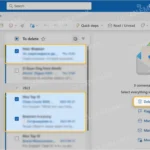
| 3 | Check the box at the top to select all emails on the page or utilize the selection dropdown. |
| 4 | Click the trash can icon to delete the selected emails. |
| 5 | Go to the Trash folder and empty it to permanently delete emails. |
By focusing on these core elements, managing bulk emails becomes more efficient and less time-consuming in Gmail. If you're interested in similar actions with other email services, explore how to delete a Yahoo email account quickly and easily.
Real-World Applications for Deleting Bulk Emails in Gmail
Utilizing Search Operators
By entering specific search operators in the Gmail search bar, users can filter emails based on criteria like sender, date, or specific words. For instance, using "from:[email protected]" displays all emails from that sender, allowing for bulk deletion.
Why this matters: Providing a straightforward way to target emails ensures users can quickly locate and delete unsolicited messages without sifting through their entire inbox.
Selecting All Emails At Once
Once in a specific folder, clicking the checkbox at the top to select all emails allows users to delete multiple messages in one action. If there are more than 50 emails, a prompt will appear asking if the user wants to select all conversations in that category.
Why this matters: Highlighting the efficiency of this method means users can clear out large volumes of emails without taking the time to delete them one by one.
Using Categories for Bulk Deletion
By navigating to the categories like "Promotions" or "Social", users can quickly select and delete entire sections of their emails. This is especially useful for managing non-essential communications from marketers and notifications.
Why this matters: Stating the ease of organizing emails into categories allows for faster management, enhancing productivity by reducing clutter without manually going through each message.
Deleting Spam and Junk Mail
Accessing the "Spam" folder provides the option to delete all spam emails with one click. Users can simply press "Delete all spam messages now" to clear out unwanted emails instantly.
Why this matters: Asking users to prioritize security and outreach means that they can manage unsolicited messages effectively, maintaining a cleaner inbox and minimizing risks of phishing attacks.
Setting Up Filters for Future Management
Creating filters for incoming emails allows users to automatically delete or archive emails from specific senders or based on keywords, preventing unnecessary emails from piling up in the future.
Why this matters: Keeping of inboxes manageable creates a better emailing experience, ensuring that important messages aren't lost among unwanted clutter.
Using Gmail's Mobile App for Quick Deletion
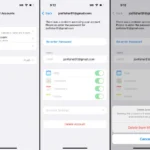
The Gmail mobile app facilitates bulk deletion by allowing users to select multiple emails at once for removal, making it easy to manage emails on-the-go.
Why this matters: Highlighting the convenience of mobile functionality provides users with flexibility, helping them stay organized regardless of where they are.
Archiving Instead of Deleting
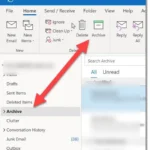
By archiving emails instead of deleting them, users can keep their inbox clean while retaining access to important information. Using the "Archive" button allows for future reference without clutter.
Why this matters: Providing alternatives to deletion offers users control over their emails, supporting a balance between cleanliness and accessibility.
Common Questions About Deleting Bulk Emails in Gmail
What’s the fastest way to remove a large number of emails from Gmail?
To quickly delete many emails, start by using the search bar to find specific categories or senders. Once you have the results, check the box at the top left of your inbox to select all emails visible on that page, then click "Select all conversations that match this search" to highlight everything. Finally, hit the trash icon to delete them all at once.
Can I recover emails after deleting them in bulk?
Yes, you can retrieve deleted emails if they’re still in the Trash. Gmail keeps deleted emails for 30 days, allowing you to restore them. Look for the "Trash" folder on the left sidebar, select the emails you want to recover, and click on "Move to" to return them to your inbox.
Are there any limits to how many emails I can delete at once?
While Gmail allows you to select all emails in a particular search or folder, there’s a limit of 1,000 emails in one operation. If you have more, you might need to repeat the process multiple times to delete them all.
Is it possible to delete emails from a specific date range?
Definitely! Use the search bar to specify a date range by typing “before:YYYY/MM/DD” or “after:YYYY/MM/DD.” This allows you to filter your inbox. Once you've selected the emails within that range, you can delete them as usual.
Once you’ve tackled your bulk emails in Gmail, you’ll really notice the difference in your inbox. It’s all about clearing out the clutter and making space for the messages that truly matter. Keeping your email organized not only boosts productivity but also reduces that overwhelming sense of chaos we all know too well. So go ahead, take a few minutes today to declutter your inbox and experience the refreshing feeling of a tidy digital workspace. You’ve got this!