
Need to keep important emails from Outlook for your records or sharing? You’re not alone. Whether it’s for work projects, personal milestones, or just plain old record-keeping, knowing how to download an email can save you time and hassle down the line. 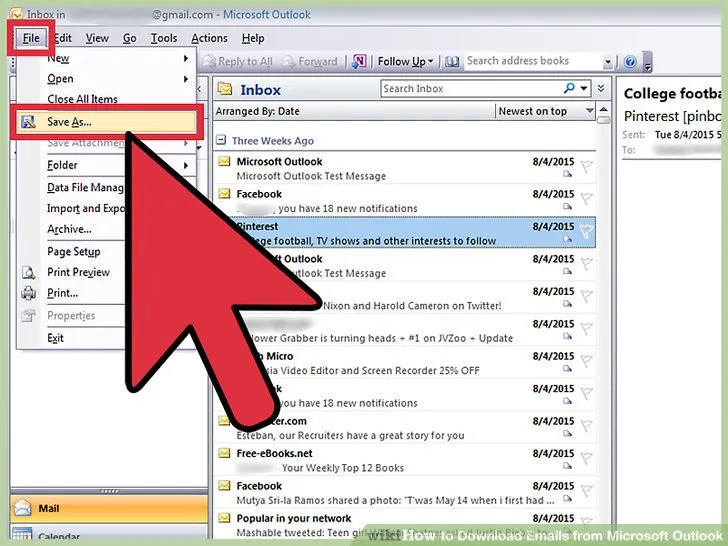
Downloading emails isn’t just a techy skill; it’s a practical one that can enhance your workflow. Imagine having all your critical emails saved securely, ready to access without login hassles. With a few simple steps, you can organize your inbox like a pro, ensuring that nothing important gets lost in the cyberspace void.
If you’re looking to archive an essential conversation or share details with someone who doesn’t have Outlook, you’ll find the process both straightforward and reassuringly efficient. Let’s tackle those steps so you can start managing your emails with confidence.
Essential Elements of Downloading Emails from Outlook
Downloading emails from Outlook is a central task for many users, whether for backup, offline access, or migration to another platform. The process can vary slightly between versions of Outlook, but the core concepts remain the same.
Here’s a straightforward breakdown of how to download emails, along with important elements to consider:
- Understanding the Email Format: Emails can be saved in various formats like .msg, .eml, or .pdf. Choose a format that best serves your needs.
- Accessing Your Email: Make sure you are in your Outlook application or web version, logged into the correct account where the email resides.
- Selecting the Email: Navigate to your inbox or folder containing the desired email. Click to open it or select it without opening to apply bulk actions.
- Using the Save Function: In the Outlook application, utilize the 'File' menu or right-click options to find the 'Save As' feature. This allows you to specify the format and location for saving.
For Microsoft Outlook on the web, the process is similar:
- Right-click on the Email: This will provide options to forward, print, or save the email directly.
- Export Options: Look for the option to download or print, where you can select saving to PDF format for easier sharing and offline use.
| Email Format | Best Use Case |
|---|---|
| .msg | Ideal for sharing complete email details including attachments within Outlook. |
| .eml | Useful for transferring emails to other email clients or programs. |
| Perfect for archiving or sharing emails in a universally accessible format. |
When downloading emails, consider the impact on your email storage and local device. Regular downloads can help maintain organization and ensure you have backups of important communications.
If you're looking for more ways to enhance your Outlook experience, check out the article on scheduling emails in Outlook.
Downloading Emails from Outlook: Practical Applications
Backing Up Important Emails
Users often download emails to create local backups of vital communications, preserving them in case of data loss or inadvertent deletion.
Why this matters: Ensuring data integrity helps maintain business continuity and personal information security.
Archiving for Legal Compliance
Organizations may download emails to archive them for compliance with legal regulations, retaining a record of communication for audits or legal inquiries.
Why this matters: Maintaining compliance safeguards against potential legal repercussions and fosters trust with stakeholders.
Sharing Information Outside the Organization
Downloading emails enables users to share specific messages or attachments outside their organization, facilitating collaboration with external partners or clients.
Why this matters: Promoting seamless communication enhances teamwork and project success across different organizations.
Organizing Emails for Projects
Project managers often download emails related to specific projects, organizing them in folders for easy reference and management.
Why this matters: Participating in organized project management increases efficiency and helps teams stay focused on objectives.
Converting Emails to PDF Format
Users might download emails and convert them to PDF format for easy archiving or distribution to ensure formatting remains intact.
Why this matters: Preserving formatting enhances readability and professionalism when sharing emails with others.
Extracting Attachments
Downloading emails allows users to directly extract and save attachments, ensuring important files are readily accessible when needed.
Why this matters: Streamlining access to necessary documents boosts productivity and reduces time spent searching for files.
Managing Storage Space
Downloading large attachments or entire emails can help users free up storage space within their Outlook account, optimizing performance.
Why this matters: Enhancing email performance contributes to a smoother user experience and reduces potential technical issues.
Understanding How to Download Emails from Outlook
How can I download an email from Outlook to my computer?
To download an email from Outlook, open the email you want to save. Click on "File," then select "Save As." Choose your preferred location and file type, like .msg or .txt, to store the email on your computer.
Is it possible to download multiple emails at once from Outlook?
Yes, you can download multiple emails using the drag-and-drop method. Simply select the emails you want, hold down the left mouse button, and drag them to a folder on your desktop. This creates individual files for each email.
Can I export emails from Outlook to another format?
Outlook allows you to export emails to formats such as .pst or .csv. In the "File" menu, navigate to "Open & Export," then select "Import/Export" and follow the prompts to choose your preferred format.
What do I do if the download option is not available for an email?
If you can't find the download option, ensure the email isn't part of an Exchange or Office 365 account that uses Cached Exchange Mode. In such cases, try accessing the email directly on the web version of Outlook to download it.
Downloading an email from Outlook is a straightforward process that can save you time and ensure you have important messages at your fingertips, even when you're offline. Just remember to choose the format that works best for your needs, whether it's PDF or EML. So go ahead, give it a try! You'll soon find yourself managing your emails with a new level of ease. And if you're looking to streamline your email communication further, check out how to schedule an email in Outlook for that perfect touch of professionalism!





