Need to find that important email you tucked away ages ago? You’re not alone. Many of us have cluttered inboxes filled with messages from years gone by, making it a challenge to retrieve what really matters. Whether it’s for work, personal reasons, or just nostalgia, knowing how to access archived emails can save you time and frustration.

Understanding your email system is crucial here, as different platforms offer various ways to manage archived messages. Your email provider likely has built-in features to make this process smoother than you might think. Plus, retrieving those lost emails can often provide clarity and resolve lingering questions from the past.
If you’ve ever tried to locate an old conversation, you know the feeling of urgency that comes with it. Having a reliable method to search for and retrieve archived emails can make all the difference in getting your answers quickly. It’s about regaining control over your digital space, ensuring you’re never left in the dark.
Key Concepts for Retrieving Archived Emails
Retrieving archived emails can seem daunting, but understanding the process makes it manageable. Here’s a straightforward exploration of core concepts that help you effectively access your archived messages.
- Understanding Email Archiving: Email archiving stores old emails outside your primary inbox. This frees up space without permanently deleting messages.
- Identifying Your Email Client: Different email services, such as Gmail, Outlook, or Yahoo, store archived emails in unique ways. Knowing which service you use is critical for recovery.
- Locate the Archive Folder: Most services have a dedicated folder or label named "Archived" where archived emails reside. Check your sidebar or folder list for this option.
- Search Functionality: Utilize the search bar to look for specific emails. Typing keywords, sender names, or dates can quickly help find archived messages.
- Restoration Process: Once you find an archived email, moving it back to your inbox is often as simple as clicking on “Move” or “Archive” options, then selecting the inbox or another folder.
Here’s how you can explore the retrieval process based on popular email platforms:
| Email Client | How to Retrieve |
|---|---|
| Gmail | Access the "All Mail" folder or use the search bar. Look for "Archived" in the filter settings. |
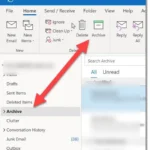
| Outlook | Check the "Archive" folder in your folder list. Use the search box for specific emails. |
| Yahoo Mail | Find archived emails in the "Archive" folder or use the search bar with keywords. |
Retrieving archived emails doesn’t have to be a hassle. Each platform offers straightforward options once you know where to look and how to use the available tools. Whether you’re maintaining an organized workspace or trying to locate an important message, understanding this process is essential.
If you want to maintain a clutter-free inbox as you manage your archived emails, consider checking out How To Delete Emails From Gmail In Bulk For A Clutter-Free Inbox.
Real-World Examples of Retrieving Archived Emails
Using Gmail's Archive Function
In Gmail, when you archive an email, it removes the message from your inbox but retains it in the "All Mail" folder. To retrieve these emails, you can simply search or access the "All Mail" section to locate the archived messages.
Why this matters: Highlighting the simplicity of retrieving archived emails enhances user confidence in managing their inbox efficiently.
Outlook’s Archive Feature
Microsoft Outlook allows you to archive emails manually or automatically. Accessing archived emails is done through the Archive folder in the navigation pane, making it easy to find old conversations.
Why this matters: Stating the organization of archived emails encourages effective email management and retrieval, reducing stress during email searches.
Utilizing Search Filters
In various email clients, using specific search filters can help in retrieving archived emails. For instance, typing "in:archive" in Gmail's search bar limits results to archived messages, making the retrieval process swift.
Why this matters: Providing search functionality options increases user efficiency in finding important messages quickly without unnecessary hassle.
Accessing Archived Emails on Mobile Apps
Email apps on mobile devices, like Gmail and Outlook, ensure users can retrieve archived emails while on the go. Navigating through the app's menu allows for easy access to archived sections, ensuring continuous communication.
Why this matters: By keeping mobile access streamlined, users maintain productivity and correspondence even when away from their primary workstation.
Setting Up Automatic Archiving
Many email services allow the setup of rules or filters that automatically archive older emails based on criteria you set. For instance, emails older than six months can automatically be sent to the archive.
Why this matters: Asking users to think of automated archiving assures them that their inbox can remain clutter-free without manual intervention.
Using Email Clients with Integrated Archive Options
Third-party email clients like Thunderbird or Spark offer features for archiving. With a single click, users can archive messages, easily retrieving them through designated archive folders in those applications.
Why this matters: Highlighting compatibility with various clients empowers users to choose tools that best suit their email management needs.
Restoring Archived Emails via Web Interface
Webmail services often provide options to restore archived emails back to the inbox. For example, users can select all archived messages and move them back into their inbox in one action.
Why this matters: Stating the ability to restore emails strengthens the overall user experience by allowing quick adjustments based on communication needs.
Navigating Your Archived Emails
How can I find archived emails in Gmail?
To locate archived emails in Gmail, go to the "All Mail" folder on the left sidebar. This folder contains everything, including archived messages. Use the search bar if you have specific terms or senders in mind, and make sure to clear any filters that might hide your archived emails.
What does it mean to archive an email?
Archiving an email removes it from your inbox without deleting it. This keeps your inbox organized while retaining all your messages for future access. Archived emails can still be searched and found easily later on.
Can I retrieve archived emails on my mobile phone?
Yes, you can access archived emails on your mobile device. Open the email app and navigate to the "All Mail" section. You can also use the search function to find specific archived emails quickly.
Are archived emails permanently deleted after a certain time?
No, archived emails aren't deleted automatically unless you choose to delete them manually. They remain in the "All Mail" folder until you take action to remove them. This ensures you can access them whenever needed.
Grabbing those archived emails is easier than you might think; just remember that each email platform has its quirks, so take a moment to get familiar with the steps for your specific service. Once you know where to look, you can easily retrieve any important message that slipped through the cracks. Don't hesitate to explore the options available in your inbox, and if you're looking to maintain an organized space in the future, consider checking out how to delete emails from Gmail in bulk for a clutter-free inbox. Take a little time now, and you'll save yourself a lot of hassle later!