Have you ever lost track of an important email buried in your Gmail archive and felt that sinking feeling of frustration? You're not alone. Many people find themselves in this situation, needing access to emails that seem out of reach. Knowing how to retrieve those archived emails can save you time and stress, especially when deadlines are looming.
Fortunately, uncovering those hidden emails is easier than you might think. Gmail offers straightforward methods to help you locate what you need, putting control back in your hands.
Essential Steps for Accessing Archived Emails in Gmail
Retrieving archived emails in Gmail is straightforward once you understand the organization of your inbox. When emails are archived, they disappear from your primary inbox but are not deleted. Instead, they remain accessible within your account. Here’s a breakdown of how to find these important messages.
Steps to Access Archived Emails:
- Log into Your Gmail Account: Start by signing in with your credentials on the Gmail website or app.
- Locate the Menu: On the left sidebar, you will see different sections such as "Inbox", "Sent", and "Drafts". If this sidebar isn’t visible, click the hamburger menu (three horizontal lines) on the top left to expand it.
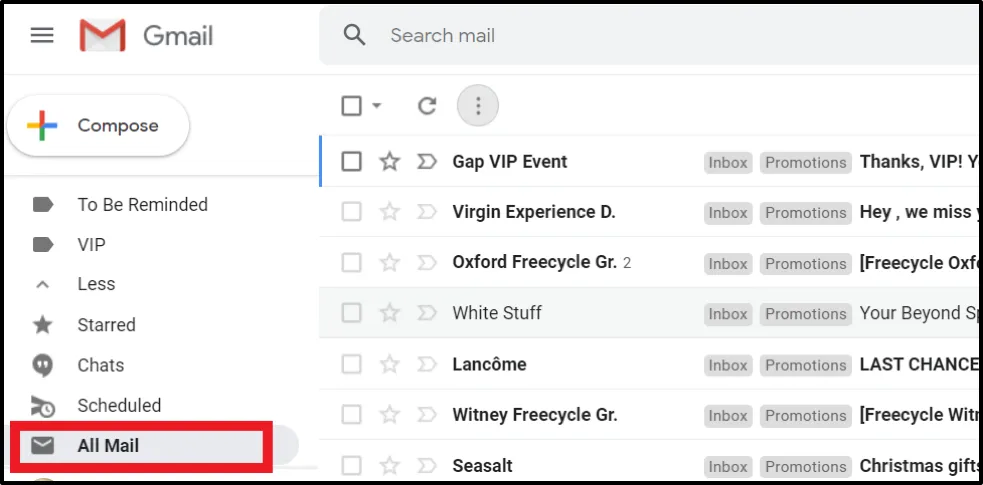
- Select "All Mail": Scroll down the sidebar until you find "All Mail". This section contains all emails sent and received, including archived ones.
Alternatively, you can search for specific emails:
- Utilize the Search Bar: Type keywords, email addresses, or subject lines directly into the search bar at the top.
Archived emails won’t have a specific designation in your search results, so any emails that contain your search terms will be displayed, whether they are archived or not.
Understanding Archived Emails:
- Not Deleted: Archiving an email removes it from your inbox but preserves it in your account.
- Available for Future Reference: Since archived emails remain in "All Mail," you can access them whenever needed.
- Searchable: Archived messages appear in search results just like emails in the inbox, with no additional steps needed.
| Visibility | Notes |
|---|---|
| In Inbox | Not visible after archiving. |
| In All Mail | Visible and accessible anytime. |
| Search Results | Included based on search criteria. |
Following these steps ensures you can navigate Gmail’s interface with ease, allowing for efficient retrieval of archived emails. This functionality is essential for managing your correspondence effectively.
Practical Ways to Retrieve Archived Emails in Gmail
Utilizing the Search Bar
Typing "in:archive" in the Gmail search bar allows users to directly access all archived emails without having to navigate through labels.
Why this matters: Highlighting how straightforward it is to access archived content enhances efficiency when managing emails.
Accessing All Mail
Going to the 'All Mail' label reveals both archived and non-archived messages, making it easy to locate vital communications.
Why this matters: Stating the convenience of one central location aids in quickly finding specific emails that might have been archived inadvertently.
Advanced Search Options
Using advanced search operators like "after" and "before" in combination with "in:archive" allows for filtering archived emails by date.
Why this matters: Providing a nuanced way to locate older emails expedites finding relevant information from specific time frames.
Combining Keywords
Incorporating keywords related to the archived email in the search bar alongside "in:archive" makes targeting specific emails easier.
Why this matters: Asking for improved search functionality demonstrates how using precise language enhances overall retrieval success.
User-Friendly Labels
Applying custom labels to emails before archiving them provides a structured way to identify and retrieve archived content later.
Why this matters: By keeping a well-organized labeling system, users streamline future searches for important emails.
Exploring Settings for Email Retention
Reviewing Gmail's settings can clarify how long archived emails are kept and the importance of retaining important communications.
Why this matters: Highlighting the need for awareness regarding email retention helps users prevent accidental data loss.
Mobile Access to Archived Emails
Using the Gmail mobile app, users can retrieve archived emails by tapping on the menu and selecting 'All Mail.'
Why this matters: Providing mobile accessibility ensures users can manage their emails regardless of device, fitting seamlessly into their busy lives.
Understanding Archived Email Retrieval in Gmail
How do I find my archived emails in Gmail?
To locate your archived emails, go to the left sidebar and click on "More." From there, select "All Mail." This section displays all your emails, including those that are archived, allowing you to scroll through or use the search bar for specific queries.
Can I unarchive an email in Gmail?
Yes, you can easily unarchive an email. Open the email from the "All Mail" section, and simply hit the “Move to Inbox” icon at the top. This action will restore the email back to your main inbox.
Are archived emails permanently deleted in Gmail?
No, archived emails are not permanently deleted; they are simply moved out of the inbox. You can access them anytime from the "All Mail" section, ensuring that nothing is lost unless you manually delete them.
Is there a way to search specifically for archived emails?
Absolutely! You can use specific search operators in the search bar. For example, entering "is:archive" followed by your search criteria will filter the results to show only archived emails related to your query.
Retrieving archived emails in Gmail is simpler than you might think, and knowing the right steps can save you from the hassle of losing important messages. By familiarizing yourself with the search features and understanding how the archive system works, you can easily find what you need without digging through endless folders. So, the next time you’re on the hunt for that elusive email, remember to use the search bar and filters to your advantage. Give it a whirl—you might be surprised at how easy it can be to reconnect with your emails from the past!