
Feeling stuck with your Outlook email? You’re not alone. Whether it’s a slow sync, lagging messages, or just the need to refresh things up, knowing how to refresh your email can save you time and hassle during your busy day. It’s about making sure you stay connected and responsive, especially when timely communication matters.
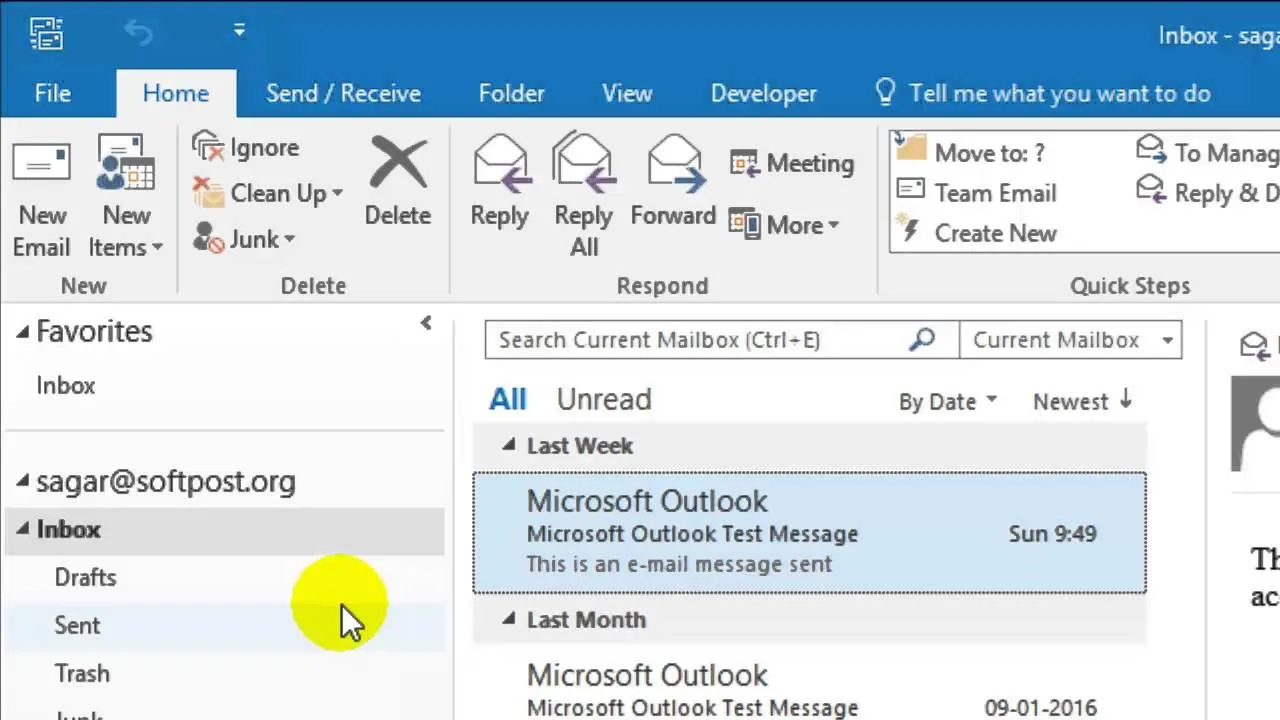
When you rely on Outlook for work or personal matters, little glitches can become frustrating. Fortunately, refreshing your email is straightforward and can quickly put you back on track. By understanding the process, you can regain control over your inbox and ensure you’re always up to date with the latest messages.
So, let’s look at how to refresh your Outlook email effectively. Your daily operations depend on a functional email system, and knowing the right steps will help you maintain that flow without interruptions.
Understanding the Essentials of Refreshing Outlook Email
Refreshing your Outlook email is all about ensuring you always have the latest messages without unnecessary delays. Here’s a breakdown of how it functions and the concepts surrounding it.
Core Concepts
- Manual Refresh: This allows users to check for new emails on demand. You can refresh by clicking the "Send/Receive" button, usually found at the top toolbar. This action prompts Outlook to retrieve any unread emails from the server.
- Auto-Refresh Settings: Outlook can be set up to automatically refresh at defined intervals. This setting is adjusted in the "Send/Receive" menu, where you can specify how often the application checks for new messages.
- Cached Exchange Mode: This feature enables Outlook to store a copy of your mailbox on your local computer, which can enhance performance and allow for offline access. Refreshing in this mode updates the local copy with any changes made on the server when you reconnect.
- Folder Synchronization: Refreshing also affects folder views. Ensuring all folders sync correctly is crucial for accessing all your emails, including those in subfolders.
- Connection Status: Understanding your network connection is vital. If Outlook isn’t refreshing, it might indicate network issues. Checking your connection can help diagnose problems quickly.
Steps to Refresh Outlook Email
Here's how to refresh your Outlook email to ensure you're always up to date:
- Open Outlook on your device.
- Locate the "Send/Receive" tab, usually at the top of the window.
- Click on the "Send/Receive All Folders" button to manually check for new emails.
- For automatic refreshing, go to the "File" menu and select "Options." From there, navigate to "Advanced" and find the "Send/Receive" settings to configure the desired intervals.
Challenges You Might Face
Occasionally, users encounter issues when refreshing Outlook email:
- Network Connectivity Issues: If the internet connection is weak or unavailable, refreshing will not retrieve new emails.
- Outdated Outlook Version: Ensure your software is updated to prevent any bugs or errors that may disrupt the refresh process.
- Server Errors: Sometimes, the email server might experience downtime, affecting your ability to fetch new messages.
Practical Scenarios for Refreshing
| Scenario | When to Refresh |
|---|---|
| Busy Workday | Refresh frequently to stay updated with important communications. |
| After Meetings | Refresh to catch up on missed messages post-meeting. |
| Traveling | Use manual refresh to get emails when connections may vary. |
Refreshing your Outlook email is a straightforward process with significant implications for your productivity. By understanding the mechanisms behind it, you can ensure your inbox remains current.
If you're interested in organizing your inbox even more, consider exploring how to schedule emails in Outlook for better communication. This can streamline your messaging and enhance overall management.
Practical Applications for Refreshing Outlook Email
Quick Inbox Updates
Refreshing your Outlook email allows you to receive the latest messages without manually checking your inbox. Click the "Send/Receive" button or press F9 to instantly sync your emails from the server.
Why this matters: Demonstrating the capability to fetch recent emails ensures that you stay informed about urgent communications, leading to timely responses.
Resolving Sync Issues
When Outlook fails to download new messages due to synchronization errors, refreshing can often resolve these glitches. This action re-establishes the connection to your email server.
Why this matters: Identifying and fixing sync problems enables smooth, uninterrupted access to your conversations, ensuring workflow continuity.
Boosting Email Load Speed
Refreshing allows for faster loading of emails stored on the server, which can be especially beneficial for large attachments or extensive email threads. It clears out outdated cached data.
Why this matters: Enhancing the speed at which emails are displayed minimizes downtime and frustration while managing communications, ultimately fostering productivity.
Accessing Updated Calendar Invites
Refreshing your Outlook email also updates your calendar with any new or modified invites that may have arrived. A quick sync ensures you’re working with the latest schedule.
Why this matters: Staying current with calendar updates enables you to manage your time effectively and avoid scheduling conflicts.
Monitoring Shared Mailboxes
If you manage a shared mailbox, refreshing ensures that you see all incoming messages in real-time. This feature is vital for teams that rely on collective communication.
Why this matters: By keeping everyone on the same page, refreshed shared mailbox views prevent missed messages and promote collaborative efficiency.
Improving Performance on Slow Networks
When operating on a slow internet connection, refreshing can optimize the loading of new emails and remove any unnecessary stored data that may be hindering performance.
Why this matters: Enhancing the app’s responsiveness aids in maintaining effective communication, particularly in areas with unreliable internet service.
Streamlining Email Management
Using the refresh function allows you to manage emails more easily by ensuring that you are working with the most up-to-date information. This aids in prioritizing emails based on their arrival.
Why this matters: Taking action to streamline email management results in better organization and prioritization, making it simpler to focus on what’s urgent.
Understanding How to Refresh Outlook Email
Why is my Outlook not refreshing automatically?
Your Outlook may not refresh automatically due to settings or network issues. Check if the "Send/Receive" settings are configured correctly under the File menu. Sometimes, an unstable internet connection can also prevent auto-refreshing.
How do I manually refresh my Outlook inbox?
To manually refresh your inbox, you can simply click the "Send/Receive All Folders" button in the toolbar. Alternatively, pressing F9 on your keyboard achieves the same result. This prompts Outlook to check for new emails across all your accounts.
What should I do if my emails aren’t showing up even after refreshing?
If emails aren’t visible after refreshing, verify your internet connection and ensure that you are connected to the correct server. It might also help to restart Outlook or your computer to reset any temporary glitches.
Can I set Outlook to refresh at regular intervals?
Yes, you can schedule regular refresh intervals by going to "Send/Receive" settings. Here, you can specify how often Outlook checks for new messages, typically every few minutes. This way, you won't have to refresh manually as frequently.
Refreshing your Outlook email is really about finding that sweet spot between staying organized and keeping communication smooth. Remember, it’s all about making sure you don’t miss anything important and keeping your inbox a pleasant space to work in. So next time you feel the need for a little digital reset, just hit that refresh button and watch your messages come to life. Go ahead, give it a try and enjoy the clarity that comes with it. Your inbox will thank you!





