
Need to forward emails from Gmail but not sure how? You're not alone! Many people find themselves in situations where they need to share important messages with colleagues or family without having to manually send each one. Whether it’s for work or personal needs, knowing how to forward emails seamlessly can save you time and reduce clutter in your inbox. 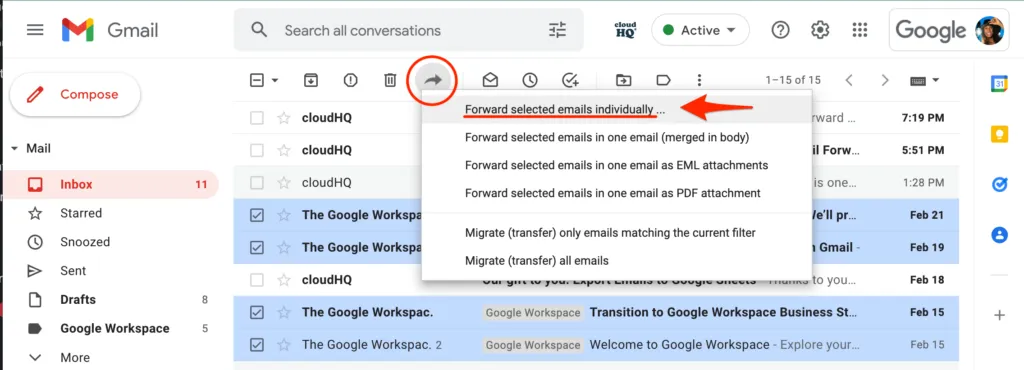
Imagine you’re juggling multiple projects or planning an event; keeping everyone in the loop is essential. Forwarding emails lets you share critical information and updates in just a few clicks. This isn’t just a nice-to-have; it’s a practical skill that can make your life a lot easier.
So, how do you go about it? Whether you want to forward individual emails or set up automatic forwarding for an entire thread, I’ll walk you through the process. Let’s get started.
Core Elements of Email Forwarding in Gmail
Forwarding emails in Gmail is a straightforward process that allows users to send received messages to another email account. This feature is particularly useful for maintaining communication across multiple platforms or keeping important information available in one place.
The following sections outline the essential components and steps involved in forwarding emails directly from your Gmail account.
Setting Up Forwarding
To begin the process of forwarding emails, you will first need to access the settings in your Gmail account:
- Log into your Gmail account.
- Click the gear icon in the upper right corner to access Settings.
- Select the Forwarding and POP/IMAP tab.
- In the Forwarding section, click on Add a forwarding address.
- Enter the email address to which you want to forward your emails and click Next.
- A confirmation email will be sent to that address. You'll need to verify it by clicking on the link provided.
Choosing Email Forwarding Types
Gmail offers a couple of options for how forwarded emails are handled:
- Keep Gmail’s copy in the inbox - This option retains a copy of the original email in your Gmail account.
- Archive Gmail’s copy - This keeps the original email but removes it from your inbox.
- Delete Gmail’s copy - This will delete the original email from your Gmail account once it is forwarded.
Creating Filters for Forwarding
If you want only specific emails to be forwarded, you can create filters:
- In the Settings, go to the Filters and Blocked Addresses tab.
- Click on Create a new filter.
- Set the criteria for the emails you want to forward (like sender address, keywords, etc.).
- Click on Create filter.
- Select Forward it to and choose the email address you set up earlier.
- Finalize by clicking Create filter again.
Benefits of Forwarding Emails
| Advantage | Description |
|---|---|
| Convenience | Access multiple accounts from one location without constant switching. |
| Efficiency | Quickly send important messages to another user or account for easy reference. |
| Organization | Keep your inbox clean by archiving or deleting copies of forwarded emails. |
Utilizing these features can greatly enhance your email management in Gmail, making it easier to stay organized and responsive to incoming communications.
For understanding how to forward emails in other platforms, check out our article on automatically forwarding emails in Outlook.
Practical Uses of Email Forwarding in Gmail
Automating Workflows with Filters
Creating filters in Gmail allows users to automatically forward emails from specific senders or those that meet particular criteria to another email account. This ensures that critical communications are always routed to the appropriate inbox without manual intervention.
Why this matters: By keeping workflows streamlined, users can focus on more pressing tasks instead of sorting through numerous emails.
Sharing Information with Team Members
Managers can forward important project updates or emails from clients to team members instantly. This accelerates the dissemination of information, ensuring everyone stays aligned and informed throughout a project.
Why this matters: Highlighting the necessity for clear communication, this process minimizes the risk of misunderstandings within teams.
Maintaining Personal Privacy
Individuals can forward personal emails to a separate account when sharing devices or using public computers. This way, they avoid exposing their primary email account while still accessing important messages.
Why this matters: Stating the importance of security, this method helps to protect sensitive information from unauthorized access.
Managing Multiple Accounts
Users with multiple Gmail accounts can set up forwarding from one account to another. This is particularly useful for anyone juggling work and personal emails, ensuring they don't miss vital messages across platforms.
Why this matters: Providing seamless access to communications enhances productivity by reducing the time spent logging into various accounts.
Customer Support Efficiency
Customer support teams can utilize email forwarding to route inquiries received at a general support email to specific representatives based on availability or expertise. This speeds up response times and improves customer satisfaction.
Why this matters: Asking teams to respond promptly fosters a better customer relationship and maintains trust in the brand.
Crisis Management Notifications
Organizations can set up forwarding rules to notify key personnel about critical emails, such as security alerts or urgent communications, to ensure timely responses during emergencies.
Why this matters: Emphasizing quick action can help mitigate risks and maintain stability in unforeseen situations.
Easy Collaboration with External Contacts
When collaborating with external partners, users can forward relevant emails directly to shared accounts configured for the team involved in the project. This keeps external communications integrated and accessible for all necessary participants.
Why this matters: By keeping everyone informed, collaboration is enhanced, promoting teamwork and clearer objectives.
Email Forwarding in Gmail: Your Questions Answered
How do I set up automatic email forwarding in Gmail?
To set up automatic forwarding, go to Gmail settings by clicking the gear icon and selecting "See all settings." In the "Forwarding and POP/IMAP" tab, click "Add a forwarding address," enter the email address you want to forward to, and follow the prompts to verify it.
Can I forward multiple emails at once from Gmail?
Yes, you can forward multiple emails at once. Simply select the emails you wish to forward by checking the boxes next to them in your inbox, then click the three-dot menu icon and choose "Forward as attachment." This sends each selected email as an individual file.
Will the original sender know if I forward their email?
Yes, if you forward an email, the original sender's address will appear in the forwarded message, unless you choose to edit it. However, keep in mind that the recipient will see the forwarded email as having come from you, with no mention of the sender unless you include it.
Is there a way to forward emails based on specific criteria in Gmail?
You can create filters in Gmail that will automatically forward emails meeting specific criteria. Go to Settings, select "Filters and Blocked Addresses," create a new filter, set your criteria, and then choose "Forward it to" with the desired email address in the settings.
When it comes to forwarding emails from Gmail, the most important thing is to realize how simple it is to streamline your communication. Whether you're keeping track of work emails or sharing important updates with your personal accounts, utilizing the forwarding feature can save you time and ensure you never miss a beat. Just a few clicks, and you're set up! It’s time to take control of your inbox and make your email life a bit easier. Go ahead and give that forwarding feature a try—you’ll wonder how you ever managed without it!





