Need to resend an email in Outlook? You’re not alone! It’s a common scenario—whether you forgot an attachment, missed someone, or your message simply got lost in the shuffle. Knowing how to handle this efficiently can save you time and frustration.
Every day, we rely on email for important communications. When things go awry, figuring out how to resend an email can be a small yet significant part of getting back on track. You want your messages to reach the right people without any hiccups.
Whether you're a seasoned Outlook user or just getting familiar with it, learning the ins and outs of resending messages can enhance your workflow. Understanding the process can make sure nothing slips through the cracks.
Understanding the Essentials of Resending Emails in Outlook
Resending an email in Outlook can be a straightforward process, but it’s important to grasp the nuances to ensure clarity and effectiveness in communication. Here’s what you need to understand.
- Why Resend?
People often decide to resend emails for various reasons such as ensuring delivery, following up on an unanswered message, or sending updated information.
- Location in the Interface
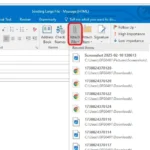
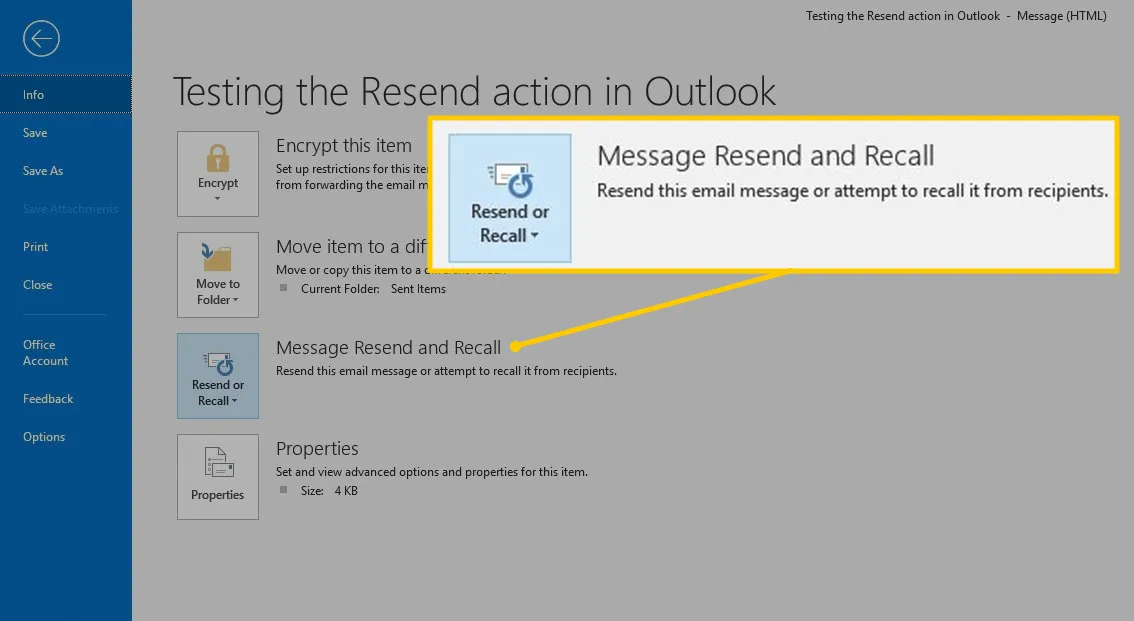
Familiarize yourself with the Outlook interface. The option to resend an email is typically found in the "Sent Items" folder.
- Using the Resend Feature
Select the original email, then look for the "Actions" menu. The "Resend this Message" option will allow you to quickly send it again without losing the original content.
- Modifying Content
Before resending, consider updating the subject line or message body as needed. This helps clarify the purpose of the resend.
Potential Benefits and Drawbacks
| Benefits | Drawbacks |
|---|---|
| Ensures recipients receive important information. | May come across as spam if done too frequently. |
| Streamlines communication by avoiding new drafts. | Original recipients may feel overwhelmed if they see the same email multiple times. |
| Helps in keeping track of significant emails that require follow-up. | Proper modifications must be made to the content to avoid confusion. |
Being aware of these elements and considerations will enhance your email communication flow in Outlook. For security-conscious users, understanding how this compares to encrypted email options in other systems can provide additional context. For more on secure emailing practices, check out the article on sending encrypted emails in Gmail.
Real-World Examples of Resending Emails in Outlook
Reiterating Urgent Requests
Resending an email that contains a crucial deadline or request ensures that recipients are reminded of important tasks that require their immediate attention.
Why this matters: Highlighting the urgency of a deadline increases the likelihood of timely responses and actions.
Ensuring Receipt of Important Information
If a recipient failed to respond to an important document or information email, resending it can clarify that the information is still relevant and needs their review.
Why this matters: Stating the importance of the information reinforces the need for a timely review.
Following Up on Marketing Campaigns
Marketing professionals might resend promotional emails to those who didn't open the original, increasing the chances of engagement and conversion.
Why this matters: Asking recipients to reconsider the content can lead to improved campaign performance.
Addressing Miscommunication
In case of misunderstandings or unclear instructions in previous correspondence, resending the email with added clarifications can rectify the issue.
Why this matters: Providing clearer information helps to eliminate confusion and fosters better communication.
Keeping Stakeholders Updated
Resending emails regarding project updates or changes ensures that all stakeholders remain informed, fostering collaboration and transparency.
Why this matters: By keeping everyone on the same page, teams can avoid redundancies and misalignment.
Reinvigorating Networking Connections
Professionals can resend introduction emails or follow-ups to rekindle conversations with potential contacts who may have missed the initial outreach.
Why this matters: Encouraging connections can lead to valuable networking opportunities that may have otherwise been overlooked.
Revising Previous Proposals
After receiving feedback on a proposal, resending the revised version allows for further review and the opportunity to secure approval.
Why this matters: Stating improvements made based on feedback can demonstrate responsiveness and adaptability, increasing chances for acceptance.
Your Questions on Resending Emails in Outlook
How do I resend an email I already sent in Outlook?
Resending an email in Outlook is straightforward. Open the "Sent Items" folder, select the email you want to resend, then right-click and choose "Resend this Message." Make any necessary changes before hitting send again.
Can I modify the original email before resending it?
Yes, you can modify the original email. When you choose to "Resend this Message," the email opens in a new window, allowing you to edit the content, add new recipients, or adjust attachments before sending it again.
What happens to the recipients when I resend an email?
When you resend an email, the recipients will receive a new message, which appears as a separate entry in their inbox. They will not see that it was a resent email unless you include a note mentioning it.
Is there a way to resend an email to a different recipient list?
Absolutely! After selecting "Resend this Message," you can modify the "To," "Cc," and "Bcc" fields to add or remove recipients. This gives you flexibility to target a different audience with the same content.
When it comes to resending emails in Outlook, the biggest takeaway is to make your message clear and straightforward, especially if you're following up on something important. A quick reminder or a note about what’s changed can really save the day. So, next time you need to hit that resend button, remember to add a personal touch and ensure your recipient knows what to expect. Happy emailing, and feel free to explore ways to secure your messages in other platforms too!