Struggling with an overflowing inbox? You're not alone—many people find themselves buried under a mountain of unread and unwanted emails. The clutter can feel overwhelming, and sorting through it all one by one isn’t just tedious; it can also eat up precious time. Luckily, there’s a better way to manage it all without losing your sanity.

Whether it’s years of newsletters, promotional messages, or just plain junk, knowing how to delete emails all at once can clear the digital space you need to regain control. It’s a straightforward process, and understanding it will not only save you time but could also give you a sense of relief—think of it as a virtual decluttering session.
In this discussion, we'll break down how you can tackle that inbox, ensuring you can enjoy a more organized email experience. Ready to reclaim your space?
Essential Components for Mass Deleting Emails
Deleting multiple emails at once can dramatically streamline your inbox management. Different email platforms offer various methods, so knowing the core processes helps you tackle it efficiently.
- Select All Option: Most email providers have an option to select all emails, often found at the top of your inbox. This simplifies the process by allowing you to delete everything in one click.
- Use Filters: Apply filters to target specific types of emails. You can select categories like promotions, social updates, or older emails, making it easier to clean up.
- Keyboard Shortcuts: Familiarity with keyboard shortcuts can save time. For instance, applying shortcuts can expedite the selection and deletion process across platforms.
- Trash and Empty: After deletion, ensure you permanently remove emails from the trash folder. Many email providers don’t free up space until this is done.
| Email Client | Mass Deletion Process |
|---|---|
| Gmail | Select the checkbox at the top left, then choose "Delete." |
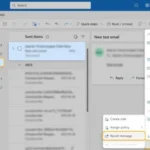
| Outlook | Use the “Select All” option or CTRL+A, then right-click to delete. |
| Yahoo Mail | Select “All” to delete emails in bulk from the inbox. |
Familiarizing yourself with these core components aids in clearing your inbox swiftly and efficiently, saving both time and effort. For those considering a more permanent solution, aligning with account deletion processes can be insightful here.
Practical Ways to Delete Emails All at Once
Utilizing Email Provider Bulk Delete Options
Most email providers, like Gmail and Outlook, offer a bulk delete feature that allows users to select multiple emails at once. Typically, users can check a box at the top of the inbox to select all messages or choose a specific subset for deletion.
Why this matters: Streamlining the deletion process saves time and allows users to manage their inbox more efficiently.
Employing Search Filters for Targeted Deletion
Using search filters, such as date ranges or specific senders, enables users to isolate emails they wish to delete. For instance, entering "before:2022/01/01" in Gmail helps locate and delete older emails quickly.
Why this matters: Facilitating targeted deletion helps in organizing an inbox while minimizing the risk of accidentally removing important messages.
Archiving Instead of Deleting for Future Reference
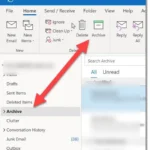
Email clients often allow archiving emails as an alternative to deletion. Users can select multiple emails and archive them instead of deleting, thus keeping them accessible but out of the main inbox view.
Why this matters: Providing a way to declutter an inbox while retaining important information is advantageous for long-term organization.
Using Mobile Apps for Quick Deletion
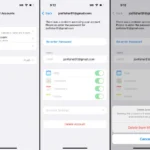
Many mobile email apps feature one-tap delete options that allow users to swipe or tap multiple emails at once. Apps like Gmail offer gestures or bulk selection buttons for swift inbox management.
Why this matters: Highlighting the convenience of managing emails on mobile devices meets the growing trend of users accessing their inboxes on the go.
Creating and Using Email Folders for Bulk Management
Setting up specific folders can help manage emails by categorizing them. Users can move unwanted emails into a designated folder and then delete the entire folder, achieving a bulk deletion in one step.
Why this matters: Stating the importance of organization, users can maintain a clutter-free workspace while ensuring they remove emails efficiently.
Employing Keyboard Shortcuts for Rapid Deletion
Many email platforms offer keyboard shortcuts to delete messages quickly. For instance, in Gmail, pressing "Shift + 3" deletes selected emails, making it faster than using a mouse.
Why this matters: Providing users with quicker methods enhances productivity, especially for those who manage large volumes of emails regularly.
Implementing Third-Party Email Management Tools
Some users rely on third-party applications or browser extensions that integrate with their email accounts, allowing for bulk deletion features not available in standard email clients.
Why this matters: Offering users more flexibility in managing their inboxes enhances their experience and effectiveness in email organization.
Maximizing Your Email Management Efficiency
How do I delete all emails at once in Gmail?
In Gmail, start by checking the box at the top left of your inbox to select all emails on the current page. Next, you’ll see a prompt to select all conversations that match this search; click that. Finally, hit the trash icon to delete them all at once.
Can I bulk delete emails in Outlook?
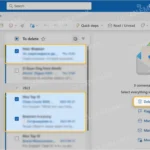
Absolutely! In Outlook, go to your inbox and press Ctrl + A to select all emails, or simply hold down Shift while selecting emails. After that, you can press Delete on your keyboard or right-click and choose the delete option from the menu.
What about deleting emails in Yahoo Mail?
To clear out emails in Yahoo Mail, click on the checkbox to select emails you want to delete. For bulk actions, scroll to the top, select "All" after checking one box, then click the “Delete” button. You can also customize filters to make bulk selection easier.
Are there any limitations to deleting multiple emails at once?
Yes, in most email services, you may face limitations on how many emails you can delete in one action due to server performance. Typically, it could range from 100 to 500 emails, and you might need to repeat the process for large volumes of unwanted messages.
Once you've decided to clear out your inbox, remember that taking a moment to explore your email provider's bulk deletion features can save you a ton of time and effort. Instead of feeling overwhelmed by countless messages, you can enjoy a clutter-free space, making it easier to focus on what truly matters. So go ahead, give those inbox tidying techniques a shot, and feel that weight lift off your shoulders. You've got this!