Feeling overwhelmed by your inbox? You’re not alone. The constant flow of emails can feel like a never-ending battle, leaving you scrambling to keep up. Whether you’re trying to start fresh or simply regain control, deleting all your emails at once can be a game changer.

Imagine the relief of a clean slate, free from clutter and distractions. It’s more than just tidying up; it’s about reclaiming your time and mental space. In the following sections, you’ll find straightforward methods to clear out your inbox, regardless of the email service you’re using.
Don’t let the anxiety of managing your inbox weigh you down. Let’s break this down and make it easy to hit that delete button without the stress.
Core Elements of Email Deletion
Deleting all your emails at once can be a straightforward process, but it varies depending on your email provider. Here’s a breakdown of key steps and elements to consider when clearing out your inbox.
- Understand Email Provider Limitations: Different email services have different capacities and methods for bulk deletion.
- Account Backup: Before mass deletion, consider backing up important emails to avoid losing critical information.
- Filter and Select: Utilize filtering options to pinpoint specific groups of emails, such as all unread or promotional emails.
- Confirmation Requirement: Most platforms will prompt you to confirm your decision to delete, ensure you are ready to proceed.
Comparative Overview of Methods
| Email Provider | Method of Deletion | Limitations |
|---|---|---|
| Gmail | Select "All" and delete in bulk | May require multiple selections if over 1,000 emails at once |
| Outlook | Use "Select All" in the inbox | Limit on deleted emails retention could apply |
| Yahoo Mail | Select emails by category and delete | May need to delete in batches if account size is large |
Pros and Cons of Bulk Deletion
- Pros:
- Significantly reduces clutter in your inbox.
- Saves time compared to individual deletions.
- Helps to improve email application performance.
- Cons:
- Risk of deleting important emails by mistake.
- Some providers may keep a copy of deleted emails for a period.
- Potential loss of historical data if not backed up.
For specific instructions on deleting a Yahoo account completely, you can check out our article on how to delete a Yahoo email account.
Practical Approaches to Deleting All Your Emails at Once
Utilizing Gmail's Bulk Selection Feature
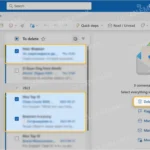
In Gmail, you can quickly select all emails in your inbox by clicking the checkbox at the top left corner. A message will appear asking if you want to select all conversations. Choose that option to select everything, then click on the trash can icon to delete.
Why this matters: Stating that this method is time-saving highlights the efficiency of managing your inbox, allowing for immediate decluttering without going through emails one by one.
Employing Outlook’s Clean Up Tool
Outlook offers a 'Clean Up' tool that allows users to delete all redundant or unnecessary emails in a conversation thread. By accessing this feature, users can clear out bulk messages while keeping the most relevant ones.
Why this matters: Providing this option encourages users to maintain better organization, streamlining communication by keeping only essential messages.
Using Keyboard Shortcuts in Apple Mail
In Apple Mail, pressing Command + A selects all messages in a folder. Once selected, pressing the delete key removes all highlighted emails swiftly.
Why this matters: Highlighting keyboard shortcuts promotes speed and convenience, making email management more user-friendly for those who frequent their inbox.
Employing Third-Party Email Clients
Many third-party email clients, like Thunderbird, allow users to select all messages within folders and easily delete them. This can often be done with a single click, enhancing user experiences across various platforms.
Why this matters: Asking users to explore third-party options broadens their perspectives, showcasing flexible tools that may better fit their email management needs.
Retention Policies in Corporate Email Systems
Many corporate email platforms offer retention policies that allow administrators to set rules for automatically deleting older emails after a certain period. This creates a cleaner inbox for all employees.
Why this matters: Highlighting the role of retention policies provides insight into organizational efficiency, ensuring compliance and reducing clutter for team members.
Archiving Instead of Deleting in Yahoo Mail
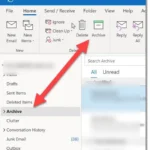
In Yahoo Mail, rather than deleting, users can choose to archive all emails, pushing them out of the inbox but keeping them accessible. This can be done through the 'Select All' checkbox and then selecting 'Archive' from the actions menu.
Why this matters: Providing archiving as an alternative emphasizes data preservation, ensuring important information isn't lost, which is crucial for user peace of mind.
Utilizing Email Filtering Options
Many email services allow users to set filters that automatically delete specific categories of emails, such as newsletters or promotional messages. Users can create rules to manage this efficiently in bulk.
Why this matters: By keeping unwanted emails at bay, users can maintain a clutter-free inbox and focus on essential communications, fostering improved productivity.
Addressing Common Concerns About Email Deletion
How do I delete all emails in Gmail at once?
To delete all your emails in Gmail, open your inbox and click the checkbox at the top left corner to select all emails on the page. A message will appear offering to select all conversations in your inbox. Click that option, then hit the trash can icon to delete them all.
Is there a way to delete all emails across multiple folders in Outlook?
Yes, in Outlook, you can delete all emails by going to each folder and selecting "Select All" or pressing Ctrl+A. Then, simply press the Delete key. Note that you’ll have to repeat this for each folder individually, as Outlook doesn’t allow bulk deletion across all folders at once.
What should I consider before deleting all my emails?
Before you go ahead and delete everything, think about any important emails you might need in the future. Once deleted, emails typically go to the trash and can only be recovered for a limited time. Check if any organizational policies require you to keep specific communications.
Can I recover emails after permanent deletion?
Taking the plunge to clear out your inbox can feel liberating, and figuring out how to delete all your emails at once can save you loads of time and hassle. Remember, each platform has its own quirks and processes, so be sure to double-check what you’re doing before hitting that delete button. Now that you’ve got the know-how, don’t hesitate—give your inbox a fresh start and enjoy the peace of mind that comes with a clean slate. Happy decluttering!