Ever sent an email and immediately thought, "I wish I could take that back"? We’ve all been there. Knowing how to delay sending an email in Outlook can save you from hasty decisions and give you a moment to reconsider your message before it hits the recipient's inbox.
It’s not just about avoiding typos or incorrect information; it’s also about managing your communication in a more thoughtful way. Imagine having the ability to control exactly when your email goes out—whether it's adjusting timing for better impact or simply ensuring everything is perfect before your message is seen.
This feature isn’t just helpful; it can be a game-changer in maintaining professionalism. Timing can be everything in communication, especially in a fast-paced work environment where the right moment can decide outcomes.
Essential Components for Scheduling Emails in Outlook
Delaying the sending of an email in Outlook can improve your communication and help manage your workflow. Here's a breakdown of how to use this feature efficiently and its advantages and drawbacks.
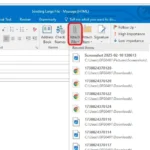
- Accessing the Delay Feature: Navigate to your Outlook application, and start composing a new email. You'll find the option to delay the sending in the "Options" tab on the ribbon.
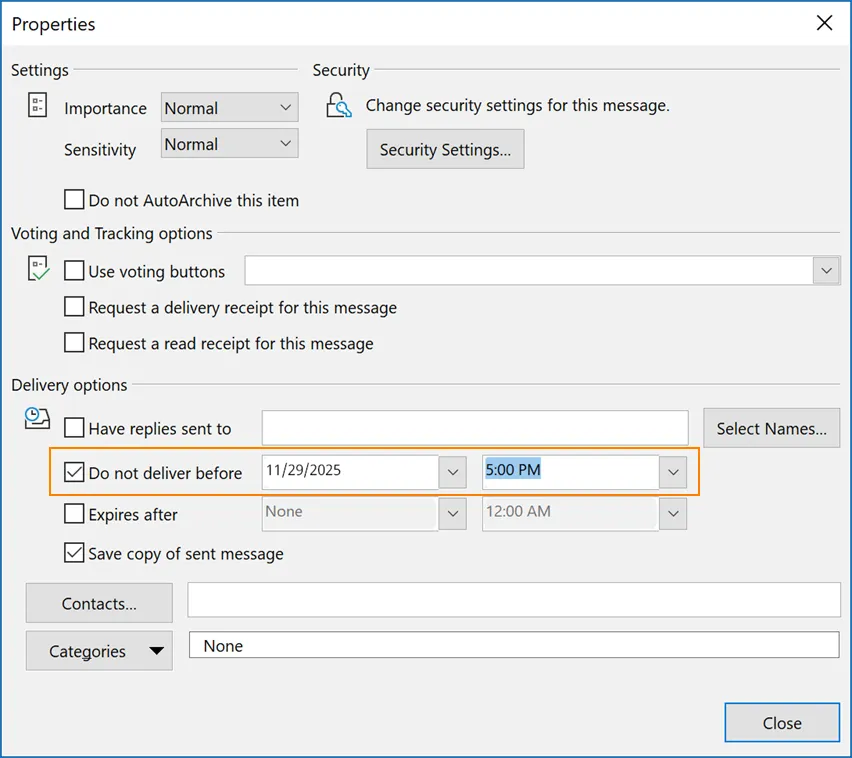
- Setting a Delay: Click on "Delay Delivery." This opens a dialogue box where you can specify the exact date and time you want the email sent.
- Saving Your Email: After setting your desired time, it's crucial to send the email to the Outbox folder. It will remain there until the scheduled time arrives.
- Monitoring the Email: You can check the Outbox to ensure your email is ready to be sent. If needed, you can edit or delete it before the scheduled time.
Pros and Cons of Delaying Emails
| Pros | Cons |
|---|---|
| Improved Timing: Send emails at optimal times for your recipients, increasing the likelihood of a prompt response. | Possible Confusion: If you're not careful, recipients might receive emails at unexpected times, which could lead to miscommunication. |
| Workload Management: Schedule batches of emails to avoid a cluttered inbox. | Technical Glitches: Occasionally, Outlook may experience issues, causing delays in sending scheduled emails. |
| Follow-Up Control: Plan follow-ups or reminders to send emails at strategic moments. | Editing Limitations: Once scheduled, changes require navigating back through the Outbox. |
This feature not only allows for greater control over your correspondence but also maintains professionalism. To enhance your email writing skills, check out our article on writing emails that enhance your professionalism.
Real-World Examples of Delaying Email Sending in Outlook
Scheduling Email for Future Sending
Utilizing the "Delay Delivery" feature allows users to choose a specific date and time for sending an email. This can be done in the email composition window by selecting the Options tab and setting the desired date and time under "Delay Delivery."
Why this matters: Allowing users to prepare emails in advance and send them later helps in organizing tasks and managing time efficiently.
Time Zone Consideration for International Clients
When communicating with clients across different time zones, delaying an email ensures it arrives at an appropriate hour. Users can adjust the delivery time based on the recipient's local time zone, providing a professional touch.
Why this matters: Acknowledging time zone differences promotes better engagement and demonstrates awareness of the recipient's schedule.
Managing Responses Efficiently
Delaying an email can prevent overwhelming clients or team members with multiple messages sent in quick succession. This feature allows users to space out communications based on urgency or importance.
Why this matters: Prioritizing communication helps in maintaining clarity and reduces the risk of important messages being overlooked.
Following Up at the Right Moment
Setting emails to be sent as reminders for follow-up actions can enhance accountability. Users can delay sending follow-up emails until a pre-defined time after an initial meeting or correspondence.
Why this matters: Encouraging ongoing communication leads to better project management and relationship-building over time.
Coordinating with Team Members
In team settings, users can schedule emails to ensure all members receive important updates simultaneously, improving alignment on projects or deadlines.
Why this matters: Synchronizing communication fosters a sense of teamwork and ensures everyone is on the same page, enhancing overall productivity.
Creating a Buffer for Reflection
Having the ability to delay sending an email allows users to revisit and revise their messages before they are actually delivered, ensuring clarity and professionalism.
Why this matters: Taking time to reflect on one’s communication leads to more thoughtful interactions and reduces the likelihood of misunderstandings.
Holiday or Vacation Email Scheduling
Users can schedule important emails to be sent during holidays or vacations, ensuring consistent communication without needing to check emails while away.
Why this matters: Keeping lines of communication open, even during absences, demonstrates reliability and commitment to professional relationships.
Delaying Email Sending in Outlook: Common Inquiries
How can I set a specific delay for all outgoing emails in Outlook?
You can set a specific delay for all outgoing emails in Outlook by creating a rule. Go to "File," select "Manage Rules & Alerts," and then "New Rule." Choose "Apply rule on messages I send," and follow the prompts to delay sending by a specified number of minutes.
What happens if I change my mind after scheduling an email to send later?
If you change your mind, you can either delete the scheduled email in the Outbox or modify it. Simply navigate to your Outbox, double-click the email, make your adjustments, and then either send it immediately or reschedule it as needed.
Can I delay sending an email on Outlook Mobile?
Is there a way to delay sending without setting a rule in Outlook?
It's great to know you're in control of your email schedule now! Delaying emails in Outlook isn't just about timing; it's about managing your communication with intention. Remember, this feature can relieve some pressure and help you think twice before hitting send. Give it a shot the next time you're about to fire off a message, and enjoy the peace of mind that comes with it. Happy emailing, and don’t forget to check out how to write emails that truly shine professionally!