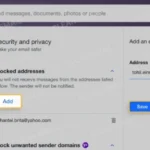
Are you tired of sifting through a cluttered inbox filled with unwanted emails? It can be overwhelming when your primary communication tool turns into a source of frustration. Understanding how to block those pesky messages can make a world of difference in your daily routine.

Blocking unwanted emails isn't just about tidying up your inbox; it's also about reclaiming your time and mental space. With the right approach, you can create a more focused email experience, free from distractions.
So let’s break down what you need to do to take control. You’ll be glad to know that it's simpler than you might think, and soon, that sense of relief from an organized inbox will be within reach. Ready to get started?
Core Elements for Blocking Unwanted Emails
Blocking unwanted emails can feel overwhelming with the influx of promotional content, spam, and phishing attempts. However, understanding the foundational aspects can make the process straightforward.
- Identify Spam: Recognize messages that are unsolicited or seem suspicious. Look for common signs such as weird formatting, misspelled words, and unfamiliar senders.
- Email Client Features: Familiarize yourself with the blocking mechanisms provided by your email service. Most platforms like Gmail, Outlook, and Yahoo allow users to block or filter emails easily.
- Unsubscribe Options: Legitimate newsletters and marketing emails typically include an unsubscribe link. Always use this feature before resorting to more drastic measures.
- Use Filters: Many email services allow you to create filters that automatically direct unwanted emails to a separate folder or delete them altogether. This can help manage your inbox more efficiently.
- Report Spam: Reporting spam helps improve the spam filters of your email provider. When you report unwanted emails, you not only protect yourself but also assist others in the community.
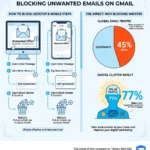
Here’s a table summarizing common methods to block unwanted emails and their descriptions:
| Method | Description |
|---|---|
| Blocking Sender | Prevents future emails from specific addresses from appearing in your inbox. |
| Reporting as Spam | Alerts your email service and moves the email to the spam folder. |
| Using Filters | Automatically sorts incoming emails based on specified criteria, allowing you to control where they go. |
| Unsubscribing | Removes your email address from a mailing list, stopping future communications. |
For specific instructions on how to tailor these processes in Gmail, see the article on how to Unblock Emails On Gmail For Improved Communication.
Practical Approaches to Block Unwanted Emails
Using Spam Filters
Email providers often include built-in spam filters that automatically identify and redirect suspicious emails to a spam or junk folder.
Why this matters: Highlighting the functionality of spam filters can significantly reduce the clutter in your inbox, making it easier to focus on legitimate correspondence.
Creating Custom Filters
Why this matters: Stating the benefits of personalized filtering ensures you maintain control over what enters your inbox, thereby enhancing your email management.
Unsubscribing from Newsletters
Why this matters: Asking users to take action by unsubscribing helps clear up their inbox and ensures they receive only the content they desire.
Blocking Specific Senders
Why this matters: Providing a definitive way to stop unwanted communication allows users to take immediate action against email harassment or spam.
Reporting Spam
Why this matters: Highlighting the communal benefit of reporting encourages users to contribute to a healthier email ecosystem.
Using Third-Party Software
Why this matters: Stating the availability of specialized tools can benefit users seeking a more robust solution, ensuring comprehensive control over their email experience.
Setting Up Email Aliases
Why this matters: Providing a method to segregate email types can streamline communication and minimize unwanted outreach.
Addressing Unwanted Emails: Your Questions Answered
How can I block unwanted emails on Gmail?
To block unwanted emails on Gmail, open the email from the sender you want to block. Click on the three vertical dots at the top right of the email and select "Block [Sender]." This will stop future emails from that address from appearing in your inbox.
What should I do if unwanted emails keep coming after blocking the sender?
If you're still receiving unwanted emails after blocking, check if they're coming from different addresses or domains. Use the "Report Spam" feature to help Gmail identify them as unwanted. This can improve filtering over time.
Can I unsubscribe from newsletters that I never signed up for?
Is it possible to block entire domains from sending me emails?
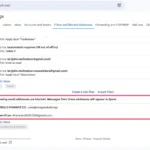
Yes, many email providers allow you to block entire domains. In Gmail, go to Settings, navigate to the "Filters and Blocked Addresses" tab, and create a new filter. Enter the domain (for example, "@example.com") and choose to delete or skip these emails.
Blocking those unwanted emails can really make your digital life a lot smoother, giving you back control over your inbox. Remember, it’s all about taking a little time to set up your filters and preferences, so you can enjoy the messages that truly matter. If you ever find yourself needing to unblock important contacts, don't hesitate to check out our article on how to unblock emails on Gmail for improved communication. So go ahead, take those steps today and reclaim your inbox—it’s totally worth it!