Wondering how to check for emails you've blocked in Gmail? You're not alone—many of us accidentally hit that block button, losing track of important messages. Restoring those connections can be crucial for personal and professional relationships.

Before you miss out on replies or updates, let's uncover how to find those blocked emails and regain access. It’s about ensuring you stay in the loop, whether it's for work, keeping in touch with friends, or managing important notifications.
If you're ready to reconnect with those messages, stick around. Understanding how to navigate this feature can make all the difference in your email efficiency.
Understanding Gmail's Blocked Email Management
Managing blocked emails in Gmail can feel somewhat puzzling at first. However, with a clear understanding of how Gmail handles these situations, users can easily navigate their inboxes. Here's a breakdown of the core concepts involved.
- Blocked Emails: When an email address is blocked, messages from that address go directly to the Spam folder or are simply no longer visible in the inbox.
- Finding Blocked Emails: Blocked emails may still be accessible if the sender's address is unblocked. Checking the Spam folder is a critical step, as sometimes legitimate emails land there incorrectly.
- Selecting What to Unblock: Users can selectively unblock email addresses, restoring them to the inbox while leaving others unaffected.
- Organizing Emails: After unblocking, users can create labels or filters to manage incoming messages better, ensuring important communications are prioritized.
Steps to View Blocked Emails
To see what emails have been blocked, follow these basic steps:
- Go to your Gmail account.
- Check the Spam folder for any blocked emails.
- If you find a message you'd like to retrieve, you can click on it and choose the option to Unblock Sender.
- Once unblocked, the emails from that sender will reappear in your inbox.
Reasons for Blocking Emails
Users commonly block emails for several reasons:
- Spam Protection: To avoid unwanted communications from marketers or persistent senders.
- Security Concerns: To safeguard against phishing attempts or suspicious activities.
- Disorganization: To maintain a clean and manageable inbox environment.
Potential Drawbacks of Blocking
While blocking emails helps maintain focus, there are a few possible setbacks:
- Missed Correspondence: Important messages from blocked senders can also be lost.
- Repetitive Actions: If a user accidentally blocks someone they later want to communicate with, it creates extra steps to unblock them again.
- Inbox Clutter: Even after blocking, users may need to sift through the Spam folder, leading to additional work.
Email Unblocking Process
If you've decided to unblock an email sender, the process is straightforward:
- Open Gmail and navigate to the Settings gear icon.
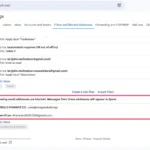
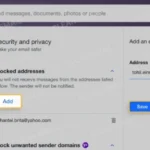
- Select See all settings and navigate to the Filters and Blocked Addresses tab.
- Locate the email address you want to unblock and select Unblock.
| Feature | Description |
|---|---|
| Spam Filtering | Categorizes emails to prevent spam from cluttering the inbox. |
| Blocking Notifications | No notifications are received from blocked senders. |
| Easy Unblocking | Users can quickly unblock addresses from settings. |
For those who want to regain better control over their email intake, reviewing the process for unblocking emails on Gmail can be quite beneficial. It helps streamline communication and enhance overall email management efficiency.
Real-World Examples of Managing Blocked Emails in Gmail
Identifying Blocked Emails via Settings
Accessing the Gmail settings allows users to view and manage a comprehensive list of blocked senders, making it easy to identify emails that have been previously restricted.
Why this matters: Highlighting the importance of having clarity over blocked contacts helps in deciding whether to unblock someone if their messages are important.
Unblocking Senders for Future Correspondence
Once users locate blocked emails, they can seamlessly unblock senders, which allows future emails to come through without hindrance.
Why this matters: Providing a straightforward method to unblock essential contacts ensures that vital communication is not missed.
Reviewing Spam Folder for Misclassified Emails
By checking the Spam folder, users can find emails from blocked senders that may have been misclassified, ensuring no important messages are overlooked.
Why this matters: Stating the potential for misclassification encourages users to periodically review the Spam folder for missed communication.
Utilizing Search Functions for Blocked Emails
Utilizing Gmail's search feature allows users to find emails from blocked senders by entering specific terms or the sender's email address.
Why this matters: Asking users to leverage search functionalities emphasizes efficiency in locating specific communications within a crowded inbox.
Setting Up Filters for Future Emails
Creating filters can help in organizing incoming emails from previously blocked addresses, directing them to specific folders for easier management.
Why this matters: By keeping the inbox organized, users can focus on important messages while minimizing distractions from non-urgent emails.
Monitoring Blocked Emails for Security Concerns
Regularly reviewing blocked emails can alert users to potential security threats or spam attempts that have been successfully filtered out.
Why this matters: Highlighting the necessity of maintaining security awareness helps users remain vigilant against phishing attempts and other malicious communications.
Learning from Blocked Email Trends
Analyzing which emails are frequently blocked may provide insights into communication patterns, allowing users to adjust their interactions accordingly.
Why this matters: Stating the benefits of understanding blocking behavior informs users on how to refine their email communication processes.
Understanding Blocked Emails in Gmail
Can I see a list of emails I've blocked in Gmail?
Unfortunately, Gmail doesn't provide a straightforward list of blocked emails. However, you can check your settings to see the addresses you've manually added to the block list. Simply go to Settings, then the "Filters and Blocked Addresses" tab to find that information.
What happens to emails from blocked senders in my Gmail?
When you block a sender in Gmail, their emails are automatically directed to your Spam folder. You won't see any notifications about these emails, and they won't appear in your inbox unless you manually check the Spam folder.
How can I unblock an email address in Gmail?
If you've decided you want to receive emails from a previously blocked sender, just go back to the "Filters and Blocked Addresses" section in Settings. From there, you can unblock the email address and start receiving their messages again.
Is it possible to recover emails from blocked senders?
Once you block a sender, their emails go straight to Spam. If you’ve removed the block but still can’t find their emails, check the Spam folder. Remember that emails in Spam are automatically deleted after 30 days, so act quickly if you need to recover them.
Being able to see your blocked emails in Gmail can really help you stay in touch with important contacts you might have accidentally shut out. After you’ve taken the time to check your blocked list, don’t forget that you can always unblock any senders you wish to reconnect with, ensuring important communications make it to your inbox. And if you ever find yourself needing to iron out communication barriers for good, consider checking out how to unblock emails for a smoother experience. Now's the perfect time to explore your settings and reclaim your inbox—happy emailing!