Unwanted emails can feel like an endless flood, cluttering your inbox and consuming your time. If you've spent too long sifting through junk messages or dodging spam, you know how frustrating it can be to manage your email effectively.
Understanding how to block those annoying senders is essential for regaining control over your communications and ensuring your inbox is a place for important messages rather than a dumping ground. No one wants to waste precious moments deleting emails that shouldn’t even be making their way to you in the first place.
Whether it’s persistent promotions that clutter your view or phishing attempts that raise alarms, figuring out how to keep these distractions at bay is vital for a smoother email experience. This isn’t just about making your inbox look better; it’s about creating a more efficient way to stay connected with what matters most.
Core Concepts for Blocking Unwanted Emails
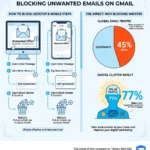
Managing your inbox can feel overwhelming, especially when unwanted emails pile up. Knowing how to block these messages can significantly enhance your email experience. Here are the essential components to understand.
- Identify Unwanted Senders: Start by recognizing the email addresses or domains that regularly flood your inbox with spam or irrelevant content. This helps target your blocking efforts.
- Utilize Built-in Email Features: Most email services offer options to block or filter out unwanted messages. Explore settings where you can blacklist specific addresses or domains.
- Report Spam: Most email platforms allow users to mark emails as spam. This teaches the email provider to filter similar messages in the future, providing a broader layer of protection.
- Create Custom Filters: Use filters to automatically route unwanted emails to a separate folder or the trash. You can set up criteria based on subject lines, keywords, or sender details.
- Unsubscribe from Lists: For newsletters or promotional emails you no longer wish to receive, look for an "unsubscribe" link in the message. This action can help reduce the volume of unwanted mail.
- Use Disposable Email Addresses: For one-time sign-ups or purchases, consider using a temporary email service. This way, your primary inbox remains clutter-free.
These elements combined create a solid framework for reducing unwanted emails and maintaining a tidy inbox.
| Method | Description |
|---|---|
| Block Sender | Directly prevents emails from certain addresses from entering your inbox. |
| Mark as Spam | Alerts your email provider to filter unwanted messages better in the future. |
| Create Filters | Automatically manage incoming messages based on specific criteria. |
| Unsubscribe | Removes your email from mailing lists to reduce future communications. |
| Use Disposable Emails | Protects your main inbox by providing a temporary email for sign-ups. |
Combining these methods allows for the creation of a focused approach to email management, ensuring smoother communication channels in the long run.
For those looking to refine their email interactions, explore how to unblock emails in Gmail for more seamless connections.
Blocking Unwanted Emails: Practical Examples and Use Cases
Utilizing Spam Filters
Most email services come with built-in spam filters that automatically divert suspected spam messages to a separate folder. Users can review these messages and mark any legitimate emails that slipped through the filter.
Why this matters: Highlighting the importance of proactive management ensures that users can better focus on important communications while minimizing clutter.
Creating Blacklists
Email platforms often allow users to create blacklists, which block specific email addresses or domains. This feature can prevent repeated unwanted messages from known spammers.
Why this matters: Stating the value of customizing filters helps individuals maintain control over their inbox and reduce repetitive disruptions.
Setting Up Filters for Automated Sorting
Users can set up custom filters that automatically sort incoming emails based on specific criteria such as sender, subject line, or keywords. Emails that match these criteria can be directed straight to the trash or a designated folder.
Why this matters: Providing automated sorting enhances organization, making it easier to locate important emails without sifting through unwanted content.
Reporting Spam to Email Providers
Many email services offer an option to report spam messages. When users report spam, providers use this information to improve their filtering algorithms, helping to protect all users from similar messages in the future.
Why this matters: By contributing to spam reporting, individuals participate in a community effort that enhances overall email safety and reduces spam at a larger scale.
Utilizing the Unsubscribe Feature
Most promotional emails provide an unsubscribe link. By clicking this link, users can remove themselves from mailing lists, reducing unwanted emails from companies they’re no longer interested in.
Why this matters: Asking users to take ownership of their email subscriptions fosters a cleaner inbox and a more tailored email experience.
Using Temporary Email Addresses
For signing up for services or newsletters, users can opt for temporary email addresses. These addresses can expire after a set period or after a certain number of messages, ensuring that users aren’t inundated with unwanted correspondence over time.
Why this matters: Highlighting the utility of temporary emails provides a simple solution to managing junk email without compromising permanent contact information.
Blocking Images in Emails
Some email clients allow users to block external images from loading in emails. This can prevent tracking pixels from spammers and reduce the risk of inadvertently triggering spam filters.
Why this matters: By keeping images blocked, users maintain a level of privacy and security in their email interactions that can safeguard against unwanted solicitations.
Managing Unwanted Emails: Your Questions Answered
How can I block unwanted emails on Gmail?
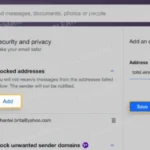
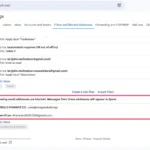
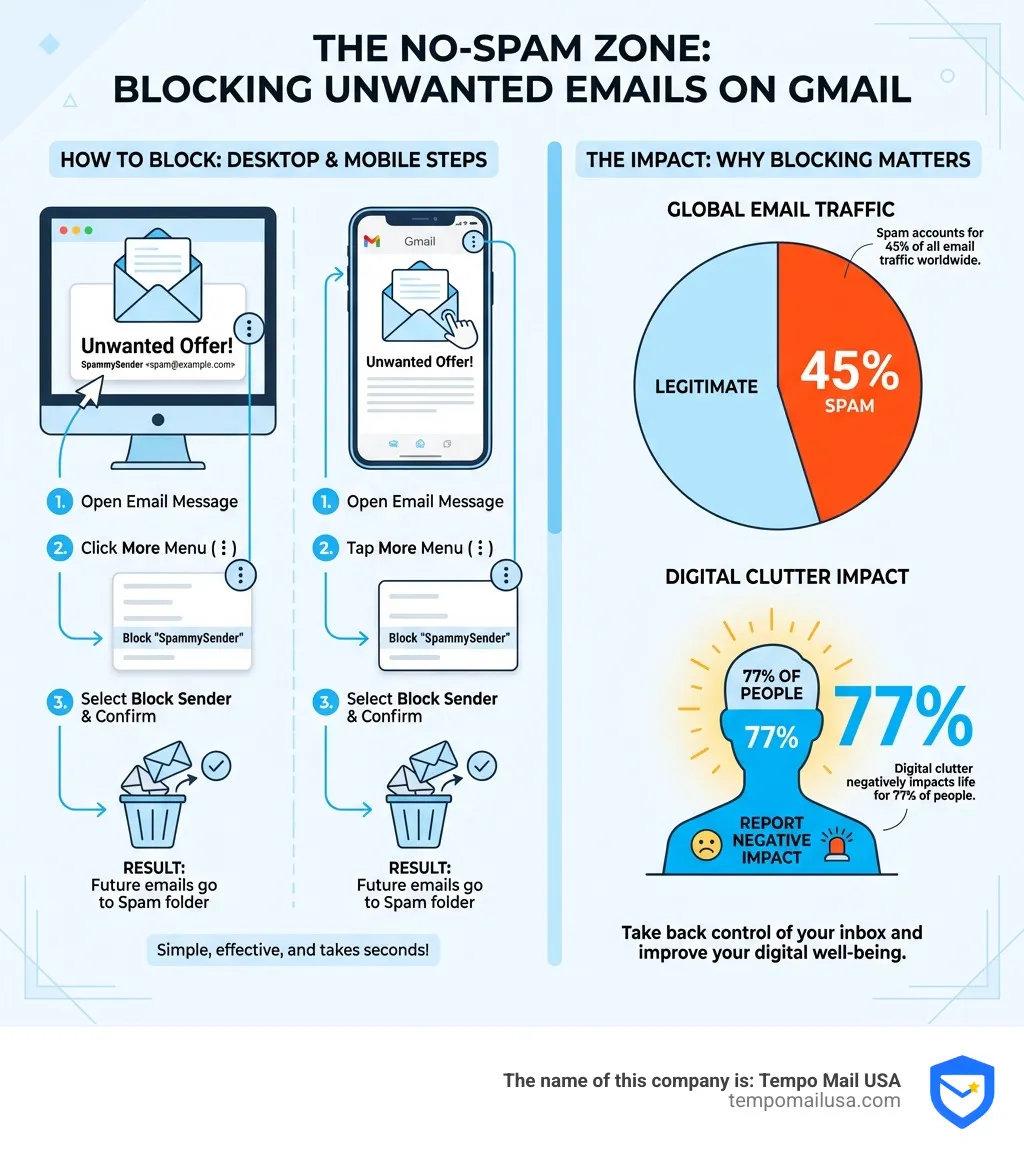
To block unwanted emails on Gmail, open the email you wish to block. Click on the three dots in the upper right corner and select "Block [Sender]." This will send future messages from that sender to your Spam folder automatically.
What should I do if I keep receiving emails from a blocked sender?
If you still receive emails from a blocked sender, it’s possible they’re using a different email address. You can mark those emails as Spam manually, which helps Gmail filter similar messages in the future.
Are there any settings I can adjust to minimize spam on Outlook?
In Outlook, go to "Settings" and navigate to "View all Outlook settings." Under "Mail," select "Junk email," where you can add specific addresses to the blocked senders list and adjust your spam filter settings for better control.
What’s the best approach for dealing with unwanted emails on mobile devices?
For mobile email apps, look for options to block or report spam within the app settings. Most apps, like Gmail or Outlook, have similar features to their desktop counterparts. Make sure to utilize the spam reporting option to improve filtering.
Remember, taking a moment to adjust your email settings can save you a ton of frustration down the line. Blocking unwanted emails isn’t just about keeping your inbox tidy; it’s about reclaiming your time and mental space. So, as you go through your emails, don’t hesitate to act. Whether it’s filtering emails or hitting that block button, every little bit counts. Now, go ahead and take charge of your inbox—you’ve got this!