Are you tired of missing important emails because they ended up in your spam folder? You're not alone. Many of us rely on Outlook for crucial communications, and when a genuine message gets blocked, it can feel frustrating and overwhelming.

Understanding how to unblock emails in Outlook is essential for keeping your workflow smooth and efficient. Whether it’s a colleague's important update or a long-awaited newsletter, let's make sure those valuable messages find their way back to your inbox.
Understanding Email Unblocking in Outlook
Unblocking emails in Outlook is essential for maintaining communication and ensuring important messages aren't missed. When emails are blocked, they can prevent vital information from reaching your inbox. Here’s how you can navigate through unblocking emails effectively.
Core Concepts of Unblocking Emails
- Blocked Senders List: Outlook maintains a list of blocked senders. Emails from these addresses go directly to the Junk Email folder.
- Safe Senders List: Adding an email address or domain to this list ensures that messages from those senders always land in your inbox.
- Junk Email Folder: Checking this folder regularly can help identify mistakenly classified emails and remove them from the blocked list.
Steps to Unblock Emails
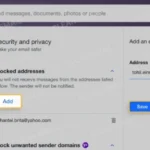
- Access the Settings: Go to your Outlook settings by clicking on the gear icon.
- Navigate to Mail: Under "Mail," select "Junk Email."
- Edit Blocked Senders: Here, you’ll see the Blocked Senders list. Identify the email addresses you want to unblock.
- Remove the Sender: Select the blocked sender and click the "Remove" button. This action clears the sender from the list.
- Add to Safe Senders: If necessary, you can add the sender to the Safe Senders list for future communications.
Common Issues and Solutions
| Issue | Solution |
|---|---|
| Email still goes to Junk | Add the sender to the Safe Senders list and check your junk folder settings. |
| Blocked senders not appearing | Check if the email was categorized as junk without being explicitly blocked. |
| Missing emails | Review settings for specific filtering rules that may be directing emails elsewhere. |
Benefits of Unblocking Emails
- Improved Communication: Ensures you receive important messages from colleagues, clients, or friends.
- Reduced Spam: Properly managing your blocked and safe sender lists helps enhance overall email quality.
- Enhanced Productivity: Quickly accessing relevant emails streamlines your workflow and minimizes distractions.
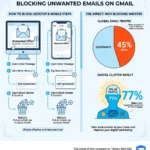
For more on managing unwanted emails, check out our article on how to block an email in Outlook for a hassle-free inbox.
Effective Methods to Unblock Emails in Outlook
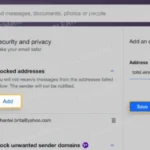
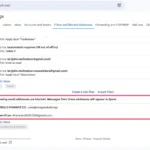
Accessing the Blocked Senders List
Navigating to Outlook settings allows users to view and manage the Blocked Senders list. By locating the Email tab under the Junk Email options, individuals can easily identify addresses they previously blocked.
Why this matters: Understanding how to access this list helps users regain access to vital communications that may have been unintentionally blocked.
Removing Specific Addresses
Selecting any blocked address enables the option to remove it from the list. Clicking the "Remove" button permanently unblocks the sender, ensuring future emails are delivered to the inbox.
Why this matters: Unblocking specific addresses provides users with the flexibility to adjust their email preferences in response to evolving needs.
Adjusting Junk Email Options
Exploring the Junk Email Options in Outlook allows users to customize the filtering levels. Setting this to "No Automatic Filtering" can prevent emails from being wrongly categorized as junk.
Why this matters: Modifying these settings enhances overall email management, reducing the chances of missing essential communications.
Creating Safe Senders List
Adding trusted email addresses to the Safe Senders list ensures that messages from those addresses bypass spam filters entirely. This can be achieved within the same Junk Email settings area.
Why this matters: Emphasizing important contacts helps in maintaining seamless communication, especially for critical correspondence.
Leveraging Rules for Inbox Management
Creating rules within Outlook can automatically sort for specific senders. By designating these rules, users can ensure emails from unblocked senders go straight to designated folders.
Why this matters: Establishing rules boosts organization, facilitating easier access to unblocked emails while maintaining a clutter-free inbox.
Utilizing Search Features
Making use of the search bar can help locate specific emails from supposed blocked contacts. Users can enter the sender's name or email to verify if emails were mistakenly categorized.
Why this matters: Utilizing the search feature streamlines the retrieval process, allowing for quick resolutions without extensive browsing through folders.
Syncing Across Devices
Ensuring Outlook is synced across devices means that any changes made—like unblocking a sender—will reflect on all platforms, including mobile and web versions.
Why this matters: Highlighting the benefits of synchronization keeps users updated and connected, ensuring consistent email experiences wherever they access Outlook.
Clarifying Your Email Unblocking Needs in Outlook
How do I check if an email address is blocked in Outlook?
To see if an email address is blocked, go to the Home tab. Click on "Junk," then select "Junk Email Options." In the Blocked Senders tab, you'll find a list of addresses that have been blocked. If the email address you’re curious about is on that list, it’s blocked.
What steps do I take to unblock an email address in Outlook?
To unblock an email address, navigate to "Junk Email Options" just like before. Go to the Blocked Senders tab, select the email address you wish to unblock, and click "Remove." Remember to hit "OK" to save your changes.
Why am I still not receiving emails after unblocking an address?
If emails aren't coming through even after unblocking, check your spam or junk folder. Sometimes messages can still be misclassified. Also, ensure that these emails are not being filtered by any rules you might have set in your inbox.
Could my email client be causing the blockage?
Yes, occasionally your email client settings might unintentionally filter messages. Check any security software and adjust settings to ensure legitimate emails are not being flagged as spam. You might need to whitelist the sender within those applications as well.
Being able to unblock emails in Outlook can really enhance your communication, ensuring you stay connected with the people and information that matter to you. It’s all about regaining control over your inbox and making sure that important messages don’t slip through the cracks. So, the next time you realize you’ve accidentally blocked someone you want to hear from, remember, it’s an easy fix! Take a moment to check your settings, and don’t hesitate to adjust things as needed. Go ahead and unlock those connections—your inbox will thank you for it. And if you ever need help with blocking unwanted emails, you can find more on that topic too!