Annoying emails from that one person can really grind your gears, can’t they? Whether it's spam, unsolicited promotions, or just someone who doesn't get the hint, blocking an email address is a straightforward way to take back control of your inbox. 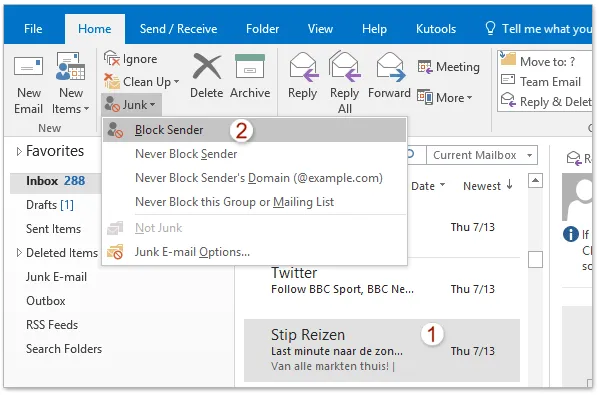
No one likes feeling overwhelmed by constant distractions, especially when you’re just trying to get through your day. Taking the time to block unwanted emails means less clutter, less stress, and more focus on what truly matters.
You might wrestle with different email platforms, and each one has its own quirks for blocking addresses. Learning how to navigate those differences can make all the difference in creating a more peaceful online environment.
If you ever need to revisit a blocked contact, don't worry. There’s always a way to unblock them if needed, letting you decide who gets back into your digital life. And if your situation ever changes, you'll be ready to manage your inbox like a pro.
So, let’s get to the nitty-gritty and help you clear your inbox of unwanted intruders, one email at a time. You'll never have to tolerate unwanted messages again.
Core Elements of Blocking an Email Address
Blocking an email address is a straightforward process that helps manage your inbox and reduce unwanted communications. Here’s what you need to know:
- Identify the Email Address: Confirm the address you want to block. This eliminates errors and ensures you're targeting the correct sender.
- Access Email Settings: Navigate to your email account settings. This varies among services like Gmail, Outlook, and Yahoo.
- Locate the Block Option: Generally found under the "Filters" or "Security" section, look for an option to block or blacklist an address.
- Add the Address: Enter the email address you wish to block. Some platforms allow bulk additions.
- Save Changes: Ensure you save or apply your changes to activate the block.
- Verification: Check the blocked list to confirm the email address is successfully added.
| Email Provider | Blocking Method |
|---|---|
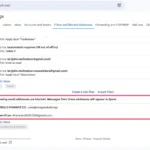
| Gmail | Open an email from the sender, click on the three dots, and select "Block." |
| Outlook | Select an email, go to "Junk," and choose "Block." This also moves the email to the Junk folder. |
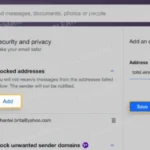
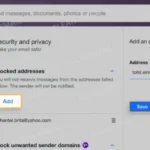
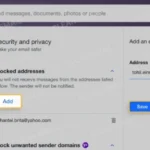
| Yahoo | Go to settings, find “Blocked Addresses,” and add the email address. |
Blocking an email not only stops future messages but can enhance your overall experience by maintaining a cleaner inbox. If circumstances change and you wish to receive emails again, unblocking is just as simple.
For further insights on managing your email communications, consider exploring how to unblock emails on Gmail.
Real-World Scenarios for Blocking an Email Address
Preventing Spam in Your Inbox
A user receives numerous marketing emails from a specific address that clutter their inbox. By blocking that email address, the user ensures they no longer receive unwanted promotional content.
Why this matters: Highlighting the importance of managing email clutter helps maintain focus and productivity, reducing distractions from unwanted emails.
Mitigating Phishing Risks
An employee identifies a suspicious email attempting to gain sensitive information. Blocking the sender prevents future attempts, protecting the organization from potential data breaches.
Why this matters: Stating the critical nature of online security enhances awareness of potential threats, ensuring sensitive information remains safeguarded.
Improving Email Communication Flow
A professional encounters an unresponsive colleague who frequently sends irrelevant emails. Blocking this colleague simplifies communication and allows focus on more relevant correspondences.
Why this matters: Providing clarity in communication emphasizes efficiency in workplace interactions, thereby enhancing productivity in team collaborations.
Eliminating Harassment
An individual receives harassing messages from a particular email address. By blocking the sender, they create a safer online environment for communication.
Why this matters: Advocating for personal safety highlights the necessity of having control over communication, empowering users to protect their well-being.
Reducing Noise from Unnecessary Notifications
A user subscribes to a service that sends daily notifications but later finds them overwhelming. Blocking the notification emails can streamline their inbox to include only essential updates.
Why this matters: Asking for a more organized inbox underscores the benefits of focusing only on meaningful content, thereby making email management less stressful.
Controlling Personal Boundaries
A person starts receiving unsolicited personal emails from an acquaintance and decides to block them to maintain clear personal boundaries in their digital life.
Why this matters: Highlighting personal autonomy reinforces the concept of setting limits in digital communications, which is crucial for mental health and well-being.
Avoiding Subscription Confusion
A user accidentally subscribes to a newsletter that no longer interests them. By blocking the sender, they can manage their subscriptions without having to unsubscribe repeatedly.
Why this matters: Stating the ease of managing subscriptions illustrates how blocking can simplify user experience, fostering a more tailored digital interaction.
Addressing Your Email Blocking Concerns
How do I block an email address on Gmail?
To block an email address on Gmail, open the email from the sender you wish to block. Click on the three vertical dots in the top right corner of the email and select "Block [Sender's Name]." This will move future emails from that sender to your Spam folder automatically.
Will blocking an email address prevent them from sending messages?
Yes, when you block an email address, the sender’s messages will be directed to your Spam folder. They won’t receive a notification that they’ve been blocked, but you will no longer see their emails in your inbox.
Can I unblock an email address later if I change my mind?
Absolutely. In Gmail, you can unblock a sender at any time. Just go to your Spam folder, find one of their emails, click on the three dots, and choose "Unblock [Sender's Name]." Their messages will then appear back in your inbox.
What should I do if I keep getting emails from a blocked sender?
If emails from a blocked sender still appear in your inbox, ensure that the block was successfully applied. You can also mark those emails as spam, which helps improve Gmail's filtering system for future messages.
Getting rid of unwanted emails can really lighten your digital load, and blocking an email address is a straightforward way to do it. Just remember, the steps might vary slightly between different email providers, but the general idea remains the same: take control of your inbox and reclaim your peace of mind. If you ever find yourself needing to unblock an email later on, don’t fret—revisiting those unblocking steps is just as easy. Go ahead and protect your inbox from distractions, and enjoy a more streamlined email experience!