Ever find yourself hastily typing an email, only to wish you could hit pause before it zooms off into the inbox abyss? You're not alone. The ability to send delayed emails in Outlook is a game-changer for managing your communication more thoughtfully. 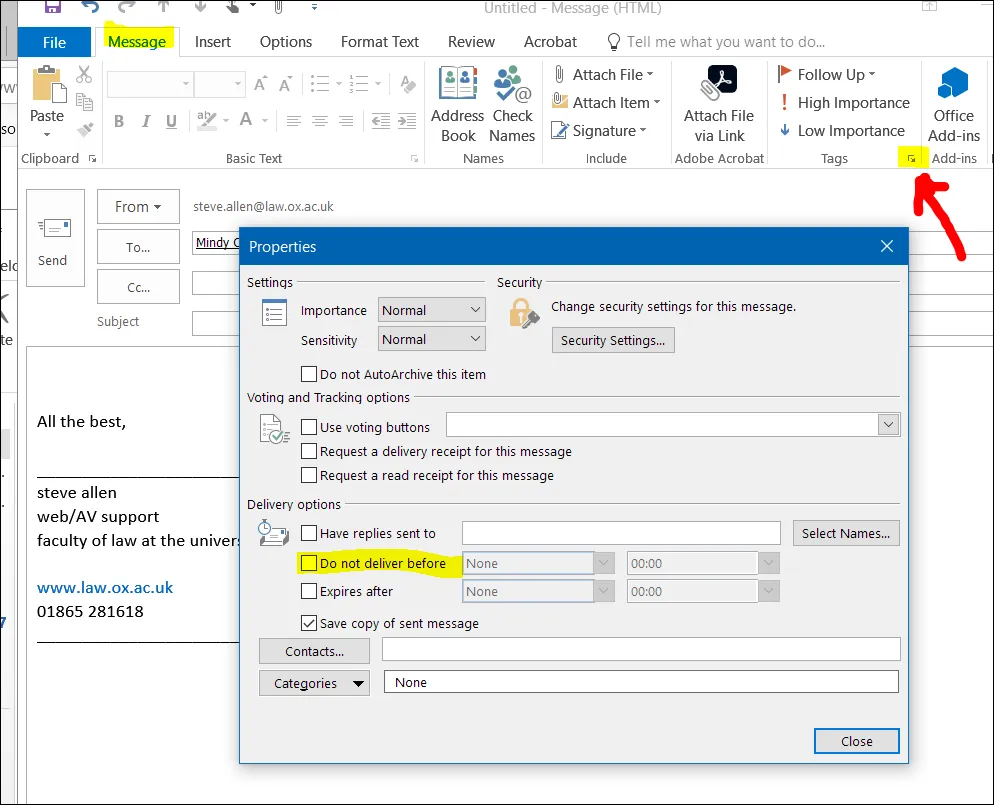
This feature isn't just about convenience; it’s about ensuring that your message lands exactly when it should. Whether you're juggling multiple time zones or carefully timing follow-ups, delaying an email can save you from potential miscommunications and enhance your professionalism.
A lot of people overlook this handy feature, but once you start using it, you'll wonder how you ever managed without it. Think about the clarity it brings to your correspondence and the confidence in knowing your emails are sent when they're most relevant.
So, let's explore how to take control of your email scheduling in Outlook. With just a few simple steps, you'll master the art of timing your messages perfectly.
Understanding the Core Elements of Delayed Email in Outlook
Sending a delayed email in Outlook requires a few straightforward steps, allowing you to control when your message reaches its recipient. This feature not only enhances professionalism but can also help optimize communication timing. Below is a breakdown of how to execute this method effectively.
Core Concepts of Delayed Email Delivery
When you set an email to be sent later, Outlook holds the message in your Outbox until the scheduled time. Here are the main components to consider:
- Email Composition: Write your email as you normally would, including the recipient's address, subject line, and body text.
- Delivery Options: Access options to set your desired send time.
- Sending Mechanism: Understand how Outlook processes delayed emails and the role of the Outbox.
Steps to Send a Delayed Email
Here’s a straightforward process to send an email at a later time:
- Open Outlook and select New Email.
- Compose your message with the necessary details.
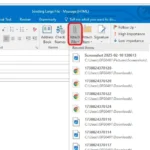
- Navigate to the Options tab in the message window.
- Select Delay Delivery in the More Options group.
- In the Properties dialog, check the box for Do not deliver before and set your desired date and time.
- After setting the delivery time, close the dialog and send the email. It will initially go to your Outbox.
What to Keep in Mind
As you utilize this feature, several factors should be considered:
| Factor | Description |
|---|---|
| Outbox Temperature | The email stays in your Outbox until the scheduled time. Ensure Outlook is running to send it as planned. |
| Time Zones | Be aware of the time zone differences, especially if the recipient is in a different zone. |
| Email Format | Different formats (such as RTF, HTML, or plain text) can affect how the email looks when sent. |
By understanding these components, you can efficiently schedule your emails in Outlook, ensuring your communication aligns perfectly with your intentions. For a more in-depth overview on the intricacies involved, you can refer to this article.
Practical Applications of Delayed Email in Outlook
Scheduling Emails for Optimal Timing
Using Outlook's delayed email feature, you can schedule messages to be sent at a time when recipients are most likely to read them, such as during business hours. This ensures that your email doesn’t get buried in a flood of morning messages.
Why this matters: Highlighting the importance of timing helps increase the chances of your email being seen and acted upon promptly.
Improving Work-Life Balance
By setting a delayed send for after-hours emails, you can maintain boundaries and avoid interruptions outside of work hours. This empowers you to focus on personal time while ensuring your work communications are timely.
Why this matters: Stating the need for boundaries supports better work-life balance, preventing burnout and fostering employee well-being.
Coordinating Across Time Zones
When working with teams in different time zones, you can delay emails to arrive during the recipients' working hours. This consideration enhances collaboration and communication between global teams.
Why this matters: Asking for effective communication across time zones fosters a more cohesive team environment and minimizes misunderstandings.
Allowing Time for Revisions
Drafting an important email and setting it to send later grants you the opportunity to review and edit your message before it goes out. This helps ensure clarity and professionalism in your communications.
Why this matters: Providing an extra layer of refinement enhances overall message quality, which is crucial in professional settings.
Managing Follow-Ups
Scheduling reminder emails for follow-ups can keep projects on track. By delaying these emails, you ensure timely reminders without the need for real-time attention.
Why this matters: Highlighting the ability to automate follow-ups reduces missed opportunities and keeps projects progressing smoothly.
Controlling the Sending Process for Sensitive Information
When sending sensitive information, using the delayed send feature allows you time to double-check and decide whether the email should be sent at all, providing an extra safety net.
Why this matters: Stating the significance of confirming information before sending enhances security and minimizes the risk of mishaps in communication.
Enhancing Email Campaigns
If you’re managing email campaigns, scheduling emails to go out at peak engagement times is essential. This can be done through delayed sending to optimize response rates.
Why this matters: Asking how timing can influence campaign outcomes highlights the potential for better engagement and results.
Addressing Your Delayed Email Queries in Outlook
How do I set a delayed send time for an email in Outlook?
To set a delayed send time, start by composing your email as usual. Next, click on the “Options” tab in the ribbon, and then select “Delay Delivery.” Here, you can specify the date and time you want the email to be sent.
Can I cancel a delayed email in Outlook once it's set?
Yes, you can cancel a delayed email. Open your Outbox folder, locate the email you want to cancel, and then either delete it or modify the delivery settings by accessing “Delay Delivery” again.
Is there a way to set recurring delayed emails in Outlook?
Unfortunately, Outlook does not natively support recurring delayed emails. You would need to manually schedule each email or consider using a third-party tool that provides this feature.
What happens if I close Outlook before the delayed email is sent?
If Outlook is closed, the email will remain in your Outbox and will not be sent until Outlook is opened again. Make sure the application is running at the scheduled time for the email to send.
Using Outlook's delayed email feature can really transform how you manage your time and communication. It gives you the freedom to plan your messages, ensuring they land at just the right moment without a last-minute scramble. So why not give it a shot? Open Outlook, set up your delayed send, and take charge of your emailing style. With this simple tool, you can communicate with confidence and ease, making your emailing experience just a little smoother. Happy emailing!