Are you overwhelmed by a mountain of unread emails in Gmail? You're not alone. A cluttered inbox can feel like a never-ending battle, draining your focus and making it tough to find the important stuff. Clearing out those unread emails isn’t just about tidying up; it’s about reclaiming your time and mental space.
Understanding how to delete those pesky unread emails can dramatically change how you interact with your inbox. Imagine opening Gmail and only seeing the emails that matter to you—how liberating would that be? This isn’t just a fantasy; it's within reach.
Let’s tackle this head-on and make that inbox work for you, not against you. The process to wipe out those unread emails is straightforward and will leave you feeling lighter and more organized.
Core Elements for Deleting Unread Emails in Gmail
Managing unread emails in Gmail can feel overwhelming, especially if you receive a high volume of messages daily. Follow these straightforward steps to delete all unread emails, making your inbox more manageable and organized.
Here’s a streamlined process to tackle your unread emails:
- Access Gmail: Log into your Gmail account using a web browser for better functionality. The mobile app may not support bulk deleting as efficiently.
- Navigate to the Search Bar: Use the search bar at the top of your inbox. You can filter what you're looking for here.
- Use Search Parameters: Type is:unread in the search bar. This command filters your inbox to show only unread emails.
- Select All Unread Emails: Once the unread emails are displayed, click the checkbox at the top left of the email list. To select all emails on the current page, use the checkbox. To select all unread emails, look for a prompt that says something like, "Select all conversations that match this search," and click on it.
- Delete Emails: Click on the trash can icon that appears above your emails. This will delete all selected unread emails.
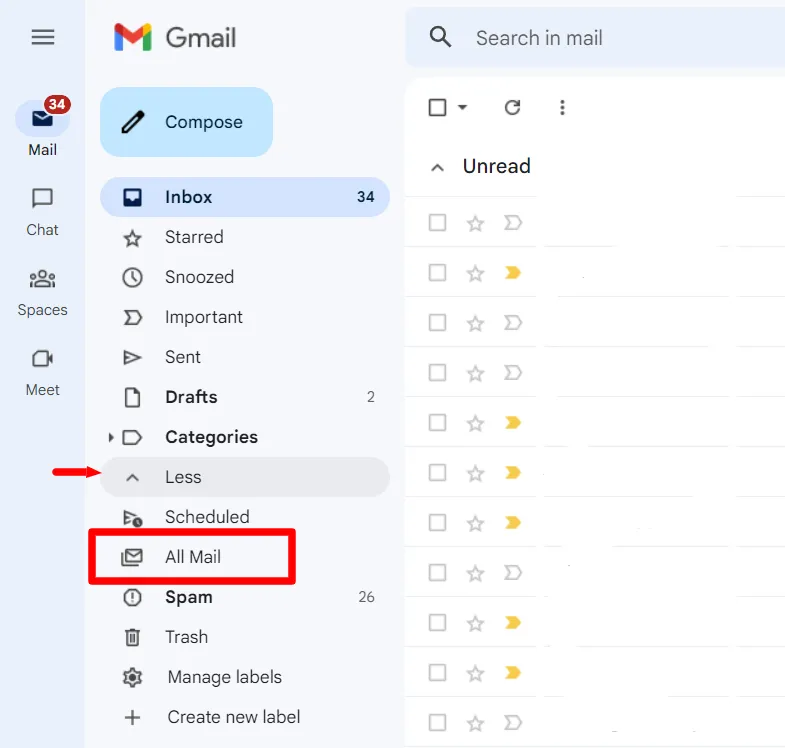
- Empty Trash: To permanently remove these emails, navigate to the "Trash" folder in the left sidebar. Here, you can choose to empty the trash or delete specific emails.
| Step | Action |
|---|---|
| 1 | Log into Gmail |
| 2 | Enter search parameter: is:unread |
| 3 | Select all unread emails |
| 4 | Click the trash can icon |
| 5 | Empty your Trash |
This method will significantly reduce the clutter of unread emails and improve your email management. For additional techniques on bulk deletion, check out our article on deleting emails from Gmail in bulk.
Deleting Unread Emails in Gmail: Practical Applications
Utilizing Search Filters to Locate Unread Emails
Accessing Gmail's search bar and typing "is:unread" allows users to filter their view specifically to unread emails. From here, users can select all emails by clicking the checkbox above the list.
Why this matters: Providing a precise approach helps streamline the email management process, reducing time spent searching through a cluttered inbox.
Applying Bulk Selection for Enhanced Efficiency
Once the unread emails are filtered, selecting the checkbox at the top selects all visible emails. A prompt will appear, offering the option to select all unread conversations within the entire inbox.
Why this matters: Highlighting this function boosts productivity, allowing more messages to be handled in one action rather than individually.
Using the Delete Function for Instant Removal
After selecting unread emails, clicking the trash can icon allows for the quick deletion of these messages. This action can be performed effortlessly once all desired emails are selected.
Why this matters: Stating the simplicity of this action underlines how quickly users can declutter their inbox, leading to improved focus on more important communications.
Searching for Specific Senders to Manage Unread Emails
Typing a specific email address along with "is:unread" narrows down unread emails from that sender. This focused approach makes it easier to handle priority messages efficiently.
Why this matters: Asking about sender specificity allows users to prioritize important emails, ensuring that essential communications are not overlooked.
Leveraging Labels for Future Organization
Before deleting unread emails, users can assign labels to certain groups. By checking relevant emails and applying labels, users maintain organization even when deleting messages.
Why this matters: By keeping organization front of mind, individuals can manage their email better without losing track of important information.
Exploring the Gmail Mobile App for Convenience
The Gmail mobile application allows users to follow similar steps: filtering unread emails, selecting them, and deleting directly from their smartphones. This promotes effective email management on-the-go.
Why this matters: Highlighting mobile capabilities ensures users can maintain email organization irrespective of their location, making management more accessible.
Creating Email Automation Rules for Unread Messages
Gmail's settings allow users to create filters for future unread emails. By setting rules to automatically delete or archive unread emails after a certain period, users can maintain a tidy inbox effortlessly.
Why this matters: Stating the advantage of automation emphasizes the long-term efficacy of email organization, preventing future clutter from accumulating.
Streamlining Your Gmail Experience
Why can’t I find the option to delete all unread emails in Gmail?
If you're having trouble finding the delete option, it could be due to the search criteria you’re using. Ensure that you type "is:unread" in the Gmail search bar to filter all unread emails. Once you see the results, there will be a checkbox at the top left to select all.
Are there limitations when deleting unread emails in Gmail?
Yes, Gmail limits the number of emails you can delete at once to 100 at a time. If you have more unread emails, you'll need to repeat the process for each batch until everything is cleared out.
What happens to my unread emails after I delete them?
Once you confirm the deletion, those emails are moved to the Trash. They’ll remain there for 30 days before being permanently deleted. You can recover them from Trash within that period if needed.
Can I automate the process of deleting unread emails periodically?
Gmail does not currently offer built-in automation for deleting unread emails. However, you can set up filters to archive or delete specific types of emails regularly, reducing clutter over time.
Clearing out all those unread emails in Gmail can make a world of difference for your inbox. It’s all about taking back control and creating a more organized space where you can focus on what truly matters. Don’t hesitate to embark on this decluttering mission—it feels great to see that inbox number drop! For more ways to keep your Gmail tidy, check out the article on deleting emails in bulk. You've got this!