Are you feeling overwhelmed by a cluttered inbox? You’re not alone. Many of us face the frustration of emails piling up, making it hard to find the important ones amidst the chaos.

Whether you’re trying to reclaim your focus or simply declutter your digital space, knowing how to clear out all those emails at once can be a game changer. Let’s tackle this together and get your inbox back under control.
Essential Steps for Bulk Email Deletion
Deleting all emails at once can streamline your digital life, but the process can vary depending on the email service you use. Below are core elements defining how to accomplish this across several popular platforms, along with some pros and cons.
Core Elements of Bulk Email Deletion
- Know Your Platform: The method differs across services like Gmail, Outlook, and Yahoo. Familiarity with these interfaces is crucial.
- Search and Select: Most platforms allow you to search and filter emails. Use this to isolate the messages you wish to delete.
- Use Bulk Actions: Look for options to select all emails that meet your criteria. This often includes a checkbox at the top of your email list.
- Final Deletion: After selection, look for the delete option, often represented by a trash can icon.
- Empty Trash: Some platforms require you to empty the Trash folder separately to permanently delete these emails.
Common Email Platforms: How to Delete All Emails
| Email Service | Procedure for Deletion |
|---|---|
| Gmail |
1. Click on the checkbox above your emails to select all. |
| Outlook |
1. Click on the "Filter" option to display all emails. |
| Yahoo Mail |
1. Select the checkbox at the top to mark all messages. |
Advantages and Disadvantages
| Advantages | Disadvantages |
|---|---|
|
|
Understanding how to delete all emails at once requires familiarity with your email service's specific features and options. Follow the outlined steps to make the process straightforward and efficient.
Practical Ways to Delete All Emails at Once
Using Email Client Features
Many email clients offer a built-in feature to delete all emails in one go. For instance, in Gmail, you can select the checkbox at the top of your inbox to select all emails, and then choose the “Delete” option. This can be done even if you have a large number of emails.
Why this matters: Highlighting the availability of these features allows users to manage their email clutter without third-party tools, saving time and effort.
Keyboard Shortcuts for Quick Deletion
Utilizing keyboard shortcuts can expedite the process of deleting all emails. For instance, in Outlook, pressing "Ctrl + A" selects all emails, followed by pressing the "Delete" key to remove them instantly.
Why this matters: Stating the benefits of keyboard shortcuts maximizes efficiency for users, especially those managing large volumes of correspondence.
Filters and Bulk Actions
Creating filters to categorize unwanted emails can enable bulk actions. Users can set rules to automatically delete specific types of emails, such as newsletters or promotional content, which often clutter inboxes.
Why this matters: Providing a proactive approach to email management helps maintain a cleaner inbox over time, reducing stress related to email overload.
Third-Party Email Management Tools
Many third-party tools, like Clean Mail or Unroll.Me, allow users to delete all unwanted emails in bulk. These platforms provide streamlined ways to manage subscriptions and identify disposable emails.
Why this matters: Asking how these tools simplify email management can encourage users to explore automation and efficiency in their email processes.
Mobile App Functions
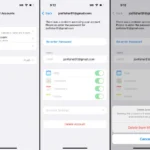
Mobile email apps often have unique functionalities for mass actions, allowing users to swipe or tap to delete multiple emails quickly. For example, in the iOS Mail app, users can select multiple emails and delete them with a single tap.
Why this matters: By keeping the process accessible on mobile devices, users can manage their emails conveniently while on the go, enhancing overall productivity.
Archiving Before Deletion
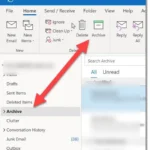
Some platforms like Gmail offer an archiving option before deletion, allowing users to clean their inbox without permanently losing emails. This can be especially useful for maintaining important correspondence while decluttering.
Why this matters: Highlighting this feature emphasizes the importance of preserving valuable information while managing email overload.
Using Search Functionality
Employing search features to locate specific email types can streamline the deletion process. For example, searching for “unsubscribe” can help users find bulk marketing emails to delete in one action, enhancing efficiency.
Why this matters: Stating how search functionality assists in targeting specific emails for deletion demonstrates advanced management skills in email organization.
Your Questions Answered About Deleting Emails
How can I delete all emails at once in Gmail?
In Gmail, start by selecting the checkbox at the top left of your inbox to select all emails on the current page. A message will appear, allowing you to select all conversations in that folder. Once selected, click the trash can icon to delete them all.
Is it possible to bulk delete emails in Outlook?
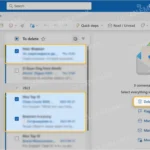
Yes, in Outlook, navigate to your inbox and press Ctrl + A to select all emails. If you want to delete a specific group, hold down Ctrl while clicking each email you want to remove, then hit the Delete key. This action will send selected emails to the Deleted Items folder.
Will bulk deletion remove emails permanently?
Are there any risks involved in deleting all my emails?
Deleting emails can lead to losing important information if you're not careful. Always make sure to back up any critical emails or data before performing a bulk delete, as recovery can be challenging once emails are permanently removed.
Taking control of your inbox doesn’t have to feel overwhelming. Remember, removing all those emails in one go can save you time and give you a fresh start, but make sure you’re ready for that clean slate. Just select, delete, and feel the weight lift off your shoulders! It’s all about creating a space where you can breathe and focus on what really matters. So go ahead, embrace the delete button, and enjoy your newfound email freedom!