Unwanted emails can turn your inbox into a chaotic mess, making it hard to focus on what really matters. If you're tired of sifting through spam and irrelevant messages, you're not alone—many people are seeking ways to regain control and keep their digital lives organized. 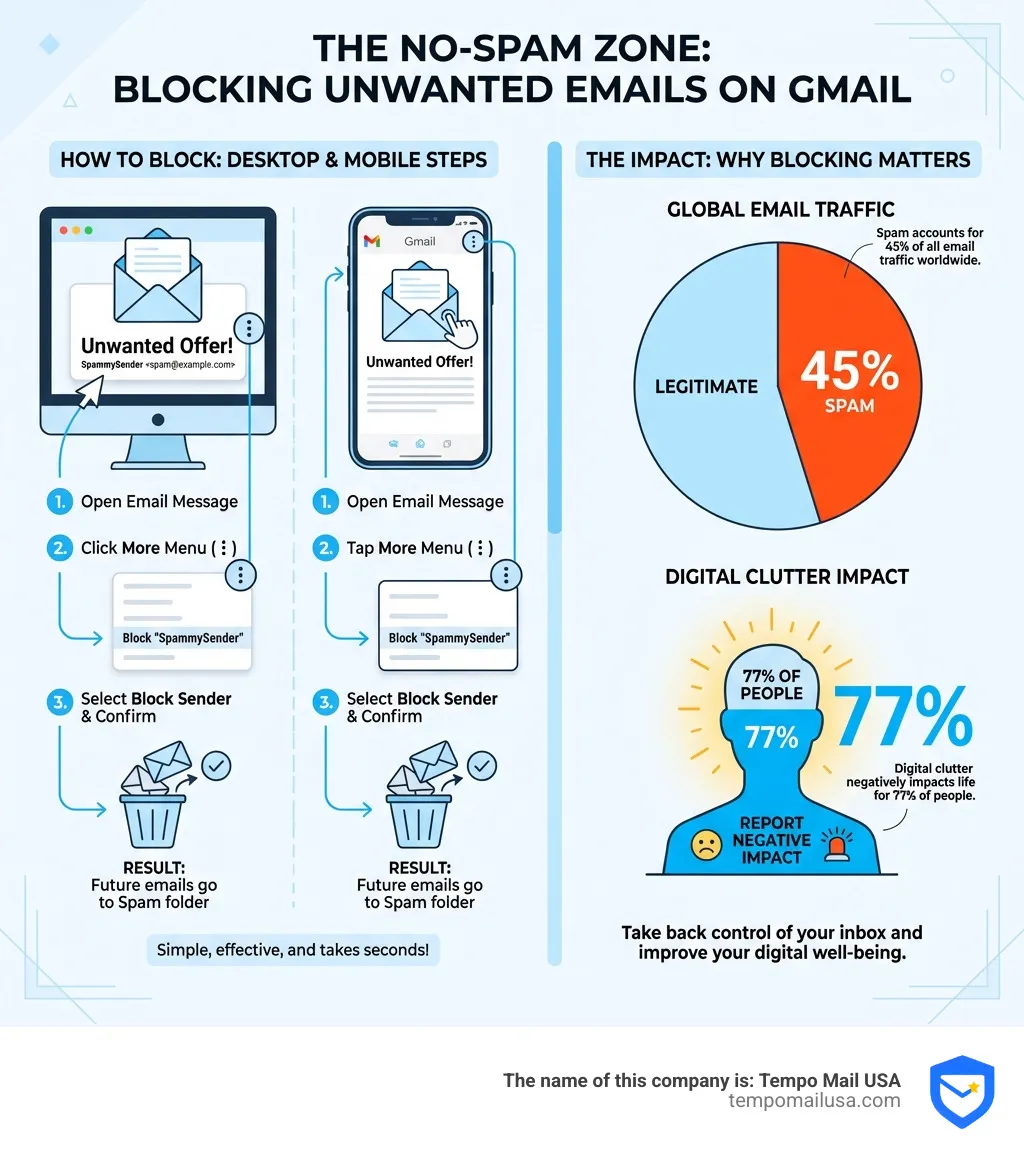
This guide will help you tackle unwanted emails head-on. You’ll learn straightforward methods to block senders and filter out junk, allowing your inbox to serve its true purpose: connecting with friends, family, and important messages.
Your email should enhance your life, not complicate it. Let’s get started on making your Gmail as stress-free as possible.
Essential Elements for Blocking Unwanted Emails in Gmail
Blocking unwanted emails in Gmail is straightforward and can greatly enhance your inbox experience. Here’s how to navigate the process with clarity.
- Identifying Unwanted Emails: Recognize emails that consistently clutter your inbox. This could include promotional messages, notifications, or spam from unknown sources.
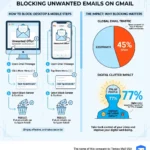
- Using the Block Option: - Open the unwanted email. - Click on the three vertical dots in the upper-right corner of the message. - Select "Block [Sender’s Name]." This action prevents future emails from that sender.
- Unsubscribing: - For newsletters or marketing emails, look for an "Unsubscribe" link often located at the bottom of the email. Clicking this will remove you from the mailing list.
- Creating Filters: - Access your Gmail settings by clicking the gear icon. - Select "See all settings," then go to the "Filters and Blocked Addresses" tab. - Click on "Create a new filter" and fill in the criteria (e.g., sender's email) to filter unwanted emails. You can choose to delete, archive, or mark them as spam automatically.
| Method | How It Works | Benefits |
|---|---|---|
| Block Option | Prevents any future emails from the sender. | Saves time and keeps unnecessary emails out. |
| Unsubscribe | Removes your email from mailing lists. | Reduces total emails received on a regular basis. |
| Creating Filters | Automates sorting and handling of emails based on set criteria. | Streamlines inbox management for specific types of emails. |
Blocking unwanted emails not only enhances focus and productivity but also creates a more pleasant email experience. For further detailed steps, you can refer to the article on How To Block An Email In Gmail For A Stress-Free Inbox.
Practical Ways to Block Unwanted Emails in Gmail
Utilizing the Block Feature
Accessing an unwanted email, clicking the three dots in the top-right corner, and selecting "Block" allows you to prevent further messages from that sender.
Why this matters: Highlighting the ease of blocking sends a clear message to spam senders, reducing the clutter in your inbox.
Creating Filters for Automatic Actions
Setting up filters based on specific criteria, such as keywords or sender addresses, enables automatic deletion or archiving of emails before they clutter your inbox.
Why this matters: Stating that this method streamlines email management, ensuring only important communications reach you.
Reporting Phishing Emails
When encountering suspicious emails, using the "Report phishing" option helps Gmail improve its spam detection and protects other users.
Why this matters: Providing a sense of community security, as reporting aids in the collective fight against scams.
Using the Spam Folder
Marking unwanted emails as spam ensures they are directed to your Spam folder and informs Gmail to enhance its filtering algorithms.
Why this matters: Asking how this action contributes to a cleaner inbox reveals the effectiveness of collective spam filtering over time.
Unsubscribing from Newsletters
Clicking the "Unsubscribe" link in unwanted newsletters allows you to stop receiving those emails without blocking the entire sender.
Why this matters: Highlighting the importance of maintaining relationships with legitimate senders while eliminating unwanted content.
Adjusting Gmail Settings
Accessing Gmail settings allows for customization of how spam and promotional emails are handled, tailoring the experience to your preferences.
Why this matters: Providing a personalized email experience ensures that users retain control over their inbox environments.
Utilizing Labels for Organization
Applying labels to emails from specific senders helps you categorize and manage them, making it easier to focus on desired correspondence.
Why this matters: Asking how this organizational tool can minimize distractions shows the value of tackling unwanted messages visually.
Combatting Unwanted Emails in Gmail
How can I block a specific sender in Gmail?
To block someone, open an email from the sender you want to block. Click on the three dots in the upper-right corner of the email and select "Block [Sender's Name]." You won't receive any further emails from them.
What should I do if blocked emails still land in my inbox?
If blocked emails are still arriving, check your spam folder; sometimes, Gmail's filtering doesn't catch everything. You may want to further customize your filter settings or report the emails as spam to tighten the blockage.
Can I create rules to automatically filter unwanted emails?
Yes, you can set up filters in Gmail. Go to Settings > Filters and Blocked Addresses and click on “Create a new filter.” Enter criteria like email address or keywords, and choose “Delete it” or “Mark as spam” to manage them automatically.
Is there a way to stop unsolicited promotional emails?
You can unsubscribe from most promotional emails by clicking on the “unsubscribe” link usually found at the bottom. Alternatively, use Gmail's "Promotions" tab to bulk delete or report these emails to keep your inbox organized.
Getting a handle on your inbox can feel like a daunting task, especially with all the unwanted emails that just won’t quit. The best part? You have the power to take back control by blocking those pesky senders in Gmail. Remember, a cleaner inbox not only reduces clutter but also helps you focus on what truly matters. So, if spammy emails are causing you stress, don’t hesitate to use the blocking feature. Take a moment to prioritize your peace of mind today; your inbox will thank you for it! If you want to learn more about keeping your inbox spick and span, check out our piece on blocking emails for a stress-free experience.