Feeling overwhelmed by unwanted emails? You're not alone. Whether it’s spam, marketing blasts, or even messages from someone you’d rather not hear from, knowing how to block someone on Yahoo can restore a sense of control over your inbox.

It’s frustrating when a single email disrupts your day, but luckily, Yahoo makes it pretty straightforward to put a stop to those distractions. Let’s walk through the steps to make your email experience more pleasant and once again feel in charge of your digital interactions.
Essential Steps for Blocking Someone on Yahoo Email
Blocking someone on Yahoo Mail is a straightforward process that helps you manage unwanted communication. This feature enables you to prevent specific email addresses from reaching your inbox, enhancing your overall email experience.
Steps to Block an Email Address
- Log into Your Yahoo Account: Start by accessing your Yahoo Mail account using your credentials.
- Go to Settings: Look for the gear icon in the upper right corner of your inbox and click it.
- Select More Settings: In the dropdown menu, click on "More Settings" to access additional configuration options.
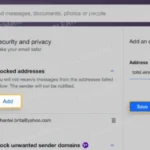
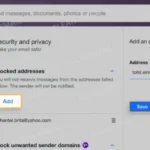
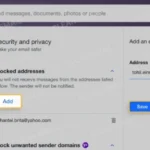
- Navigate to Security and Privacy: On the left side, find the "Security and privacy" tab.
- Add Email to Block List: Under the "Blocked addresses" section, enter the email address you want to block and click "Block." The address will then be added to your block list.
Understanding the Block Feature
When you block an email address, all future messages from that sender will go directly to your spam folder, ensuring they don’t clutter your inbox.
Reasons to Use the Blocking Feature
- Reduce Spam: Blocking unwanted emails minimizes clutter and focuses your attention on important messages.
- Enhance Privacy: If you're receiving harassing or unwanted emails, blocking those senders can increase your peace of mind.
- Control Communication: Selecting who can communicate with you allows better management of your personal and professional relationships.
Management After Blocking
Once you've blocked an address, you can review and modify your block list anytime. Unblocking is equally simple: just follow the same steps and remove addresses as needed.
Comparison Table: Blocking vs. Unsubscribing
| Feature | Blocking | Unsubscribing |
|---|---|---|
| Control Over Emails | Complete control; blocks all future emails from the sender. | Allows emails to continue from the sender, but they won’t be promotional. |
| Address Removal | Needs manual entry of the email to block. | Usually accessible via a link in promotional emails. |
| Immediate Effect | Effective immediately; future emails are automatically redirected. | May take time for the sender to process the unsubscribe request. |
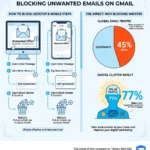
Blocking unwanted email addresses can drastically improve your email management, making it easier to navigate your correspondence without distractions.
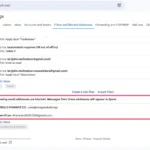
For those interested in other email management techniques, you might find valuable insights here: How Do You Unblock Emails On Gmail For Improved Communication.
Practical Uses for Blocking Someone on Yahoo Email
Preventing Spam Emails
Blocking an unwanted sender helps in significantly reducing the amount of spam that clogs your inbox, ensuring that you only focus on important messages.
Why this matters: Stating the necessity of a clean inbox promotes better organization and helps in prioritizing important communications, enhancing your overall email experience.
Maintaining Personal Boundaries
When dealing with intrusive emails from former acquaintances or business contacts, blocking their address can create necessary distance and protect your mental well-being.
Why this matters: Highlighting the importance of personal space encourages healthier interactions and ensures that your digital environment remains supportive and positive.
Reducing Phishing Risks
Blocking unknown or suspicious senders can lower the risk of falling victim to phishing attempts, keeping your personal information safer from potential threats.
Why this matters: Providing protection against cyber threats emphasizes the need for vigilance in a digital age where scams are prevalent, thus fostering greater safety.
Enhancing Productivity
By eliminating distractions from persistent email addresses, you can concentrate better on tasks that matter, ultimately improving work efficiency.
Why this matters: Encouraging focus leads to better productivity outcomes, enabling you to accomplish more in less time without the interruption of unwanted emails.
Streamlining Communication
Blocking senders that no longer provide valuable information can help streamline your communications, allowing important emails to stand out more clearly.
Why this matters: Asking for clarity in your email flow promotes effective communication habits, ensuring that relevant messages receive proper attention.
Keeping Personal Information Private
When dealing with privacy concerns, blocking specific email addresses helps to limit unwanted contact, ensuring that sensitive information stays that way.
Why this matters: By maintaining confidentiality, you foster a more secure email environment that respects your personal boundaries and data privacy.
Improving Email Organization
By blocking unwanted contacts, you can keep your inbox more organized, making it easier to find the emails that truly matter to you.
Why this matters: Providing a cleaner email environment facilitates a more structured approach to managing messages, promoting better organizational habits.
Addressing Your Email Blocking Concerns on Yahoo
How do I block a specific email address on Yahoo Mail?
To block an email address, log in to your Yahoo Mail account and open an email from the sender you wish to block. Click on the three dots in the upper right corner of the email, then select "Block Sender." Confirm the action, and you'll stop receiving emails from that address.
Can I unblock an email address after I’ve blocked it?
Yes, you can unblock an email address easily. Go to your Yahoo Mail settings, find the "Security and Privacy" section, and click on "Blocked Addresses." From there, select the email address you wish to unblock and click "Remove." This will allow emails from that address to come through again.
What happens when I block someone on Yahoo Mail?
When you block an email address, any future emails from that sender will automatically go to your Spam folder. You won’t receive notifications for these emails, and the sender won't be informed that they've been blocked.
Can I block emails on the Yahoo Mail mobile app?
Absolutely! Open the Yahoo Mail app, navigate to an email from the sender you want to block, tap on the three dots in the upper right corner, and select "Block Sender." This will prevent future emails from that address on your mobile device as well.
Blocking someone on Yahoo email is a straightforward way to maintain your peace of mind in your inbox. It's all about taking back control and creating a more pleasant email experience. Remember, taking a moment to set this up can save you from unwanted distractions down the line. If you find yourself needing to reconnect or adjust your preferences later, you can always change your settings. Empower yourself to keep your inbox just the way you want it, and don’t hesitate to explore other options for managing your email effectively. You got this!