Getting bombarded by unwanted emails can be a real hassle. If you've found yourself scrolling through an avalanche of spam or annoying newsletters, you're not alone. Knowing how to block emails on AOL isn’t just a nice feature; it's essential for keeping your inbox organized and stress-free.
Imagine opening your email to find only the messages that actually matter to you. You deserve that level of control over your inbox. This isn't just about convenience; it’s about reclaiming your time and focus.
In a few straightforward steps, you can take charge and minimize distractions. Let’s break down how you can easily block those pesky emails.
Core Elements of Blocking Emails on AOL
Blocking emails on AOL is a straightforward process designed to help you manage unwanted messages efficiently. Here are the essential components to understand:
- Accessing Settings: To start, you need to log in to your AOL Mail account. Once logged in, navigate to the settings menu.
- Identifying Spam: Recognizing unwanted senders is crucial. Emails that come from unfamiliar addresses or those that solicit products can often be marked as spam.
- Add to Block List: Once you identify the unwanted email, you can add the sender to your block list via the settings.
- Confirmation: After blocking, make sure you receive a confirmation that the email address has been successfully added to your block list.
Here’s a step-by-step procedure to assist you in blocking emails:
| Step | Action |
|---|---|
| 1 | Log in to your AOL Mail account. |
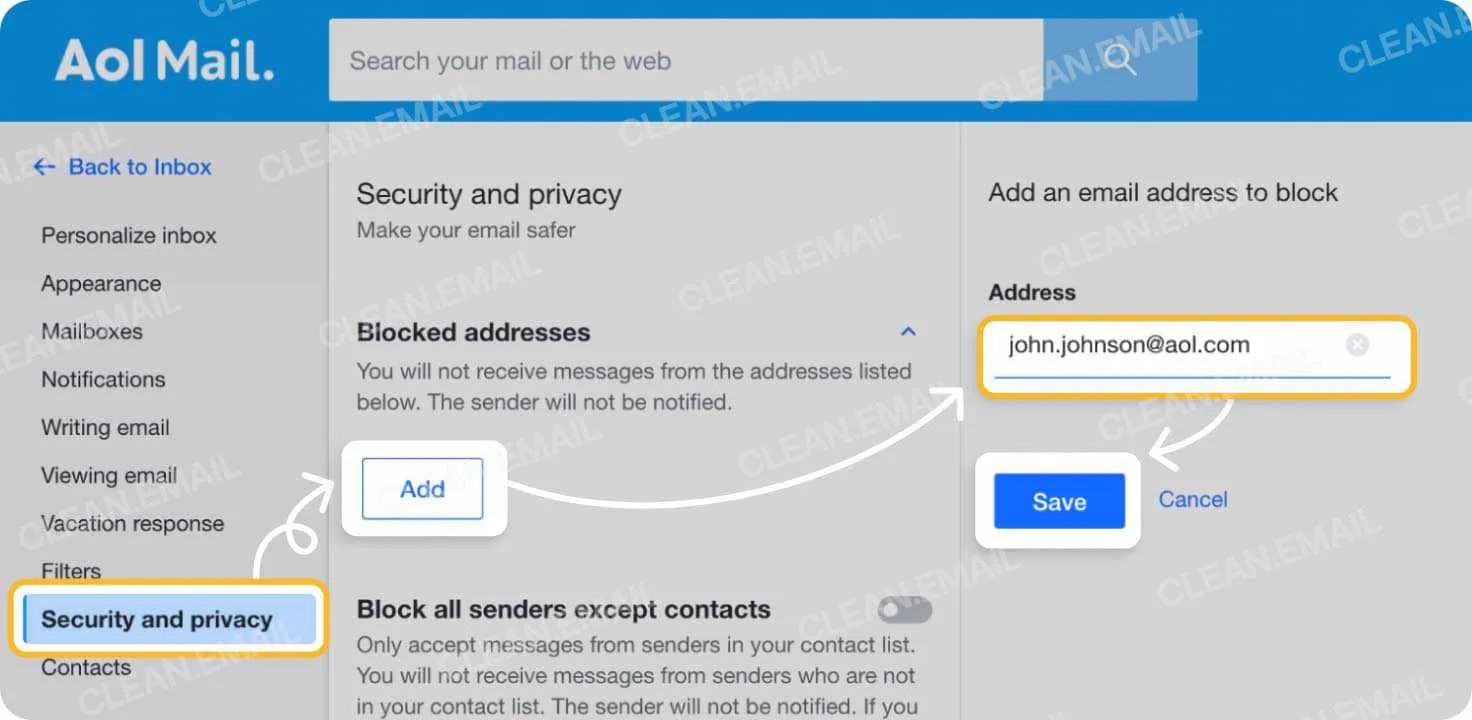
| 2 | Click on the gear icon located in the upper right corner to access settings. |
| 3 | Select “Mail Settings” from the drop-down. |
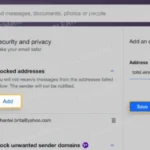
| 4 | Go to the “Blocked Addresses” section. |
| 5 | Enter the email address you wish to block and click “Add.” |
| 6 | Save your changes to confirm the action. |
Blocking emails will prevent messages from the specified email addresses from landing in your inbox. This feature is particularly useful for maintaining a clutter-free email environment.
Remember, while blocking unwanted emails is effective, you can also check your spam folder periodically to ensure no important messages were mistakenly filtered out. Email providers like AOL strive to enhance spam filtering, but occasional misclassifications can happen.
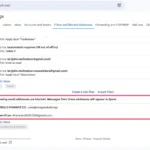
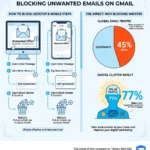
If you're also interested in blocking emails in other platforms, check out the article on blocking emails in Gmail.
Practical Techniques to Block Emails on AOL
Creating a Block List
AOL allows users to create a block list where specific email addresses can be added to prevent their messages from reaching your inbox.
Why this matters: Ensuring unwanted communication is halted can significantly enhance your email experience, leading to a more organized and manageable inbox.
Using Spam Filters
Activating spam filters on AOL helps in automatically directing suspected spam emails to a separate folder, minimizing their presence in your main inbox.
Why this matters: By utilizing spam filters, users can streamline their email management and focus on important messages without distractions from unwanted emails.
Marking Emails as Spam
Whenever you receive an unwanted email, marking it as spam alerts AOL, helping the system learn and block similar emails in the future.
Why this matters: Highlighting spam reduces the likelihood of receiving repetitive unwanted emails, contributing to a cleaner inbox.
Unsubscribing from Newsletters
If you receive newsletters or promotional emails that are no longer relevant, clicking the unsubscribe link within the email stops further communications from that sender.
Why this matters: Reducing unnecessary subscriptions can lead to a more streamlined email experience, allowing for better focus on relevant communications.
Blocking Domains
AOL users can block entire domains, preventing any emails from those domains from entering their inbox.
Why this matters: By blocking domains, users can eliminate a wider range of unwanted correspondence with a single action, increasing inbox efficiency.
Using Email Preferences Settings
Adjusting settings under email preferences allows users to fine-tune how they manage incoming messages, including options to block specific types of emails.
Why this matters: Maintaining control over email preferences helps to tailor the user experience, allowing for a customized email environment free from distractions.
Reporting Phishing Attempts
If you receive an email that seems suspicious, reporting it as phishing helps AOL provide better security and protect users from potential threats.
Why this matters: Acting by reporting phishing attempts reinforces security measures and helps the entire AOL community stay informed and protected against scams.
Understanding How to Block Emails on AOL
What steps should I follow to block an email address on AOL?
To block an email on AOL, start by signing into your account and navigating to your inbox. Find the email from the sender you want to block, open it, and click on the "More" option (three dots). Select "Block Sender," and confirm your choice; this will prevent future emails from that address from entering your inbox.
Will blocking a sender on AOL delete their existing emails?
No, blocking a sender on AOL does not delete their existing emails in your inbox. It simply prevents future messages from that sender from reaching your inbox. You can delete any previous messages manually if desired.
How can I view the list of blocked senders on AOL?
You can check your blocked senders list by going to the AOL Mail settings. Click on "More Settings," then navigate to the "Blocked Addresses" section. Here, you'll see all the email addresses you've blocked, and you can remove any if necessary.
What should I do if I keep receiving emails after blocking a sender?
If you continue to receive emails from a blocked sender, double-check that the correct address is on your blocked list. Sometimes slight variations in the email address can bypass the block, so making sure you've blocked all variations may help. If the issue persists, consider reporting the emails as spam directly to AOL.
Blocking unwanted emails on AOL is a simple yet powerful way to keep your inbox clean and your peace of mind intact. It not only minimizes distractions but also allows you to focus on what truly matters. So, don’t hesitate to take control of your email. A few clicks can make a big difference! If you ever find yourself with a cluttered inbox in Gmail, you can check out our article on blocking emails there too. Happy inbox management!