
Accidentally deleting an important email can feel like a minor disaster, especially when that message holds key information or a vital conversation. Fortunately, if you're using Gmail, there's a way to recover what you thought was lost. 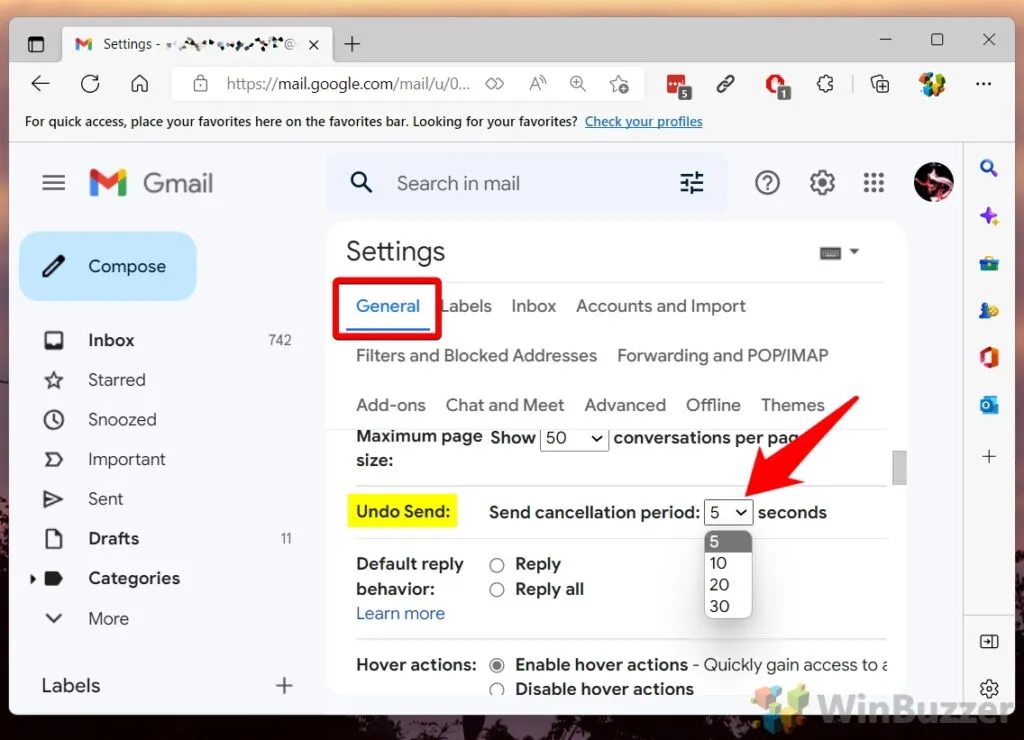
Every email accident feels frustrating, and having the ability to restore those messages can save you time and hassle. Whether it’s an old work project or a personal matter, getting that email back could make all the difference in your day.
This isn’t just about adding another skill to your repertoire; it’s about regaining control over your digital communication when it matters most. With some straightforward steps, you can retrieve those emails and get back to business, ensuring you don’t miss out on what’s important.
Core Concepts of Recovering Deleted Emails in Gmail
Recovering deleted emails in Gmail can be daunting, especially if you think vital information is lost. Here’s how to navigate the process efficiently.
Understanding Gmail's Trash Functionality
When you delete an email in Gmail, it doesn't vanish immediately. Instead, it moves to the Trash folder, where it stays for 30 days before permanent deletion. During this period, you can easily restore your emails.
- Accessing Trash: On the left sidebar, click on "More," then select "Trash." You’ll see all emails that are still recoverable.
- Restoring Emails: Select the email(s) you wish to recover, and click on the "Move to" icon. Choose "Inbox" or any other folder to restore them.
Exploring the "All Mail" Feature
If you cannot find your deleted emails in the Trash, they might still be in the All Mail section. This area contains all your emails, including archived and sent ones.
- Finding Archived Emails: Click on "All Mail" from the sidebar. Browse through to locate any emails you may have archived instead of deleted.
Google Support for Permanently Deleted Emails
If the email has been deleted from Trash, your options become limited. However, Google provides a recovery request service that is worth pursuing.
- Recovery Form: Visit the Google Account Recovery page and fill out the form. This process is not guaranteed, but it’s worth trying if the email is crucial.
- Time Sensitivity: Act quickly, as the chances of recovery diminish the longer you wait after permanent deletion.
Maintaining Email Organization
To prevent future issues with lost emails, consider these practices:
- Labeling and Archiving: Use labels for better organization. Instead of deleting, archive emails you don’t need immediately.
- Regular Backups: Periodically download important emails to a safe location to ensure you have copies stored.
| Action | Location | Notes |
|---|---|---|
| Access Trash | Left Sidebar > More > Trash | Recover emails within 30 days of deletion. |
| Check All Mail | Left Sidebar > All Mail | Find archived emails. |
| Recovery Request | Google Account Recovery Page | Use if emails are permanently deleted. |
Following these clear steps not only aids in recovering deleted emails but also helps manage your Gmail more effectively. For similar processes in other email services, check out How Do I Recall An Email In Outlook For Better Professionalism.
Real-World Scenarios for Recalling Deleted Emails in Gmail
Restoring Deleted Emails from Trash
Accessing the Trash folder allows users to recover emails that have been deleted within the last 30 days. Simply navigate to the Trash, find the email, and click "Move to Inbox" to restore it.
Why this matters: Stating the simplicity of this process demonstrates that recovering deleted emails can be a straightforward task for users, ensuring they do not lose important communications easily.
Using Google Vault for Email Recovery
For businesses utilizing Google Workspace, Google Vault can retrieve emails that have been permanently deleted if retention settings allow. Administrators can search for the email and restore it from the Vault.
Why this matters: Highlighting the importance of using Google Vault showcases how organizations can secure their data and maintain compliance while also offering users a safety net for critical email recovery.
Email Client Applications
Syncing Gmail with email client applications can provide a secondary method for recovering emails, as these applications might have local copies of messages that are still accessible.
Why this matters: Providing alternative recovery options illustrates that users can rely on different platforms to safeguard their important emails, thus increasing data security.
Recovering Emails via Search
Users can utilize Gmail's powerful search functionality to locate deleted emails by typing in keywords, sender names, or dates. If found in the Trash, these emails can be restored easily.
Why this matters: Asking users to leverage the search feature emphasizes the efficiency of Gmail's tools, making email recovery accessible and user-friendly.
Undoing Email Deletions
Immediately after deleting an email, Gmail offers an "Undo" option at the bottom of the screen for a limited time. Clicking this allows users to recover their email instantly.
Why this matters: By keeping this immediate response option in mind, users can swiftly prevent accidental losses, resulting in enhanced email management.
Checking Email Filters
Sometimes, emails don’t appear due to filters that automatically archive or delete messages. Reviewing filter settings can help locate mistakenly filtered emails that may seem deleted.
Why this matters: Stating the significance of checking filters encourages users to understand the intricacies of their email organization, reducing the chances of missing important communications.
Reporting Phishing Attempts
If a user accidentally deletes an email that they suspect is a phishing attempt, they can report it to Google. This helps recover information while potentially preventing others from falling victim.
Why this matters: Highlighting the dual benefit of reporting and recovering emphasizes the importance of community safety within Gmail’s ecosystem, showing users their actions can have a wider impact.
Understanding Email Recall in Gmail
Can I actually recover permanently deleted emails in Gmail?
Unfortunately, if an email has been permanently deleted from your Trash, it’s typically unrecoverable through standard settings. Gmail's retention policy means that after 30 days in Trash, emails are removed permanently, leaving little recourse to retrieve them.
How does Gmail’s Undo Send feature work?
Gmail has an "Undo Send" function that allows you to retract an email shortly after sending it. You can set this feature to allow for a maximum of 30 seconds, giving you a small window to cancel the send if you notice a mistake.
What steps should I take if I delete emails by mistake?
If you accidentally delete an email, start by checking your Trash folder; emails remain there for 30 days. If you find it, you can easily restore it back to your inbox. However, for emails older than 30 days, recovery options become very limited.
Is there a way to prevent email deletion issues in the future?
While you can't recover emails after they've been permanently deleted, you can implement a routine backup of your email data. Utilizing Google Takeout allows you to export and archive your emails regularly, providing easier access to past communications should you need them later.
When it comes to recalling deleted emails in Gmail, the most important thing to remember is the time frame—if you act quickly, you can often recover those lost messages. Even if it feels frustrating to lose an email, Gmail’s features can help you reclaim it with a bit of urgency. So, next time you hit that delete button a little too fast, just keep this tip in mind and don’t hesitate to take action! You’ve got this, and your inbox will thank you for it.





