
Ever hit send on an email and instantly regretted it? You’re not alone. We've all been there—whether it's a typo, the wrong attachment, or something said in haste. The good news is, if you're using Outlook, you have the chance to take it back.
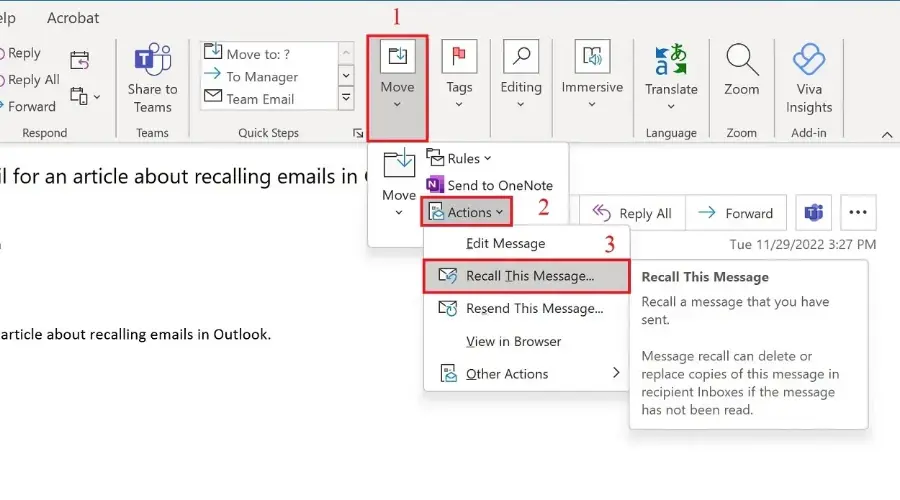
This functionality can save you from awkward situations and help maintain your professionalism. Understanding how to properly recall an email can help you regain control of your communication and avoid potential misunderstandings. Let’s navigate this process together, making sure you don’t leave your inbox in chaos.
Essential Elements for Recalling Emails in Outlook
Recalling an email in Outlook allows you to retract a message sent by mistake, which can be crucial for maintaining professionalism. Here’s how to navigate this feature effectively.
Core Concepts of Email RecallEmail recall is not always straightforward, as it depends on several factors. Here are the essential elements to consider:
- Recipient Status: The recall feature works only if the recipient has not yet opened the email. If they’ve seen it, the recall will not succeed.
- Recipient Account: Both you and the recipient must be using Microsoft Exchange or Office 365 accounts. If the recipient uses a different email client (like Gmail), the recall won't work.
- Message Format: The original email must be in HTML or plain text. If a rich text format is used, it can complicate the recall process.
- Timing: Quick action improves the chances of a successful recall. The sooner you attempt to recall the email after sending, the better.
Follow these well-defined steps to attempt a recall:
- Open Outlook and navigate to the Sent Items folder.
- Double-click the email you wish to recall to open it fully.
- Click on the File tab and select Info.
- Choose Message Resend and Recall, then select Recall This Message.
- Decide between deleting unread copies or replacing the email.
- Click OK to proceed.
Be aware of these restrictions when recalling emails:
- Success is not guaranteed. You may still receive replies from the recipient who has already read the message.
- Notifications will be sent to both you and the recipient regarding the recall attempt.
- If the original email was forwarded, the recall will not apply to those forwarded messages.
| Pros | Cons |
|---|---|
| Can help you manage mistakes quickly. | Not entirely reliable; does not work in all situations. |
| Can mitigate potential misunderstandings. | Does not remove the email from all recipients’ boxes. |
| Shows professionalism by addressing errors. | May lead to confusion if the recall fails. |
For detailed insights on maintaining professionalism while using this feature, refer to our article on recalling emails in Outlook while retaining professionalism.
Real-World Applications of Email Recall in Outlook
Correcting Recipient Errors
When you accidentally send an email to the wrong recipient due to a typo in the address, recalling it can prevent miscommunication or unintended exposure of sensitive information.
Why this matters: Highlighting the importance of accurate communication, recalling an email quickly helps maintain professional relationships and protects confidential data.
Fixing Content Mistakes
If you realize that an email contains incorrect information or a significant error after sending, recalling it allows you to send a revised version with accurate details.
Why this matters: By keeping content accurate, you safeguard your credibility and ensure that recipients receive the right information, which enhances trust in your communications.
Managing Tone and Language
In some instances, emails may be sent with an unintended tone or phrasing that could be misinterpreted. Recalling such emails enables you to soften the message or clarify your intent.
Why this matters: Stating your intentions clearly can prevent misunderstandings and potential conflicts, fostering a more positive interaction with recipients.
Addressing Sensitive Issues
When dealing with delicate topics, sending an email prematurely might negatively impact relationships. Recalling the message gives you the chance to rethink your approach.
Why this matters: Asking for time to reassess ensures that sensitive communications are handled with care, promoting respectful dialogue.
Updating Important Information
Emails containing outdated or misleading information can be recalled to prevent confusion before new, accurate data is sent out.
Why this matters: Providing timely updates minimizes the risk of misinformation spreading, thereby maintaining clarity and efficiency in communication.
Preventing Unfortunate Inclusions
If you accidentally include an unintended attachment (like a personal file) in an email, recalling it allows you to remove the attachment and resend a more appropriate version.
Why this matters: By ensuring that only relevant documents are shared, you protect personal information and uphold professionalism.
Reassessing Time-Sensitive Communications
Suppose you send an email with holidays or deadlines that are incorrect. Recalling it allows you to clarify and provide the most current and relevant information.
Why this matters: Highlighting accurate timelines fosters better planning and collaboration, significantly improving team efficiency.
Addressing Your Outlook Email Recall Concerns
Can I recall an email after someone has already read it?
No, recalling an email is only successful if the recipient hasn't opened it yet. If they've already viewed the email, the recall process won't work, and they will still have access to the original message.
What are the requirements to recall an email in Outlook?
To recall an email, both you and the recipient must use Microsoft Exchange or Outlook. Additionally, the recall function needs to be enabled in your organization’s settings, and the email must not have left the recipient's inbox yet.
Will the recipient be notified when I attempt to recall an email?
Yes, the recipient will receive a notification regarding your recall attempt. Depending on whether the recall is successful, they may also see a message letting them know that you have attempted to retrieve the original email.
How do I check if my email recall was successful?
You’ll receive a notification in your inbox indicating whether the recall was successful or not. If the recall fails, the original email remains in the recipient's inbox, as is.
Recalling an email in Outlook can feel a bit like trying to catch fog—you might not always succeed, but knowing how to do it makes all the difference. The need for a quick fix is understandable, so giving yourself the tools to attempt it is a smart move. If you ever find yourself needing to correct a message, just remember that staying calm and following the right steps can help. It's all part of keeping your communication polished and your professional image intact. So go ahead, familiarize yourself with the recall feature, and feel a bit more at ease the next time you hit "send." You've got this!





