Getting bombarded by unwanted emails can be frustrating. It clutters your inbox and steals your focus from what truly matters. If you're tired of scrolling through endless spam or promotional messages you never signed up for, you're not alone.

Finding a way to block these distractions is essential for maintaining a clear and organized email experience. With Yahoo Mail, you have the power to take back control of your inbox. Understanding how to block unwanted senders can significantly improve your email management and make your online experience much more pleasant.
Let’s simplify the process so you can quickly banish those bothersome emails and reclaim your time. You're just a few clicks away from an inbox that works for you.
Essential Features for Blocking Emails on Yahoo Mail
If you're tired of receiving unwanted emails in your Yahoo Mail inbox, blocking those contacts can keep your email experience stress-free. Here’s how to go about it, along with important aspects to consider.
Blocking Specific Email Addresses
To stop receiving emails from a particular sender:
- Log in to your Yahoo Mail account.
- Open an email from the sender you wish to block.
- Click on the three dots (More options) at the top right corner of the email.
- Select Block Sender.
- Confirm by clicking OK in the pop-up that appears.
This action will ensure any future emails from that address are diverted to your Spam folder.
Using the Blocked Addresses List
If you want to manage multiple blocked contacts:
- Click on the Settings gear icon in the upper-right corner.
- Select More Settings.
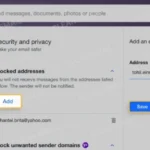
- Navigate to Security and Privacy.
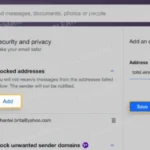
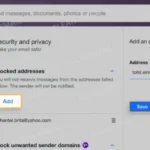
- Under Blocked Addresses, you can see your current list and add new addresses by typing them in and clicking Add.
This feature is helpful for keeping track of all unwanted contacts in one place.
Reporting Spam and Unwanted Emails
In addition to blocking:
- Open an unwanted email.
- Click on the Report Spam button (usually represented with an exclamation mark).
- This will send a report to Yahoo and automatically move the email to the Spam folder.
Regularly using the report function can help enhance Yahoo’s spam filter for all users.
Understanding the Benefits and Drawbacks
| Benefits | Drawbacks |
|---|---|
| Reduces clutter in your inbox. | May inadvertently block legitimate emails if not used carefully. |
| Helps maintain focus by minimizing distractions. | Blocked addresses can still send emails; they just go to Spam. |
| Easy to manage through settings. | Requires manual updates if senders change their email addresses. |
Utilizing these features allows you to tailor your Yahoo Mail experience and keep your inbox cleaner. Managing unwanted emails becomes straightforward, encouraging a more organized email environment.
If you're also interested in managing spam in other email services, check out how to block an email in Gmail.
Real-World Uses of Blocking Emails on Yahoo Mail
Managing Spam Effectively
Blocking specific email addresses helps in managing spam. When you identify an email address that consistently sends unwanted messages, you can block it to prevent future disturbances.
Why this matters: Highlighting the benefit of a cleaner inbox makes it easier to focus on important emails, thus improving overall productivity.
Customizing Your Email Experience
Users can create a personalized experience by blocking certain senders, which allows them to tailor their email interactions to their preferences without noise from unwanted sources.
Why this matters: Stating that a personalized email experience enhances user satisfaction can increase engagement and comfort with the platform.
Reducing Email Clutter
By blocking emails from unimportant sources, users can significantly reduce clutter in their inbox. This leads to quicker decision-making regarding essential communications.
Why this matters: Providing a streamlined inbox makes it easier for relevant communications to stand out, ultimately saving time.
Enhancing Security
Blocking emails from suspicious addresses is a crucial step in maintaining security, helping to protect your personal information from phishing attacks.
Why this matters: Asking users to prioritize security reinforces the importance of safeguarding personal data, leading to a more secure online experience.
Improving Professionalism
In professional settings, blocking unwanted emails can maintain a level of professionalism by keeping irrelevant communications out of the work environment.
Why this matters: By keeping the workspace free from distractions, employees can focus more effectively on their responsibilities, fostering a better work atmosphere.
Facilitating Email Organization
Blocking emails helps streamline organizational processes, allowing users to concentrate on essential tasks without frequent disruptions from spam or unwanted messages.
Why this matters: Providing an organized email experience contributes to enhanced workflow and productivity, augmenting overall work performance.
Encouraging Mindful Email Management
Regularly reviewing and blocking unwanted emails encourages users to take an active role in managing their inbox, promoting mindfulness in email usage.
Why this matters: Highlighting active email management fosters a sense of control and responsibility over digital communications, improving overall email hygiene.
Managing Unwanted Emails in Yahoo Mail
How can I block emails from a specific sender in Yahoo Mail?
To block an email sender, open Yahoo Mail and find an email from the sender you wish to block. Click on the “More” icon (three dots) in the top right corner of the email window, and select “Block Sender.” Confirm your action, and their future emails will go directly to your spam folder.
What happens to emails from blocked senders?
Once you block a sender, any future emails from them are automatically moved to your Spam folder. You won’t receive notifications about these emails, helping keep your inbox clean and focused.
Can I unblock a sender after blocking them?
Yes, unblocking a sender is simple. Go to your Yahoo Mail settings, find “Security and Privacy,” then select “Blocked Addresses.” Here, you can view and remove any blocked senders by clicking "Remove" next to their email address.
Will blocking a sender stop all emails from that domain?
Blocking a sender in Yahoo Mail primarily focuses on that specific email address. If you wish to block all emails from a domain, you'll need to add each address individually or set up filters that direct them to spam.
Taking control of your email experience by blocking unwanted messages in Yahoo Mail is a simple yet powerful way to create a more enjoyable and organized inbox. By following the straightforward steps we've discussed, you can say goodbye to pesky spam and those nagging emails that disrupt your day. Embracing this proactive approach not only clears the clutter but also protects your peace of mind. So why not jump in and start blocking those emails today? Your inbox will thank you for it!