
Want to keep your most important emails front and center in Outlook? Pinning them is a straightforward way to ensure you never lose track of what matters most. Whether it’s an update from your team or a confirmation for that crucial meeting, having quick access can make a huge difference in your day-to-day productivity. 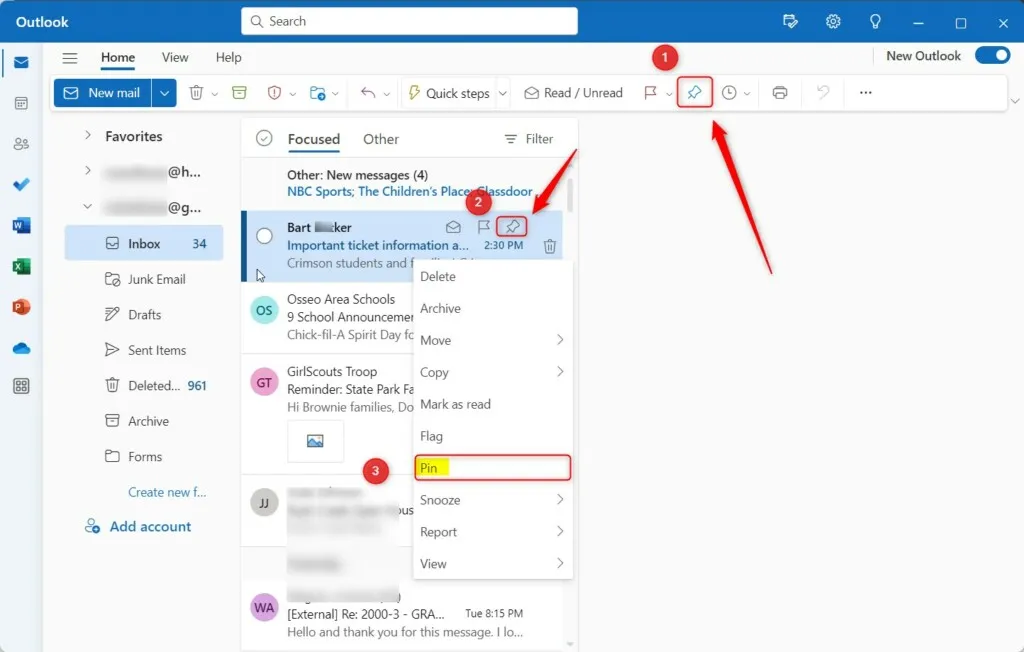
If you find yourself sifting through endless threads, pinning emails adds some much-needed organization. It’s all about making your inbox work for you, allowing you to prioritize messages that require your immediate attention without the hassle of scrolling through less important ones.
Let’s walk through how to pin your emails in Outlook so you can streamline your communication and focus on what’s most important.
Core Features of Pinning Emails in Outlook
Pinning emails in Outlook is a straightforward process that helps prioritize important messages. When an email is pinned, it remains at the top of your inbox, making it easily accessible without scrolling through numerous messages.
Getting Started with Pinning Emails
To pin an email, first, navigate to your inbox. You can pin a single email or multiple ones depending on your preferences. Here’s how:
- Select the Message: Click on the email you wish to pin.
- Access the Pin Feature: Look for the pin icon in the top menu bar. If you’re using Outlook on the web, the pin icon typically appears in the header above your messages.
- Click to Pin: Tap the pin icon. The email will now stay at the top of your list.
Unpinning an Email
To unpin an email, repeat the process:
- Select the Pinned Email: Click the email that is currently pinned.
- Click the Pin Icon Again: This will remove the pin and allow the email to return to its original position in your inbox.
Benefits of Pinning Emails
Pinning emails can enhance your workflow in several ways:
- Prioritization: Keeps critical emails in constant view.
- Saves Time: Reduces time spent searching for important communications.
- Organization: Helps maintain a clean inbox by focusing on what matters most.
Limitations to Consider
- Limited Visibility: Only a set number of emails can be pinned, which may lead to overlooking other important messages.
- Interface Variations: Different Outlook versions may have unique ways of managing pinned emails, affecting accessibility for some users.
Email Management Integration
| Email Action | Functionality |
|---|---|
| Pin Email | Holds the email at the top of your inbox for easy access. |
| Unpin Email | Returns the email to its normal position in the inbox. |
For additional email management techniques, you might find information valuable in our article on printing emails from Outlook.
Practical Uses for Pinning Emails in Outlook
Keeping Job Applications at the Forefront
Pinning job application emails ensures they remain easily accessible during the hiring process. By doing this, you can quickly reference them when discussing progress with future employers or preparing for interviews.
Why this matters: Highlighting the importance of immediate access allows you to stay organized, ultimately making you appear more professional during the job-seeking journey.
Managing Client Communications
Pinning emails from key clients helps maintain clarity and prioritization in communication. This prevents delays and misunderstandings, which can lead to better service and stronger relationships.
Why this matters: By keeping essential communications front and center, you enhance client satisfaction and streamline your workflow, ultimately driving business success.
Tracking Conference Invitations
Pinned emails containing conference invitations help you keep track of important industry events and deadlines for registration, ensuring you don’t miss out on valuable networking opportunities.
Why this matters: Stating the necessity for prompt action aids in maximizing opportunities for professional growth by ensuring that you are always prepared and aware.
Facilitating Team Collaboration
Pinned emails with ongoing project discussions or important updates streamline team collaboration. This way, all team members can stay on the same page and access critical information without digging through their inboxes.
Why this matters: Providing a clear and organized approach fosters a responsive work environment, ultimately boosting overall team productivity.
Highlighting Important Reminders
Pinned emails containing reminders or deadlines keep pressing tasks from slipping through the cracks. This visual cue ensures you maintain focus on important responsibilities.
Why this matters: Asking for consistent visibility helps in effectively managing time and resources, which can lead to increased efficiency in your daily activities.
Organizing Follow-Up Actions
Pinning emails that require follow-up actions ensures they are not forgotten. By keeping these emails in view, you can promptly address requests and maintain open lines of communication.
Why this matters: Highlighting accountability reinforces responsibility in your professional interactions, strengthening your reputation as a reliable colleague or partner.
Streamlining Event Planning
Pinned emails related to event planning, such as schedules, guest lists, and vendor communications, provide an easily accessible reference point in the midst of planning complexities.
Why this matters: Providing swift access to critical information ensures that event planning proceeds smoothly, ultimately enhancing the overall experience for all involved.
Getting Help with Pinning Emails in Outlook
How do I pin an email in Outlook?
To pin an email in Outlook, locate the email you want to pin in your inbox. Right-click on the email and select the "Pin" option from the dropdown menu. This keeps the email at the top of your inbox for easy access.
What happens if I pin multiple emails in Outlook?
If you pin multiple emails, they will all remain at the top of your inbox in the order in which you pinned them. This allows you to prioritize emails that are important to you while still keeping your inbox organized.
Can I unpin an email after pinning it?
Yes, you can unpin an email at any time. Simply right-click on the pinned email and select the "Unpin" option. The email will then return to its original position in your inbox.
Does pinning an email in Outlook affect how I receive new messages?
No, pinning an email does not impact your ability to receive new messages. It simply ensures that the pinned emails are highlighted at the top of your inbox for quick reference.
Pinning an email in Outlook is a simple yet powerful way to keep your important messages right at your fingertips, ensuring you never miss out on what matters most. It streamlines your workflow and puts your priorities front and center, making daily tasks feel a bit more manageable. So, next time you find yourself sifting through a crowded inbox, remember that a quick pin can save you time and hassle. Give it a try and see how it transforms the way you manage your emails! If you're looking to further enhance your Outlook experience, you might also want to check out how to print emails for that professional touch.





