Getting bombarded with unwanted emails can be exhausting. Whether it’s relentless spam or messages you just don’t want to see anymore, knowing how to block emails on Yahoo is crucial for taking back control of your inbox. A cluttered email space isn't just annoying; it can distract you from important messages and disrupt your day. 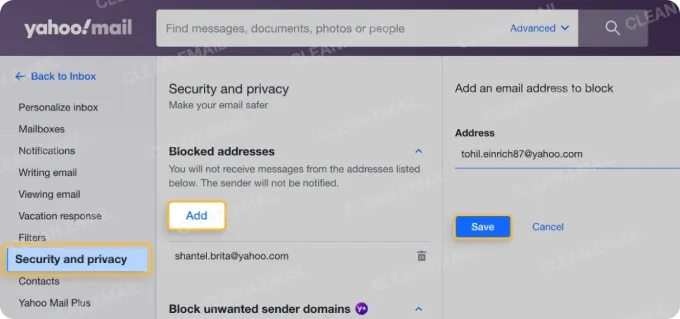
You deserve a stress-free email experience where you can focus on what truly matters. This isn't just about convenience; it’s about ensuring your digital life is as smooth as possible. Removing distractions allows you to prioritize tasks, maintain organization, and ultimately free up mental space.
If you're tired of sifting through unwanted messages or simply want to prevent specific senders from cluttering your inbox, you’ve come to the right place. You'll find straightforward steps to block those pesky emails and enjoy a more streamlined Yahoo experience.
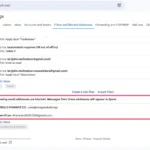
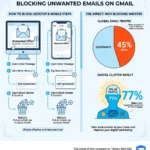
For those who may use different email platforms as well, consider checking out how to handle unwanted emails in Gmail to see how simple it can be across services.
Core Elements of Blocking Emails in Yahoo
Blocking emails on Yahoo is straightforward but can vary slightly based on whether you’re using the desktop or mobile version. Understanding how this process works empowers users to manage their inboxes with efficiency and peace of mind.
Steps to Block Emails on Yahoo
- Access Yahoo Mail: Log into your Yahoo Mail account.
- Find the Email: Locate an email from the sender you wish to block.
- Open the Email: Click on the email to view its contents.
- Block the Sender: Click on the three dots in the top-right corner of the email and select "Block Sender." A confirmation pop-up will appear.
- Confirm Block: Click “OK” to confirm the blocking action.
Managing Blocked Senders List
You can review or adjust your blocked senders list at any time:
- Settings Menu: Go to the settings gear icon, then select “More Settings.”
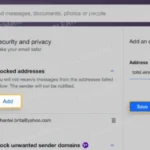
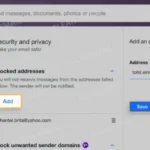
- Blocked Addresses: Navigate to “Security and Privacy” where you’ll find the “Blocked Addresses” section.
- Edit List: Here, you can add new email addresses or remove existing ones.
Email Filters as an Additional Tool
Using filters in addition to blocking can further enhance your email experience:
- Create a Filter: In the settings menu, select “Filters” and click “Add New Filters.”
- Specify Criteria: Determine which emails to filter based on sender, subject, or other parameters.
- Choose Action: Decide what happens to those emails—direct them to the trash or a specific folder.
Benefits and Considerations of Email Blocking
| Benefits | Considerations |
|---|---|
| Reduces unwanted distractions | Blocked emails may still appear in the spam folder |
| Maintains a cleaner inbox | Need to update your blocked list as senders may change email addresses |
| Improves overall email management | Blocking doesn’t stop new accounts from the same sender |
For those familiar with other email platforms, blocking unwanted emails in Yahoo shares similarities with that of Gmail. You can explore more about managing unwanted emails in other services by checking related articles, such as the one on blocking an email in Gmail.
Practical Ways to Block Emails in Yahoo
Utilizing the Spam Folder
When an unwanted email arrives, marking it as spam helps Yahoo learn which messages to filter in the future. By clicking on the “Spam” button, you can streamline your inbox and reduce similar emails.
Why this matters: Stating your preferences assists Yahoo in enhancing its algorithms, fostering a cleaner inbox experience over time.
Creating a Blocked Sender List
By navigating to your account settings, you can manually add email addresses to a blocked list. This ensures that future emails from these senders are automatically diverted to the spam folder.
Why this matters: Providing a proactive measure allows users to take control of their inbox, eliminating messages that are consistently unwanted.
Using Filters for Inbox Organization
Setting up filters enables you to automatically sort incoming emails based on specific criteria, including sender addresses. This feature can dramatically declutter your inbox.
Why this matters: Highlighting the ease of organization helps users maintain focus on important communications by minimizing distractions from unwanted emails.
Reporting Phishing Attempts
Yahoo allows you to report phishing emails. If you suspect an email is an attempt to gain sensitive information, utilizing the report feature can help protect not just your account, but others as well.
Why this matters: Asking users to be vigilant encourages a safer email environment, reducing risks associated with online scams.
Unsubscribing from Newsletters
Often, unwanted emails come from newsletters. Most legitimate newsletters include an unsubscribe link at the bottom, which you can click to remove your email from their list.
Why this matters: Emphasizing the importance of opting out aids in reducing clutter and enhancing user satisfaction by allowing choice in subscriptions.
Adjusting Account Privacy Settings
Reviewing and changing your privacy settings can limit who can send you emails. By adjusting these settings, you can help screen out unwanted communications before they arrive.
Why this matters: Highlighting user control over privacy fosters a sense of security and personalization in managing email interactions.
Utilizing the Yahoo Mail App Features
The Yahoo Mail app includes functionality to block senders directly within the app’s interface, making the process quick and accessible on mobile devices.
Why this matters: Providing mobile-friendly solutions accommodates users’ diverse preferences for managing their email accounts, enhancing overall user experience.
Resolving Email Blockage in Yahoo
How do I block an email address in Yahoo Mail?
To block an email address in Yahoo Mail, open the email from the sender you want to block. Click on the three dots in the top right corner, then select "Block Sender." Confirm your choice, and their emails will go straight to your Spam folder.
What happens to blocked emails in Yahoo?
Blocked emails in Yahoo are automatically directed to the Spam folder, meaning you'll no longer see them in your inbox. Yahoo also prevents these senders from contacting you again, helping to reduce unwanted messages.
Can I unblock an email address later in Yahoo?
Yes, if you decide to unblock an email address in Yahoo, go to your Account Security settings. From there, navigate to "Manage block addresses," find the email you want to unblock, and remove it from the list. This will let messages from that sender back into your inbox.
Is there a limit to how many email addresses I can block in Yahoo?
Yahoo allows you to block up to 1,000 email addresses. This gives you plenty of room to manage unwanted communications efficiently, ensuring your inbox remains clutter-free.
Blocking unwanted emails on Yahoo can really free up your mental space and tidy up your inbox. Remember, you have the power to control what lands in your email—no more wading through spam and distractions. Just take a few moments to set those filters and block any persistent senders. It’s all about creating a more pleasant email experience, so go ahead and take charge of your inbox. You deserve a clutter-free digital space! If you ever find yourself dealing with Gmail, check out how to block an email there too—it’s just as simple.