Blocking unwanted email isn't just about maintaining an organized inbox; it’s about protecting your time and mental space. Whether it’s spam, relentless marketing emails, or messages from an ex-colleague, the sheer volume can become overwhelming. You deserve to have your inbox reflect only what matters to you. 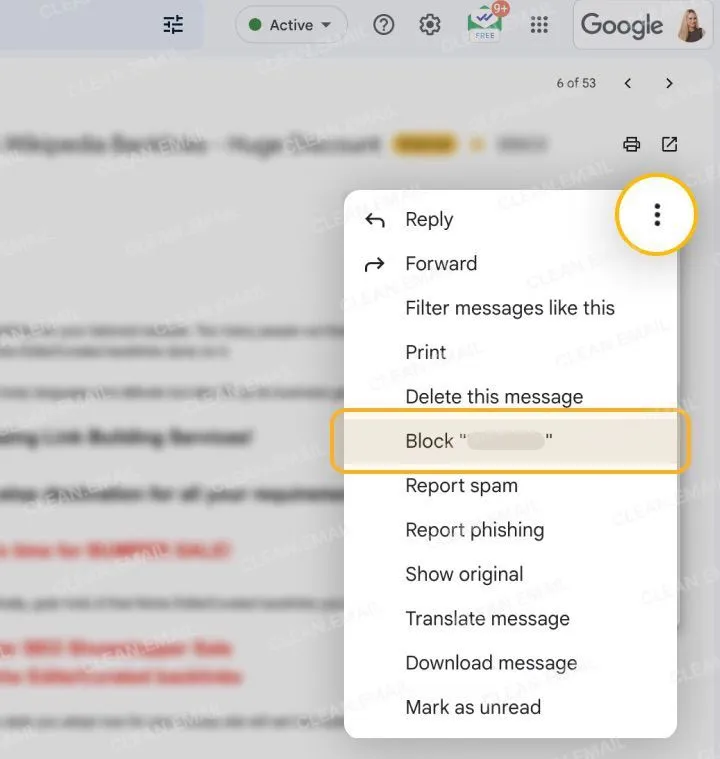
When you can easily block specific senders, you regain control over your digital life. It's not just a task; it's a simple way to reclaim your focus and keep distractions at bay. Understanding how to do it can significantly enhance your overall email experience.
If you're using platforms like Outlook, knowing the steps to block someone can save you from the clutter of unwanted messages. Before you ignore that pesky email again, let’s talk about some simple ways to make your email work for you.
It’s frustrating when emails just keep coming, isn’t it? But with a few straightforward actions, you can set boundaries that will help you breathe a little easier. It's all about taking back your inbox and allowing only the correspondence that adds value to your day.
Core Concepts for Blocking Email Addresses
Blocking an email address is a straightforward process but requires an understanding of various platforms' functionalities. Each email service has its unique methods, but the underlying principles remain largely the same. Below are the critical components to consider when blocking unwanted emails.
- Identification: Recognizing which email addresses to block is the first step. Look for patterns in spam or unwanted communications. This often includes newsletters, marketing emails, or messages from known spammers.
- Platform Differences: Email clients vary significantly in their blocking processes. Familiarize yourself with your specific email provider (e.g., Outlook, Gmail, Yahoo). Each has its own interface and settings.
- Folder Management: Many email services allow users to create rules or filters. By setting up specific criteria, emails from blocked addresses can be automatically directed to a spam or junk folder.
- Privacy Considerations: Ensure your privacy settings are updated and that you’re not allowing unwanted tracking or data collection through these blocked addresses.
- Unsubscription Options: In addition to blocking, you might find unsubscription links at the bottom of marketing emails, which can also help reduce clutter in your inbox.
How to Block Email Addresses by Platform
Understanding how to block email addresses varies by platform. Here’s a summarized table outlining methods for major email providers:
| Email Service | Blocking Method |
|---|---|
| Gmail | Open the email, click on the three dots in the upper right corner, and select "Block [Sender]." |
| Outlook | Right-click the email, choose "Junk," and then select "Block." See more on this in this Outlook article. |
| Yahoo Mail | Open the email, find the three dots, and click "Block sender." |
| Apple Mail | Right-click the email, choose "Block Contact," or set rules in Preferences for additional control. |
Advantages and Disadvantages of Blocking Emails
Every action comes with its pros and cons. Here’s a look at what to consider when blocking email addresses:
- Advantages:
- Enhanced inbox organization and reduced clutter.
- Increased privacy and security from unwanted messages.
- Can improve overall productivity by removing distractions.
- Disadvantages:
- Possibility of blocking legitimate senders if the email address changes slightly.
- May miss out on important updates from previously useful sources.
- Requires ongoing management and occasional audits to ensure settings remain current.
Blocking email addresses serves as a practical way to maintain control over your inbox. By understanding the core aspects and nuances of different platforms, you can implement solutions that best fit your needs.
Practical Examples of How to Block People on Email
Utilizing Outlook's Block Feature
In Outlook, you can block emails from a specific sender by right-clicking on an email, selecting 'Junk,' and then choosing 'Block Sender.' This action prevents future emails from that address from appearing in your inbox.
Why this matters: Simplifying your inbox management by limiting disruptions from unwanted emails allows you to focus on important messages and reduces stress.
Creating Filter Rules in Gmail
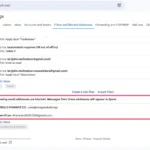
In Gmail, you can create filter rules by clicking on the settings icon, choosing 'See all settings,' and navigating to the 'Filters and Blocked Addresses' tab. From there, you can set rules that automatically delete or archive emails from specific senders.
Why this matters: Streamlining your email flow through filters enhances productivity by minimizing the need to handle unwanted correspondence manually.
Using Spam Reporting in Yahoo Mail
Yahoo Mail allows users to report spam directly from their inbox. By selecting an email and choosing the 'Spam' option, future emails from that sender will be directed to the spam folder.
Why this matters: Taking action against spam reinforces the email service’s filters, improving the overall email experience for all users.
Blocking Senders in Apple Mail
In Apple Mail, you can block a sender by selecting the email, clicking on 'Message,' and then 'Block Sender.' This option will prevent emails from the blocked address from landing in your inbox.
Why this matters: Reducing unwanted emails enhances the clarity of your communications and ensures that important messages are not overlooked.
Managing Email Subscriptions in Outlook
Within Outlook, you have the option to unsubscribe from newsletters or promotional emails directly from the email footer if the sender includes an 'Unsubscribe' link. This method limits future communication from unwanted sources.
Why this matters: Maintaining control over your subscriptions fosters a more efficient inbox while allowing you to retain only the correspondence that serves you.
Leveraging Email Client Features for Privacy
Many email clients offer a privacy option that allows you to block images and remote content in emails. This feature can be paired with sender blocking to enhance your email security.
Why this matters: Protecting your privacy and minimizing the risk of unwanted tracking improves your overall email experience and security.
Utilizing Third-Party Spam Filters
You can enhance your email blocking by integrating third-party spam filters with your email client. These filters provide additional layers of protection against unwanted emails.
Why this matters: Strengthening your defenses against spam contributes to a more organized and manageable inbox, which is essential for productivity.
Conquering Email Interactions
How can I block someone on Gmail?
To block someone on Gmail, open an email from the sender you wish to block. Click the three dots in the upper-right corner of the email and select “Block [Sender].” From that point on, emails from that person will be sent directly to your spam folder.
What happens to emails from blocked senders?
Once you block a sender, all their future emails will be automatically directed to your spam folder. You won’t see their messages in your inbox, helping you maintain a cleaner email experience.
Can I unblock someone if I change my mind?
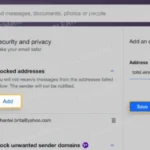
Yes, you can unblock someone easily. Go to your Gmail settings, find the “Blocked addresses” section, and you’ll see a list of blocked senders. Just click “Unblock” next to the sender’s email to restore their communication.
Is blocking the same as marking as spam?
No, they are different actions. Blocking a sender prevents their emails from reaching your inbox, while marking an email as spam alerts Gmail about unwanted emails, which helps improve spam filtering for everyone. You might still receive additional emails from a blocked sender if they find another address to contact you.
Blocking people on email might seem daunting at first, but it's really just a few clicks away, and it’s a vital step towards reclaiming your peace of mind in a cluttered inbox. Remember, you have the right to choose who you engage with, and removing unwanted distractions can significantly lighten your mental load. If you're using Outlook, check out how to block an email for a smoother experience. So go ahead and take that step—your inbox deserves to be a comfortable space, free from unwanted noise.