
Forwarding emails in Outlook is more than just a simple action; it’s often a vital part of maintaining efficient communication in both personal and professional settings. Whether you’re sharing essential updates with your team, passing along an interesting article to a friend, or ensuring key messages reach the right people, knowing how to quickly forward emails can save you time and enhance your workflow.
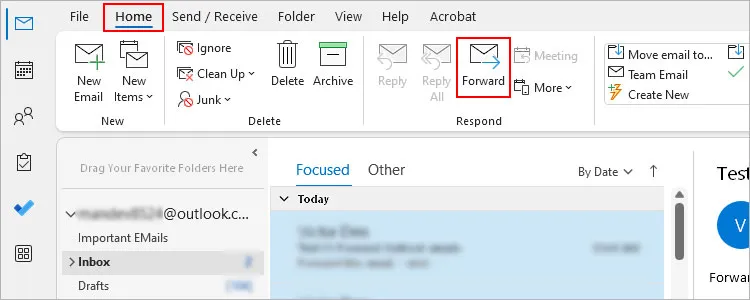
Many users find themselves needing to juggle multiple conversations or seamlessly share information without losing the context of the original message. That's where a straightforward process comes in handy. You don’t need to sift through complicated menus or settings; let’s get right into how to do this smoothly.
If you’re looking for a way to make forwarding emails even easier, consider the option for automatic forwarding, a feature that can keep everything organized without added effort. Check out our article on how to automatically forward emails in Outlook for a deeper look into making this part of your routine.
Core Elements of Forwarding Emails in Outlook
Forwarding emails in Outlook can streamline your communication, whether you need to share vital information with colleagues or manage multiple accounts. The process is straightforward, but understanding its components enhances usability.
Here’s a breakdown of how to forward emails in Outlook and what to keep in mind:
- Choosing the Email: Start by selecting the email you want to forward. It can be a single message or part of a conversation.
- Forwarding Method: You can forward emails using several methods, depending on the Outlook version you are using. Generally, this includes using the "Forward" button or using keyboard shortcuts.
- Editing Before Sending: You can add your comments or additional information before hitting send, allowing you to clarify the purpose of sharing the email.
- Recipient Selection: Enter the email address of the person or people to whom you want to forward the message. Outlook also allows you to add multiple recipients.
- Attach Additional Files: If relevant, you can attach additional files or previous emails to provide more context.
- CC and BCC Options: Use the CC and BCC fields to keep others informed without making them primary recipients, which can help in maintaining privacy.
Here’s a simple step-by-step method to forward emails effectively:
| Step | Action |
|---|---|
| 1 | Open Outlook and select the email you wish to forward. |
| 2 | Click on the "Forward" button located in the toolbar. |
| 3 | Add recipient(s) in the "To" field. |
| 4 | Edit the body of the email if necessary, adding comments or context. |
| 5 | Attach any additional files if needed. |
| 6 | Click "Send" to forward the email. |
For those looking to streamline their email management, Outlook also allows for automatic forwarding. You might find it beneficial to check out how to automatically forward emails in Outlook for a more seamless experience.
Real-World Use Cases for Forwarding Emails on Outlook
Maintaining Team Communication
Forwarding important project updates to team members ensures that everyone is on the same page, enhancing collaboration and effectiveness in collective tasks.
Why this matters: Highlighting responsibilities allows team members to stay informed and engaged, promoting a unified approach to achieving project goals.
Streamlining Customer Support
Customer inquiries received in one account can be forwarded to relevant support staff to ensure timely responses, improving customer satisfaction rates.
Why this matters: Asking team members to respond promptly elevates service levels and strengthens customer relationships.
Transferring Information During Vacations
While on leave, forwarding emails to a colleague allows for continuity in essential communications, ensuring that no critical messages go unanswered.
Why this matters: Stating the importance of maintaining workflow safeguards against potential disruptions and showcases reliability in business operations.
Organizing Email Correspondence
Forwarding promotional emails to a specific folder or designated email account helps in organizing information for future reference without cluttering the primary inbox.
Why this matters: Providing a clear organization enhances productivity by making important emails easier to access and review when needed.
Facilitating Remote Work
In a remote work scenario, forwarding relevant emails ensures that remote employees receive updates and announcements as efficiently as those in the office.
Why this matters: Highlighting inclusivity fosters a collaborative environment that supports teamwork despite geographical distances.
Sharing Important Announcements
Forwarding organizational announcements to relevant groups or individuals ensures that news reaches all necessary parties without delay.
Why this matters: Stating the relevance of timely communication aids in preventing misinformation and maintains transparency within an organization.
Enhancing Networking Opportunities
Forwarding interesting industry emails or newsletters to colleagues or contacts helps spark discussions and potential collaborations.
Why this matters: By keeping information flowing, professionals strengthen networks and encourage innovative partnerships that could lead to new ventures.
Understanding Email Forwarding in Outlook
How can I forward a single email in Outlook?
To forward a single email, open the message you wish to share and click on the "Forward" button found in the ribbon at the top. This will create a new email draft with the original message included, allowing you to add recipients and any additional comments before sending.
Is it possible to forward multiple emails at once in Outlook?
Yes, you can forward multiple emails by selecting them in your inbox. Hold down the "Ctrl" key to select individual emails, or use "Shift" to select a range. After selecting them, right-click and choose "Forward" from the context menu to create a single email with all selected messages attached.
Can I set up automatic email forwarding in Outlook?
To automate email forwarding, go to the "File" menu, click on "Manage Rules & Alerts," then select "New Rule." From there, create a rule that forwards incoming emails to another address based on your specific criteria, ensuring you never miss important communications.
What should I do if the forwarded email doesn't include attachments?
When forwarding an email, attachments might sometimes not be included. Ensure you check the original email for attachments before forwarding. If they don't carry over, you can manually attach them by downloading the files first and then adding them to your forwarded message.
Getting the hang of forwarding emails in Outlook makes your communication smoother and more efficient. With just a few clicks, you can share important information or keep your team in the loop, no matter where you are. If you're looking to take your email management a step further, check out how to set up automatic forwarding so you never miss an important message. Give it a try and streamline your inbox—your future self will definitely thank you!





