Sometimes, managing your email on an iPhone can feel like a chore, especially when you need to remove an account you no longer use. Whether you're decluttering your inbox or resolving issues with unwanted spam, knowing how to remove an email account is crucial. It not only frees up space but also reduces distractions.

With just a few taps, you can get that account out of your device and regain some peace of mind. Let’s walk through what you need to do to streamline your email experience.
Essential Steps for Removing an Email Account from Your iPhone
Removing an email account from your iPhone is a straightforward process, but it’s important to understand the context and potential consequences. Whether you're looking to declutter your account list or troubleshoot email issues, knowing how to navigate these settings is essential.
The following breakdown outlines the core elements involved in this process:
- Identify the Email Account: Determine which email account you want to remove. This could be a personal, work, or any additional email connected to your iPhone.
- Access Settings: Open the Settings app on your iPhone, which is typically represented by a gear icon.
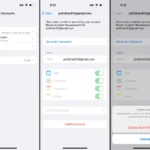
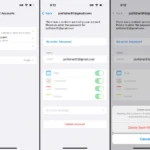
- Locate Mail Settings: Scroll down and tap on "Mail," then select "Accounts." Here you'll see a list of all configured email accounts.
- Select the Account: Tap on the email account you want to remove. This will take you to a new screen with more details.
- Choose Delete Account: Scroll down and tap on "Delete Account." A confirmation prompt will appear.
- Confirm Deletion: Tap "Delete" again to finalize the removal. The account will no longer be accessible on your device.
Consider the following before proceeding:
| Pros | Cons |
|---|---|
| Reduces clutter of inactive accounts | No longer receive emails from that account on your device |
| Simplifies email management | May lose access to saved data linked with the account |
| Improves device performance by removing unused accounts | Requires reconfiguration to add the account back in the future |
Lastly, if you have important emails stored only in this account, ensure you back them up or forward them before deletion, as this action cannot be undone.
For more on email communication, check out our article on What Does CC Stand For In Email For Better Communication.
Real-World Use Cases for Removing an iPhone Email Account
Clearing Out Old Accounts
Removing an outdated email account can help declutter your inbox and device settings, making navigation easier. This is especially useful if you've switched to a new email provider.
Why this matters: Stating a clean inbox leads to increased focus and less distraction from irrelevant emails, enhancing your overall device experience.
Enhancing Security
Deleting an email account you no longer use can enhance your device's security by minimizing access points for potential breaches. Keeping only the necessary accounts can help safeguard your sensitive information.
Why this matters: Highlighting the importance of security, reducing the number of accounts decreases vulnerability, making it harder for unauthorized users to access your data.
Improving Performance
Removing an email account can potentially improve your iPhone's performance by reducing background processes associated with syncing and notifications from that account.
Why this matters: Providing a more seamless performance means a smoother user experience, allowing for quicker access to important features and apps without lag.
Preparing for Sale or Trade-In
Before selling or trading in your iPhone, it’s wise to remove personal email accounts to protect your information and ensure that the new user doesn’t have access to your data.
Why this matters: Asking for privacy during transactions helps maintain your security, safeguarding personal data from unintended access.
Managing Work-Life Balance
Removing a work email account from your personal device can help establish boundaries between work and personal life, especially during off-hours and vacations.
Why this matters: Emphasizing mental well-being encourages a healthier separation between professional obligations and personal time, reducing stress levels.
Avoiding Notification Overload
By removing an email account that generates excessive notifications, you can regain control over your device alerts, leading to fewer distractions throughout the day.
Why this matters: Stating that fewer notifications can improve your focus and productivity highlights the importance of a streamlined device for daily activities.
Streamlining Communication
When you consolidate email accounts on your iPhone, you can streamline communication by focusing solely on the accounts you actively use, reducing confusion and increasing efficiency.
Why this matters: Providing a clearer communication path enhances user efficiency, allowing quicker responses and engagement with important messages.
Understanding How to Remove Your iPhone Email Account
Why would I want to remove my email account from my iPhone?
There are various reasons someone might choose to remove their email account. For instance, if you're changing service providers, experiencing frequent syncing issues, or simply want to declutter your device, deleting an unused account can help streamline your digital life.
What steps do I need to follow to remove an email account from my iPhone?
To remove an email account, navigate to the Settings app, scroll down to Mail, then Accounts. Select the account you wish to remove and tap on "Delete Account." Confirm your choice, and the account will be unlinked from your device.
Will I lose my emails if I remove the email account?
This depends on the type of email account you are removing. If the emails are stored locally on your iPhone, yes, deleting the account will remove those emails. However, if your emails are stored on a server (like Gmail or Yahoo), they will still be accessible through their respective apps or websites.
Can I add the email account back after removing it?
Absolutely! After removal, you can go back to the Mail settings and add the account again. Just make sure you have your login credentials ready to set it up again without any hassle.
Removing an email account from your iPhone might seem a bit daunting at first, but really, it’s a straightforward process that anyone can handle. What’s most important is that you remember it's all about giving yourself a clean slate, whether that means switching to a different provider or just tidying up your settings. Once you're comfortable with the steps, you’ll find it’s a quick task that brings a nice sense of organization to your device. So, go ahead and declutter your email inbox—your future self will appreciate the clarity! And if you need help with understanding email functionalities more, check out our piece on what CC means in email communication. Happy emailing!